Setting up Order Management Rules: EU Product Identifiers and B2B Classification [Guide]
Last updated: October 22, 2026
You can use Order Management Rules (OMRs) to populate missing EU product identifiers automatically or classify verified business orders without manually updating each order in techSHIP.
This guide covers how to configure three practical Rule Set scenarios: populate Manufacturer product identifier from SKU, populate UPC from SKU, and set Receiver type to Business for orders you have already determined are B2B.
Before You Begin
Before configuring these rules, make sure you are familiar with creating and configuring an OMR Rule Set. For general instructions, refer to 📄 What's New in Order Management Rules (OMR) for Rule Sets in techSHIP [Guide].
Before choosing an identifier rule, identify the authoritative source for each value. If your Host System or client item catalog already supplies the correct identifier, you may not need an OMR.
You must also confirm that the value you intend to copy has the correct business meaning. A SKU should only be copied to Manufacturer product identifier when that SKU is actually the manufacturer’s model, part, or style number. Similarly, copy a SKU to UPC only when the SKU itself is the applicable standardized product code.
Do not use an identifier-copy rule to manufacture a value that does not represent the required identifier. Also, do not classify an order as Business only to bypass missing identifier requirements.
For information about EU product identifier applicability, sourcing options, and catalog population, refer to 📄 Understanding EU Product Identifiers in techSHIP [Information].
Choosing the Rule Trigger
Your Rule Set trigger determines when the assignment occurs relative to other sources of identifier data.
Use After Order Import when you intentionally want the rule to assign values immediately after the order is imported. This can populate a missing field before processing-time catalog population occurs.
Use Before Processing when you want eligible catalog values to populate first and use the OMR only for fields that are still missing. This is the recommended pattern when your client item catalog is your preferred source.
For the identifier scenarios in this guide, the examples use Before Processing so the rule can preserve identifiers already supplied by the order or populated from the catalog before the rule evaluates them.
An unconditional Set value action can replace an identifier that is already correct. An expression whose source evaluates to empty can also clear its target. Use destination-empty and source-present conditions when you want the rule to act only as a fallback.
For a complete reference to available fields and operators, refer to 📄 Order Management Rules (OMR) Available Conditions [Information] and 📄 Order Management Rules (OMR) Available Actions [Information].
Configuring Product Identifier Fallbacks
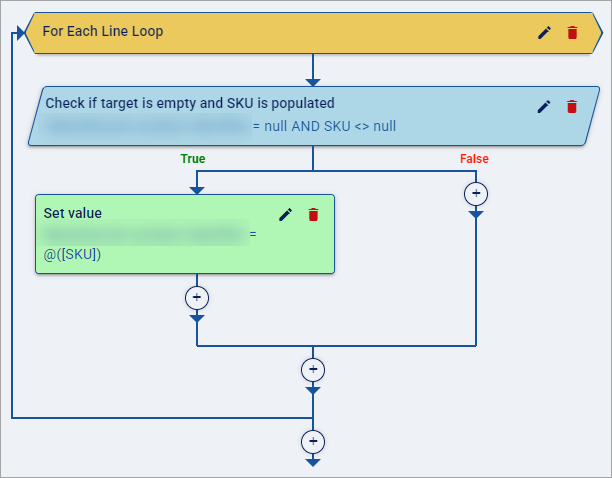
Both identifier scenarios use the same line-level Rule Set pattern. You check whether the destination identifier is empty, confirm that SKU contains a value, and then copy that SKU into the destination field.
Populate Manufacturer Product Identifier from SKU
Use this variation only when the applicable SKU is also a valid manufacturer identifier, such as the manufacturer’s model, part, or style number.
For this variation, use Manufacturer product identifier as the destination field and @([SKU]) as the value assigned by the action.
If only selected products use their SKU as a manufacturer identifier, add the appropriate SKU conditions or client scope so you do not apply the mapping to unrelated products.
Populate UPC from SKU
Use this variation only when the applicable SKU itself is the standardized product identifier that you want to store in UPC.
For this variation, use UPC as the destination field and @([SKU]) as the value assigned by the action.
Keep this variation separate from the Manufacturer product identifier rule so you do not copy arbitrary SKU values into both identifier fields.
Configure the Rule Set and Line Loop
In your Rule Set, configure the intended client assignments, select the Before Processing trigger, and make sure the Rule Set is Enabled when you are ready to use it.
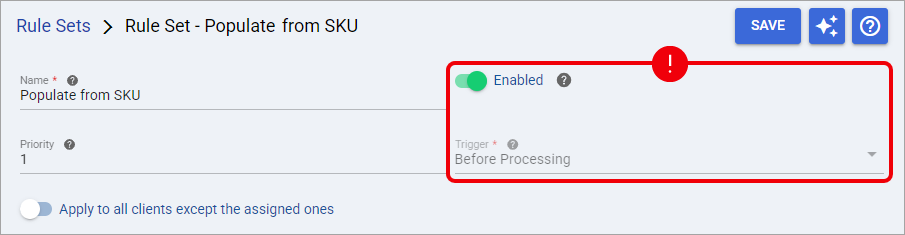
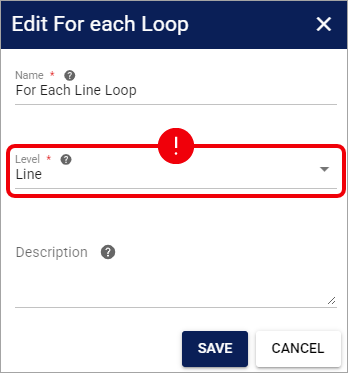
Add a For Each Line block and set its Level to Line so techSHIP evaluates each order line independently.
Configure the Missing-Value Conditions
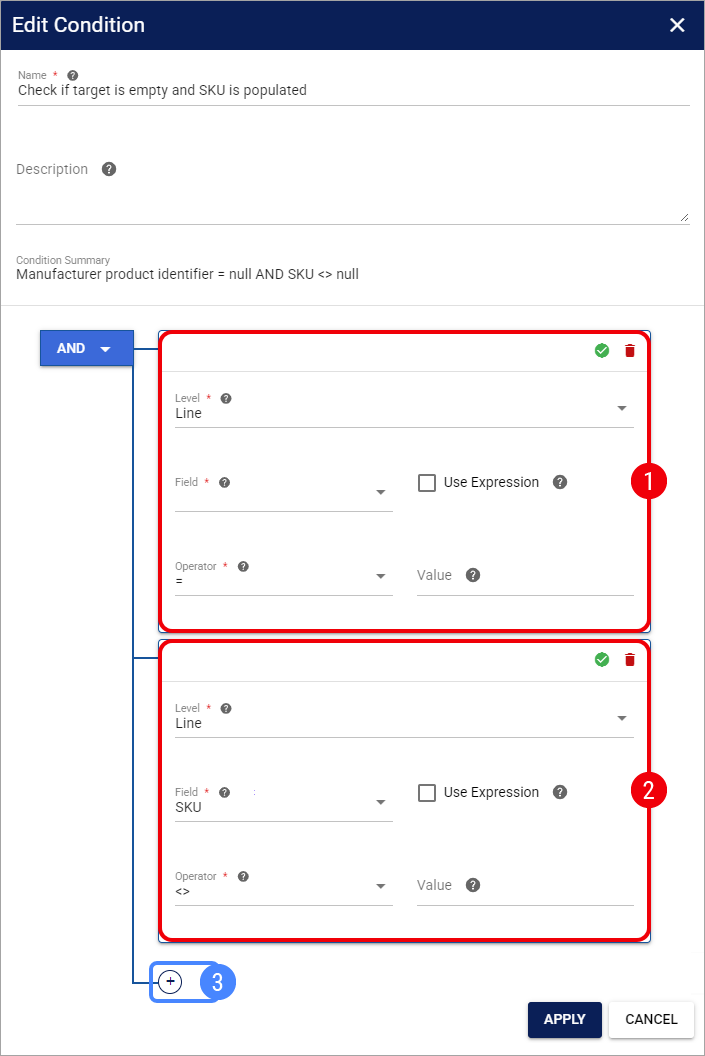
Inside the For Each Line block, add conditions that require the destination identifier to be empty and SKU to contain a value:
Set Condition Level to Line, select your destination field—either Manufacturer product identifier or UPC—select = (Equals), and leave the comparison value empty.
Add another Line condition for SKU, select <> (Not Equals), and leave the comparison value empty.
Optionally, add any additional SKU or client conditions required to limit the mapping to products for which the source value has the correct business meaning.
The destination-empty condition ensures that the rule preserves an identifier that is already populated when the rule evaluates the line.
Configure the Set Value Action
Inside the True branch, add an action and configure it as follows:
Set Level to Line.
Select Set value as the Operation.
Select the same destination field used in your condition: Manufacturer product identifier or UPC.
Enter @([SKU]) as the Value.
Then, save the action and Rule Set.
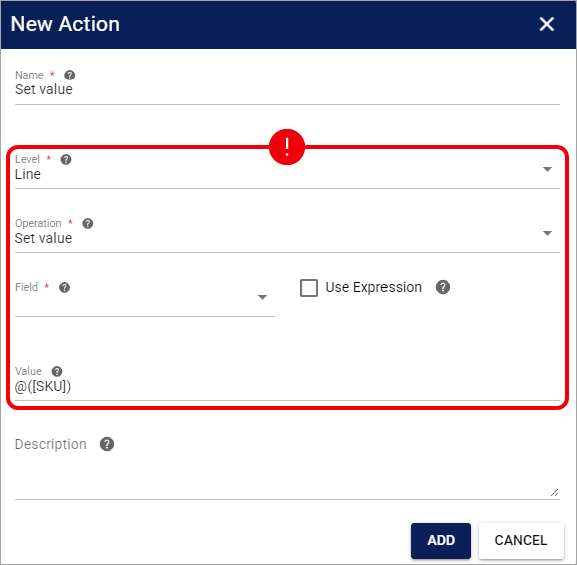
When the rule runs, techSHIP evaluates each line separately. If the destination identifier is empty and SKU contains a value, the rule copies that line's SKU into the selected destination field.
Your Rule Set now acts as a fallback for the selected product identifier.
Next, test it with both populated and empty line values before applying it broadly.
Classifying Verified B2B Orders
You can use an Order-level Receiver type action when you have already established that specific orders are business-to-business shipments.
Setting Receiver type = Business records the classification used by supported downstream workflows. It does not determine regulatory eligibility or prove that an order qualifies for a B2B exemption.
Unlike the product identifier scenarios, this configuration operates at Order level. You do not need a For Each Line block.
Classify a Client Whose Relevant Orders Are All B2B
If all relevant orders for a client are verified business orders, scope the Rule Set or its conditions to that client.
Then add an Order-level Set value action and configure Receiver type as the target field and Business as the value.
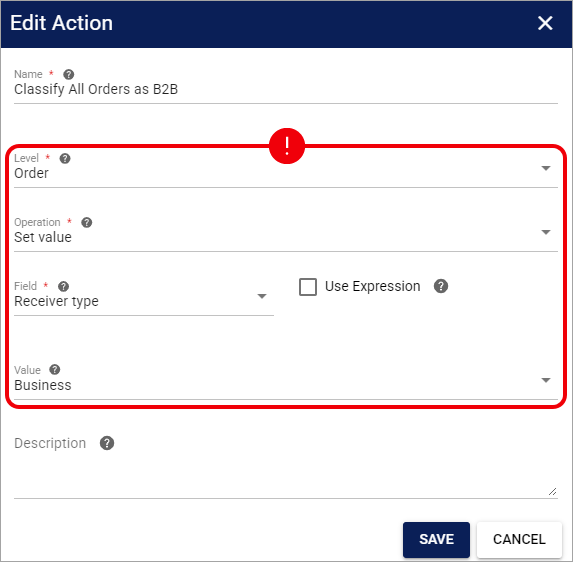
When the configured scope matches, techSHIP assigns Receiver type = Business to the order.
Your rule now classifies the intended verified B2B orders automatically. Next, test both an order inside the configured scope and one outside it.
Handle Mixed B2B and B2C Clients
If the same client sends both business and consumer orders, do not classify every order for that client as Business.
Instead, add a reliable order-specific condition that identifies only the orders you have already determined are B2B, then apply the same Receiver type = Business action when that condition evaluates as true.
The [Default] action value clears the current order-level override so the applicable downstream default can be used again. [Default] does not determine whether an order is B2B or B2C.
Your mixed-order Rule Set can now preserve the intended classification by order. Next, verify both a known business order and a known consumer order.
Verifying the Rules
Before relying on the automation, test your Rule Sets with neutral orders that include multiple lines and, where practical, more than one package.
Verify that a line with an existing Manufacturer product identifier or UPC keeps its current value and that an eligible line with an empty destination receives the expected SKU-derived value.
Also confirm that lines outside your configured SKU or client scope remain unchanged and that identifier values preserve their expected text representation, including leading zeros.
For a catalog-first setup using Before Processing, verify the identifier values after processing, when the rule has evaluated the values available after eligible catalog population.
For B2B classification, verify that only orders you have already identified as business orders receive Receiver type = Business, while consumer orders remain outside the matching rule path.
Once these checks succeed, keep the Rule Set enabled for the intended assignments and confirm the first applicable orders continue to follow the expected mappings.