AI Assistant: Shared Interface & Controls [Information]
Last updated: October 20, 2026
The AI Assistant uses a consistent conversational interface across supported Techdinamics products, helping you ask questions and work with contextual information without leaving your current workspace.
This article explains the shared interface, controls, confirmation flow, and data-handling guidance used by the AI Assistant.
Using the AI Assistant
The conversational interface is standardized across the application, utilizing a consistent side panel design. To interact with the tool, click the AI Assistant icon located on the right side of the screen within any supported module.
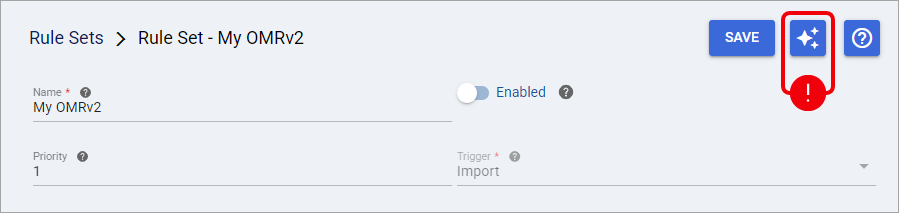
The capabilities and availability of the AI Assistant depend on the product and module you are using. For details about supported areas and product-specific behavior, refer to the corresponding product AI Assistant article.
Navigating the AI Interface
Once the side panel is open, the interface features a consistent layout designed for quick data retrieval and action.
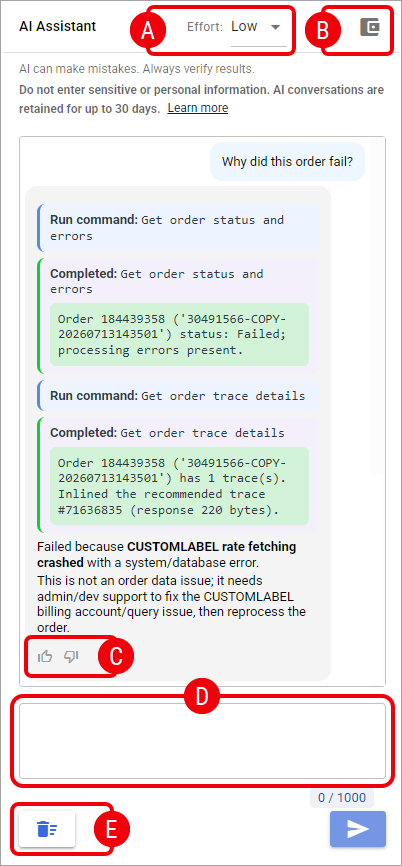
The AI Assistant interface may vary slightly depending on the product or module you are using. Some controls or capabilities shown below may not be available in every implementation.
A. Effort Level Dropdown
The centralized platform runs on a standardized GPT 5.5 engine across all integrated modules. To grant you full control over response quality versus generation speed, you can configure the AI behavior directly using this dropdown menu:
Low (Default): Provides fast, cost-efficient responses. This is the optimal setting for routine questions or standard system guidance. Unless manually changed, every new conversation automatically defaults to this tier.
Medium: Balances processing speed with a deeper analytical scan of the available order or routing data.
High: Prioritizes technical accuracy and depth over speed, making it the best choice when dealing with intricate configurations or complex troubleshooting.
Selecting a higher effort level consumes a greater amount of your available AI tokens.
B. Wallet
Displays your current AI token usage and limit.
C. Feedback Controls
To help Techdinamics continuously refine and improve response accuracy, you can evaluate every generated answer using the Thumbs Up or Thumbs Down buttons located directly beneath the response.
When you submit a Thumbs Down, the system automatically captures the full session context—including your prompt, the selected Effort Level, and the referenced data. This session is securely routed to our triage team to enhance future AI performance across the platform.
D. Prompt Input Box
This is the primary text field where you enter your questions or configuration requests. Provide as much detail as possible to get the most accurate, contextual response.
For the best results, reference the specific on-screen data or task you are currently working on, as the embedded assistant actively relies on your current module's context to generate accurate answers.
The character counter shows how much text you have entered in the prompt input box against the supported limit of 1,000 characters.
Use Send to submit a valid request to the AI Assistant. The Send control is unavailable when the current input or assistant state does not allow another request.
Product-specific behavior for active or previously submitted operations is documented in the corresponding product article.
E. Clear Chat
Clears the current conversation and resets the conversational context.
Using Clear Chat does not reset recorded AI usage, and monthly limit should be treated as a usage control rather than a guaranteed spending ceiling.
Action Confirmation
Action Confirmation appears when the AI Assistant prepares a supported action that requires your explicit approval before the proposed operation is performed. Read-only requests do not require this additional confirmation.
Before anything is changed, review the confirmation card. It summarizes the proposed action and affected configuration and, when applicable, provides a comparison of the current and proposed configuration so you can verify the consequence.
Use the action-specific primary button to apply only the operation shown on the card, or select Cancel to leave the proposed change unapplied. A conversational reply such as “yes” or “proceed” does not replace the explicit confirmation control.
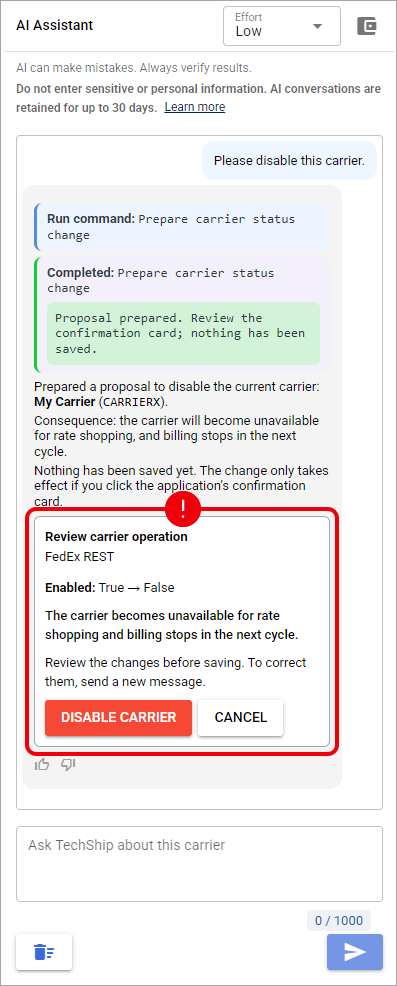
To change the requested operation, send a new instruction. The AI Assistant prepares a new proposal and confirmation instead of changing the approval already displayed. If a confirmation is replaced, becomes invalid, or has already completed, it is no longer actionable. Validation or execution errors are displayed prominently so you can review the issue and submit a corrected request.
Confirmation and save behavior may vary by product or module. Refer to the corresponding product AI Assistant article for details about how an approved change is applied or saved.
Privacy, Security, and Data Handling
To protect your operational data, do not enter Carrier credentials, passwords, API keys, API secrets, tokens, or other protected secrets into the AI prompt. Avoid entering personal information, confidential records, or payment details unless strictly authorized and necessary for your business purpose.
To support troubleshooting and auditing, all AI conversations are securely stored on Techdinamics servers for up to 30 days before being automatically deleted.
Because AI-generated responses can sometimes be inaccurate or outdated, you are responsible for verifying any critical information before executing business decisions.
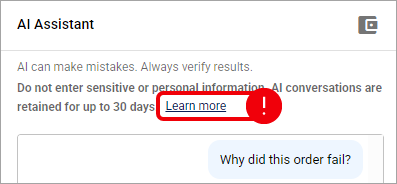
Click the Learn more link within the assistant panel to read detailed information regarding available security, privacy, retention, and AI Assistant disclaimer information.
Product-Specific Availability and Behavior
The shared interface does not mean that every AI Assistant supports the same capabilities or workflow. Use the appropriate product reference when you need information about availability, supported actions, confirmations, history, retention, or additional controls using the links below: