How to set up a Snapfulfil Fulfillment Channel [Step-by-step guide]
Last updated: September 29, 2026
To connect Snapfulfil, first create a fulfillment channel connection, and then set up the connection parameters.

Once the connection is established between the system and techOMS, you can push sales orders, pull inventory levels and shipments, send and get receipts, get stock updates, and synchronize inventory.
This is a two-phase procedure:
- Create the fulfillment channel
- Configure additional parameters


I. CREATE THE FULFILLMENT CHANNEL
To create a fulfillment channel, follow the instructions in How to set up Warehouses and Fulfillment Channels for an Account [Step-by-step guide].

II. CONFIGURE ADDITIONAL PARAMETERS
To configure additional parameters:
1. Click Channels from the left menu under the Fulfillment Channels section.
2. Click on the created channel's name in the list.
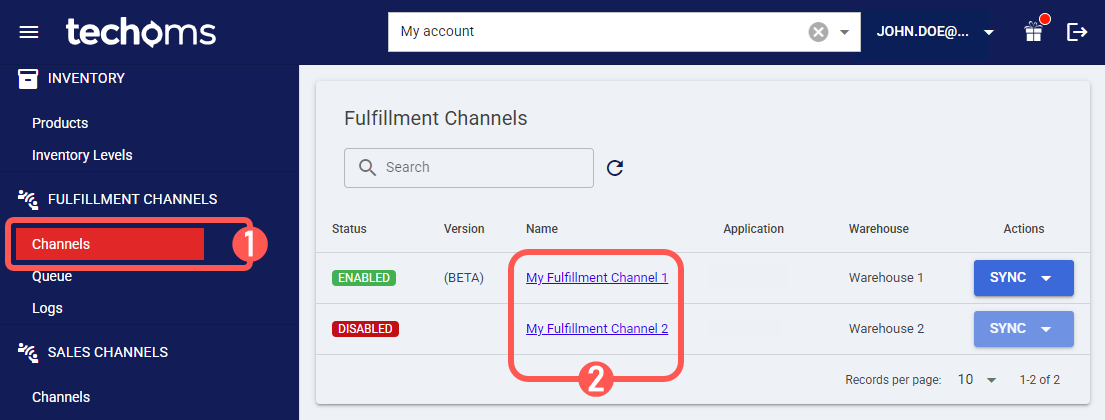
3. Modify parameters according to each section as required.

SECTIONS
A) VIEW SELECTION allows changing the different view modes:
- Main Settings (default): Allows reviewing and setting general settings and recurring jobs. If you wish to set up automations for the channel, follow the steps here: How to configure Recurring Jobs for Sales/Fulfillment channel Automation [Step-by-step guide].
- Advanced Settings: Allows to define channel advanced settings as detailed in How to manage Fulfillment Channels Advanced settings [Step-by-Step guide].
- Channel Settings: Allows managing the channel integration. All fields must be completed for the integration to work properly.
- API URL Used to reach the URL of the Snapfulfil instance. WARNING: If you upgraded your Snapfulfil Fulfillment Channel to the current (Beta) version via Maintenance → Upgrade Version, please update the API URL in Channel Settings to prevent or resolve errors across API calls. Here's how:
1. Open Channel Settings → API URL.
2. Append /api/ to the end of the Snapfulfil URL.
3. Save.
4. If applicable, retry the operation.
See this article to learn how to upgrade from a Deprecated channel into its current version: How to Upgrade a Sales/Fulfillment Channel from a Previous to a Current Version [Step-by-Step Guide]
- API URL Used to reach the URL of the Snapfulfil instance.
- Username & Password: Snapfulfil username and password
- Biz Id: Snapfulfil Biz code to identify your Business Entity
- Owner Id: Snapfulfil Owner ID to specify the Account owner
- Site Id: Snapfulfil site value to specify the Warehouse location
- Customer Id: Snapfulfil Customer value according to the case
- Supplier Id: Snapfulfil Supplier value according to the case
- Inventory Status: Allows to define the values to include for Inventory Status (type value, hit Enter to confirm).
- Copy references to attachments: techOMS can send attachments in shipments to SnapFulfil. It has three options. When Disabled, no order references are mapped. When choosing All Reference Fields, all order references will be mapped as attachments. Map Defined Check Codes Dictionary option will allow only the reference codes entered in the Reference Codes field.
- Defined Check Codes: If you choose Map Defined Check Code References, all the code references in this field will be sent as attachments.

- Throughput: Defines the maximum number of requests per minute allowed for the integration. Default is 100, but some channels (e.g., Shopify) may have specific limits.

- Carrier Mappings: Allows reviewing and setting carrier name mappings between the WMS connection and techOMS as detailed in How to map Carriers in a Fulfillment Channel [Step-by-step guide].
- SKU Mappings: Allows reviewing and setting SKU mappings between the WMS connection and techOMS as detailed in How to map SKUs in a Fulfillment Channel [Step-by-step guide].
- Reference Mappings: Allows reviewing and setting reference mappings between techOMS and Snapfulfil. Refer to How to map References in a Fulfillment Channel [Step-by-step guide] for more details.
B) GENERAL displays and/or allows editing the connection name, and mode.
C) RECURRING JOBS allows configuring the available recurring jobs. For more information, refer to How to configure Automations for Sales/Fulfillment channels [Step-by-step guide].
D) QUICK ACTIONS allows performing additional/quick actions:
- Sync: Manually synchronize elements between systems:
- Import Products From Channel
- Export Products To Channel
- Receive Inventory Levels From Channel
- Receive Shipments From Channel
- Receive Receipts From Channel
- Save: Save changes.
- Delete: Delete the channel connection.