How to set up an Extensiv IM Sales Channel [Step-by-step guide]
Last updated: September 29, 2026
To connect Extensiv IM, first create a Sales Channel connection, and then set up the connection parameters. Once connected to techOMS, you can push and update sales orders, get stock updates, and synchronize inventory.
This process has two phases:
- Create the channel
- Configure additional parameters


1. CREATE THE CHANNEL
To create a Sales Channel, see How to Create a Sales Channel [Step-by-step guide].
Once you have added it, proceed to the following section.
2. CONFIGURE ADDITIONAL PARAMETERS
The configuration is organized into sections that allow different actions and settings: Quick Actions, View Selection, and Content View. All of them are described below.

To configure additional parameters:
1. Click on the created channel's name in the list.
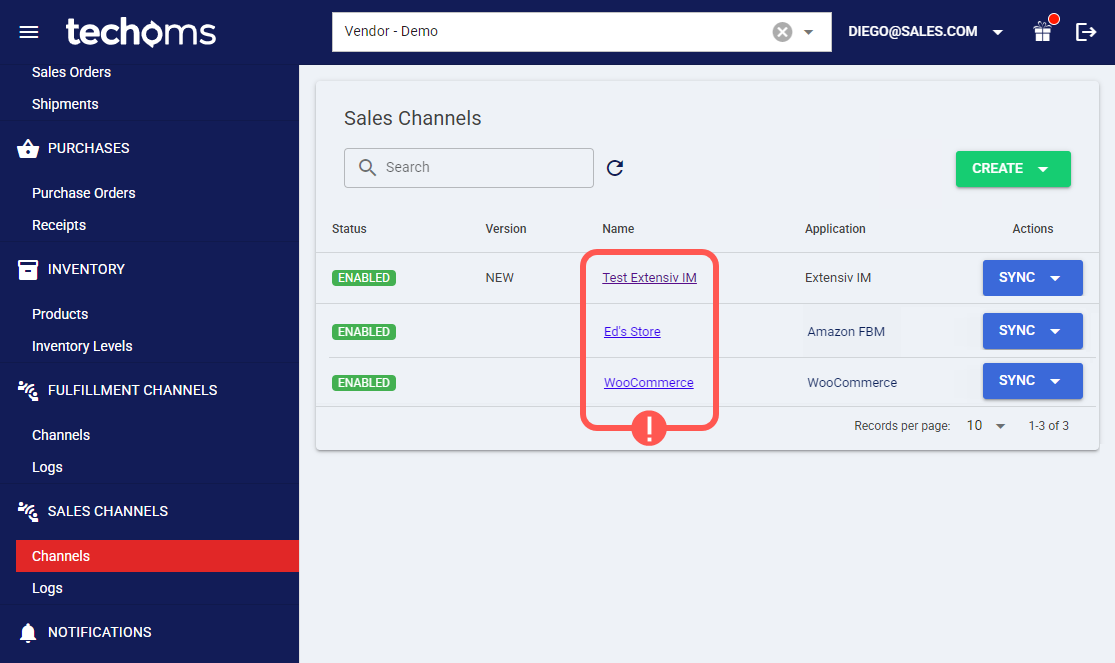
2. Add, Change, or Set parameters in each section as needed.

SECTIONS
A) QUICK ACTIONS lets you perform additional actions:
- Sync: Enables manual synchronization as detailed in How to Synchronize data through a Sales Channel [Step-by-step guide].
- Save: Saves and commits changes.
- Delete: Deletes the channel connection.
B) VIEW SELECTION allows you to switch between view modes:
- Main settings (default): Configures general and automation behavior using the options outlined in Main Settings of a Beta Sales Channel [Information].
- Advanced settings: Configures additional system/privacy settings using: How to manage Fulfillment Channels Advanced settings [Step-by-Step guide]. WARNING: In the system settings group, ensure that the selected Timezone field matches the timezone in Extensiv IM; otherwise, the "Receive Sales Order" recurring job will not retrieve orders.

- Channel settings: Sets the API URL, User, and Key.
- Carrier Mappings: Sets Carrier name mappings as detailed in How to map Carriers in a Sales Channel [Step-by-step guide].
- SKU Mappings: Reviews and sets SKU mappings as detailed in How to map SKUs in a Sales Channel [Step-by-step guide].
- Warehouse Mappings: Binds or modifies the connection to a specific warehouse instance by setting or modifying the Warehouse IDs. This links the techOMS warehouse with the corresponding identifier in the Sales Channel.
C) CONTENT VIEW displays and/or allows editing of the settings in the "View Selection" section.
