How to Find/Filter Purchase Orders [Step-by-Step Guide]
Last updated: September 29, 2026
You can easily find and manage purchase orders by following the steps below.


To find or filter purchase orders:
1. Select the desired account from the header switcher.
2. Click Purchase Orders from the left menu under the Purchases section.
3. Filter the orders using one or more of the following options:

- Search Box: Quickly search by any part of the Order or Reference Number.

- Quick Filter: Quickly filter by the current Order Status or by the date they were last updated.

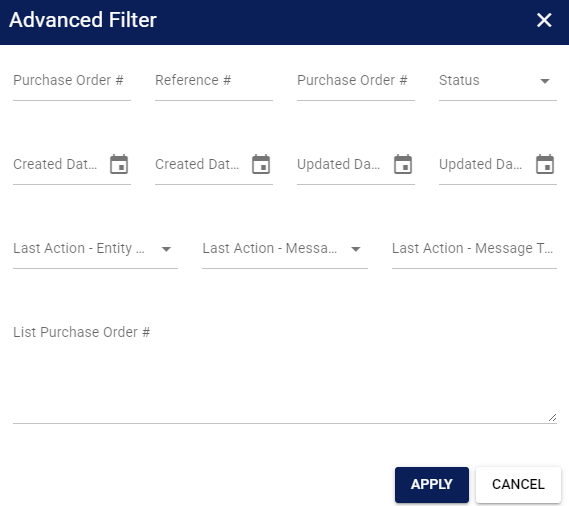
- Advanced Filter: Filter by any of the following Order properties. After filling out the form, press Apply.

4. Review the filtered orders.