How to Get Your API Key for the techSHIP Desktop Client [Guide]
Last updated: September 29, 2026
You can copy or rotate an API Key for your own account or for another Location User in techSHIP, then use the key to sign in to the techSHIP Desktop Client.
This guide explains how to access the appropriate user dialog, copy the current API Key, or replace it with a new one.
 | For complete installation and login instructions, refer to How to Install the techSHIP Desktop Client [Step-by-Step Guide]. |
 | Keep API Keys secure and do not expose them to unauthorized parties. Rotating an API Key logs that user out of all techSHIP Desktop Clients until you enter the new key. |
TABLE OF CONTENTS
Open Your User Dialog
Click your profile in the upper-right corner of techSHIP.

The Current User dialog opens with your account information and API Key controls.

Your Current User dialog is now open. Continue with Copy the Current API Key or Rotate the API Key, depending on what you need to do.
Open Another Location User's Dialog
| You need the required Location User permissions to manage another user's API Key from Settings > Location Users. For detailed information about access and permissions, refer to techSHIP User Permissions Structure [Information]. |
| If the profile belongs to an Organization User, it appears as read-only in Location Users, and you cannot modify it from this page. For information about global users and roles, refer to Understanding Organization Users [Guide]. |
 | From Settings, select Location Users. |
 | Click the Edit icon for the Location User you want to configure. |
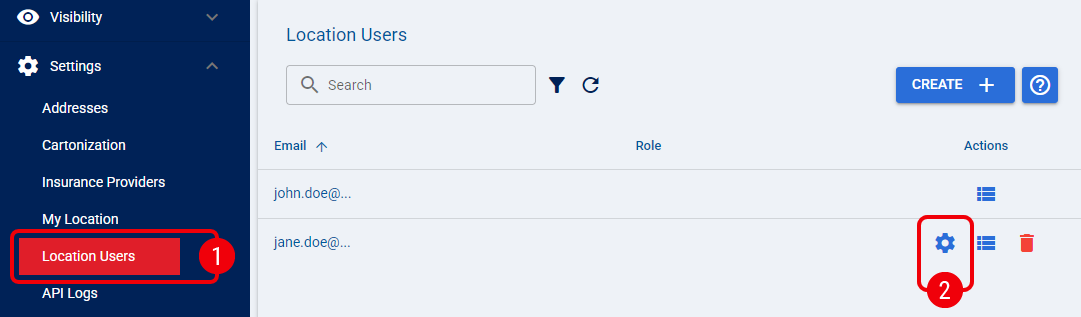
The Location User dialog is now open. Continue with Copy the Current API Key or Rotate the API Key, depending on what you need to do.
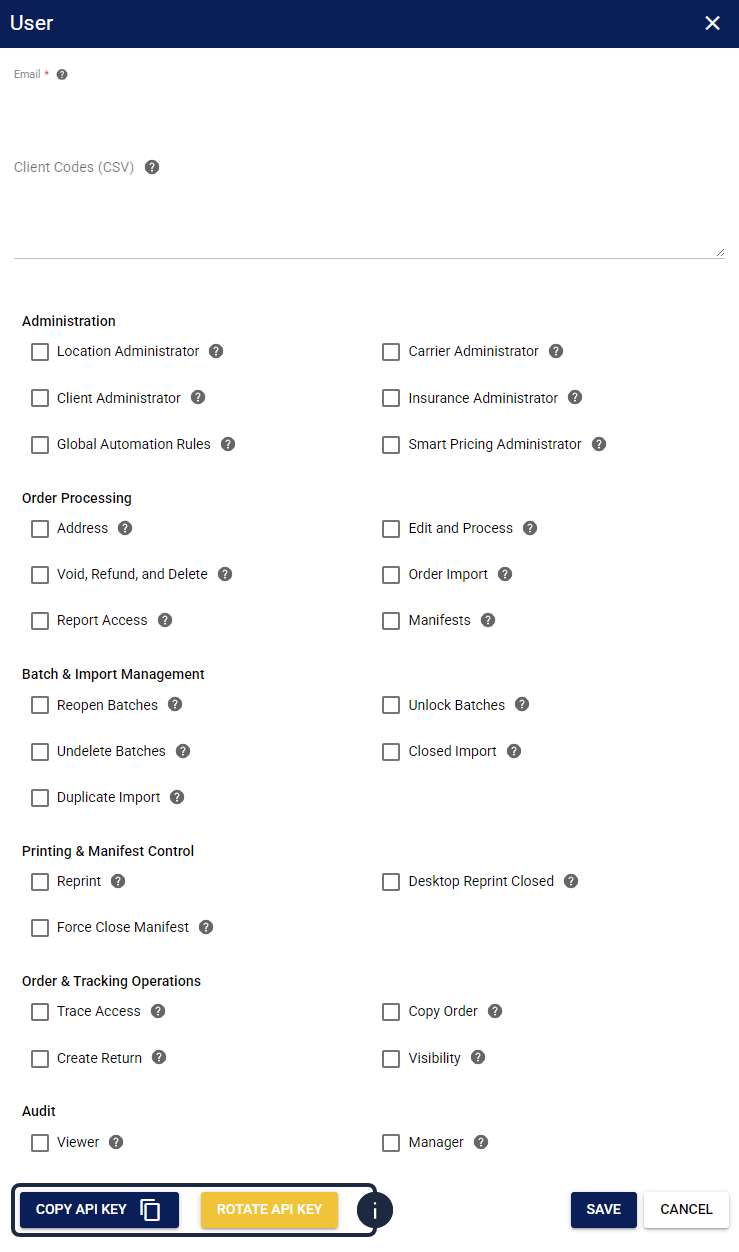
Copy the Current API Key
| Click Copy API Key to copy the current API Key to your clipboard. |

| Paste the copied API Key into the techSHIP Desktop Client when you sign in. |
The current API Key is now available in your clipboard and can be used to sign in to the techSHIP Desktop Client.
Rotate the API Key
| Click Rotate API Key to replace the current API Key. |

| Click OK to confirm the rotation. |

 | Click Copy API Key to copy the new API Key, then paste it into the techSHIP Desktop Client to sign in again. |

The new API Key is now active. Use it for any techSHIP Desktop Client sessions that need to reconnect.