How to Clone Accounts within an Organization [Step-by-step guide]
Last updated: September 29, 2026
You can clone an existing Account within an Organization to use it as a template. This helps you set up multiple accounts with similar configurations, without manually repeating all settings.

When cloning an account, techOMS duplicates the main settings while excluding:
- account-specific data
- channels data
- status-related elements
The following table provides more details:
| ELEMENT | INCLUDED | EXCLUDED |
| Orders | All sales and purchase orders | |
| Order Rules |
| Limited support for:
|
| Inventory | All inventory related data | |
| Fulfillment channels | All fulfillment channels | |
| Sales channels | All sales channels | |
| Admin settings |
|
|
| Account settings |
|
|
| Logs | All logs related data |


II. HOW TO CLONE AN ACCOUNT
1. Deselect any currently selected account.
2. Click Organizations from the left menu under the System Configuration section.
3. Press Edit for the desired organization.
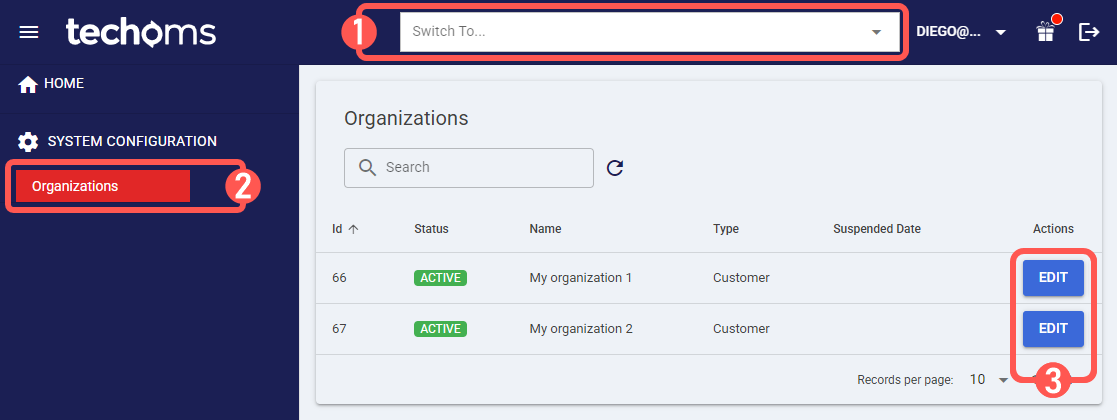
4. Press Create.
5. Click Clone Account.

6. Complete the following fields:
- Select Account to Clone: Select the existing account you want to clone.
- New Account Name: Enter the cloned account name.NOTE: techOMS auto-generates the underlying Account Code from the provided New Account Name. The system normalizes input to uppercase and replaces spaces with hyphens. Consequently, names appearing visually different but normalizing identically (e.g., "My-Account" and "My Account") will trigger a duplication error. The resulting code must be strictly unique within the Organization.
7. Press Clone Account.

After cloning, a notification in the top-right corner will confirm the result.

To see the cloned account in the header switcher, you'll need to log out and log back in.