How to Delete a User of an Account [Step-by-step guide]
Last updated: September 29, 2026
This article details how to permanently delete users under the hierarchy of an account.

To delete a user of an account:
1. Click Organizations from the left menu under the System Configuration section.
2. Press Edit for organization to which the account belongs.

3. Press Edit for the desired account.

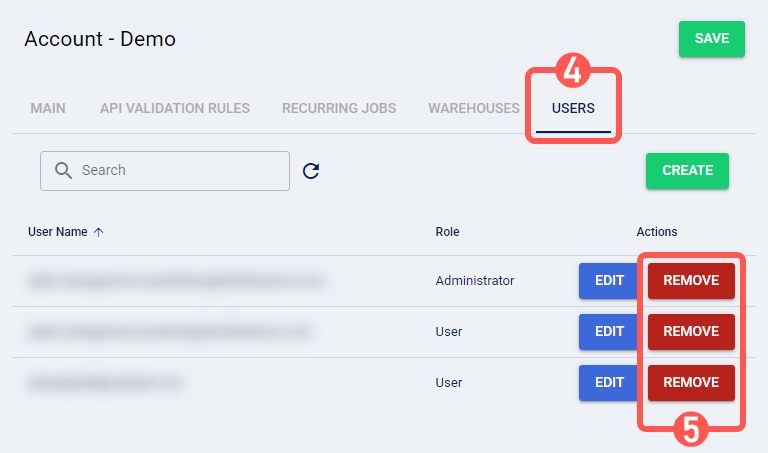
4. Click on the Users tab.
5. Press Remove for the desired user.
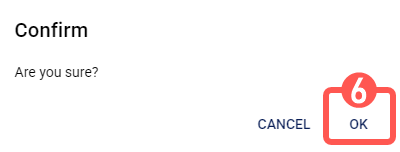
6. Press OK to apply the changes.
The user is now successfully deleted from the account.