How to edit an individual SKU [Step-by-Step guide]
Last updated: September 29, 2026
You are able to edit SKUs manually if you will not bulk update SKUs via file.
To do so:
1) Click Integrated Flow / SKU Map
2) Click the Warehouse or Sales channel where you will edit the SKU
3) Click the Edit button
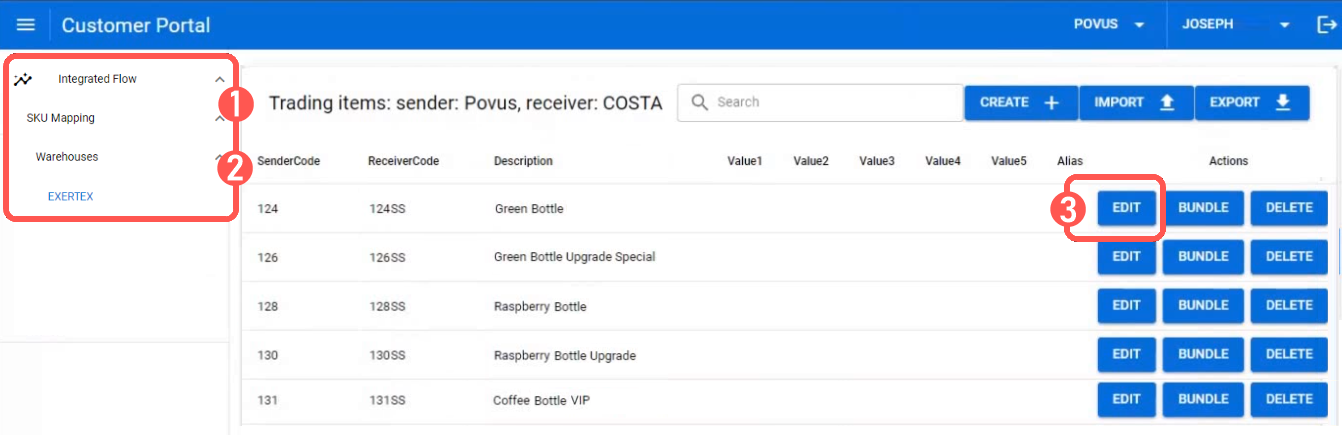
4) Fill the fields accordingly:

- Sender Code (Required): Code that the sender (e.g. a store) has in their system for this item
- Receiver Code (Required): Code that the receiver (e.g. a warehouse) has in their system for this item
- Description: Description of the product; could be used during processing, and might be required or optional depending on your integration
- Value 1: Always the UPC; might be required or optional depending on your integration
- Value 2: Merchant SKU; optional
- Value 3: Manufacturer SKU; optional
- Value 4: Custom data; depending on the integration needs
- Value 5: Pack/Pack Size info for Unit of Measure conversions (e.g. Eaches > Case); optional
- Price: SKU price; might be required or optional depending on your integration
- Facility: Used by warehouses to allocate internal storage for certain integrations
- Customer: Customer that sells the product
- Features (Size, color, etc): Descriptive elements of the SKU
- Comments: Any additional comments
5) Press Save to apply the changes