How to Register a Carrier Baseline Account [Step-by-Step Guide]
Last updated: October 7, 2026
Use the Registration workflow in techSHIP when a saved Carrier Baseline Account requires authorization through this feature. You can register the account yourself or generate a link so another person can complete the carrier authorization without signing in to techSHIP.
This guide covers how to start registration, share and manage an external registration link, complete carrier authorization, and verify the resulting registration status.
Before You Begin
Before you start, make sure the Baseline Account is saved. A new account can display the Save to register status until you save it. For instructions on setting up a baseline account, see: 📄 How to Add a Carrier Baseline Account [Step-by-Step guide].
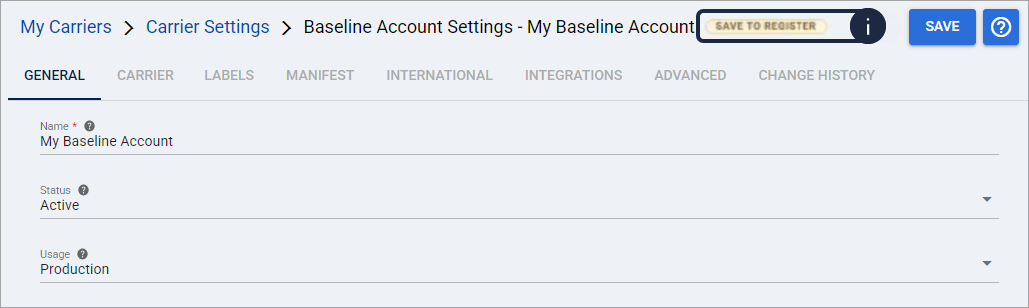
Complete any required carrier configuration before registration. If the registration dialog lists requirements under Before you can register this account, update the required values and save the Baseline Account before continuing.
Make sure you have the required carrier administration permissions to register the account or manage its registration link. To check your permissions, refer to: 📄 techSHIP User Permissions Structure [Information].
Registration availability and requirements depend on the carrier integration. The fields and authorization options available to you can vary by carrier. To learn more about a specific carrier integration, see: 📄 techSHIP supported Carriers - Master List [Guides List].
Once saved, the account status changes to Not Registered, indicating you are ready to start the carrier registration process.

Open the Registration Workflow
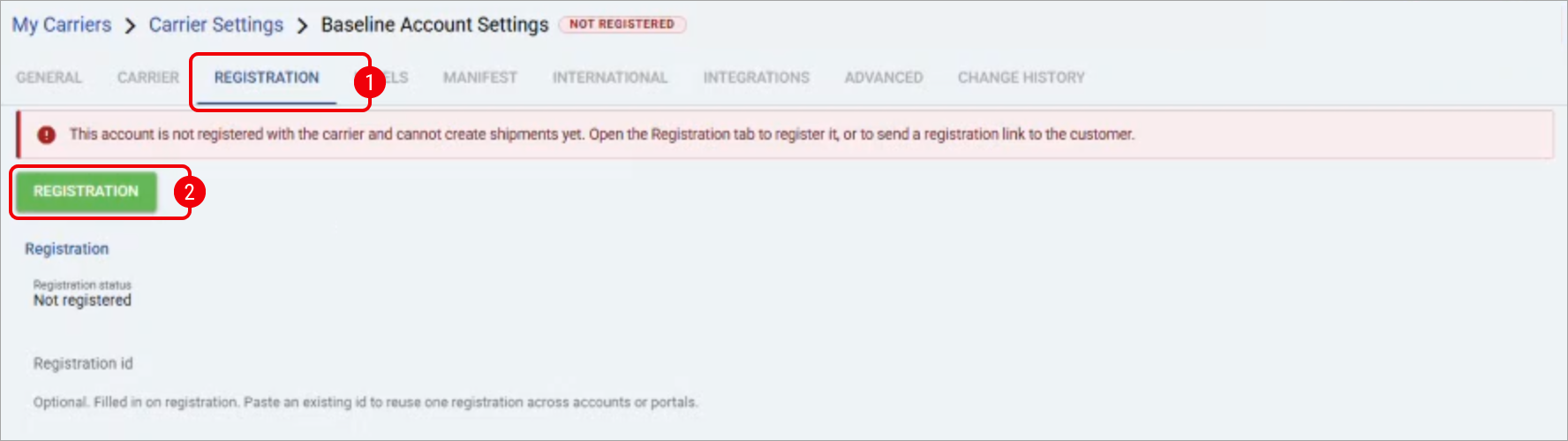
Open the saved Carrier Baseline Account that you want to register and select the Registration tab.
Review the current registration status, then select Registration.
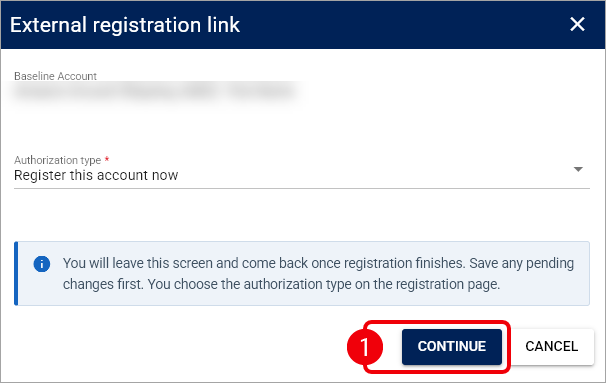
The External registration link dialog opens. Continue with the registration option that applies to you.
Register the Account Now
Use this option when you will complete the carrier authorization yourself.
In the External registration link dialog, select Register this account now under Authorization type, review any displayed prerequisites or notices, and select Continue.
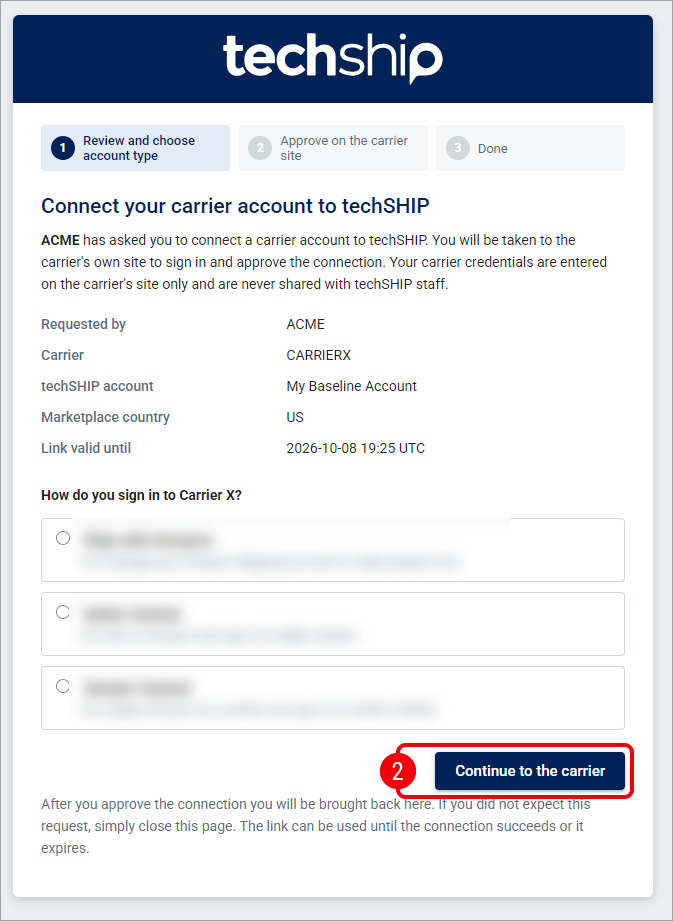
On the external registration page, review the displayed registration details, select the appropriate carrier sign-in option, and select Continue to the carrier.
On the carrier's website, sign in and approve the connection by following the carrier's authorization prompts. This step is handled exclusively by the carrier.
After authorization succeeds, review the completion confirmation, then return to or reopen the Baseline Account in techSHIP and refresh the page.
The Baseline Account reflects the completed registration. Continue with Check the Registration Status to verify the result.
Send a Registration Link
Use this option when another person will complete the carrier authorization.
In the External registration link dialog, select Send a registration link to the customer under Authorization type, enter the required value in Link valid for (days), review any displayed notices, and select Continue.
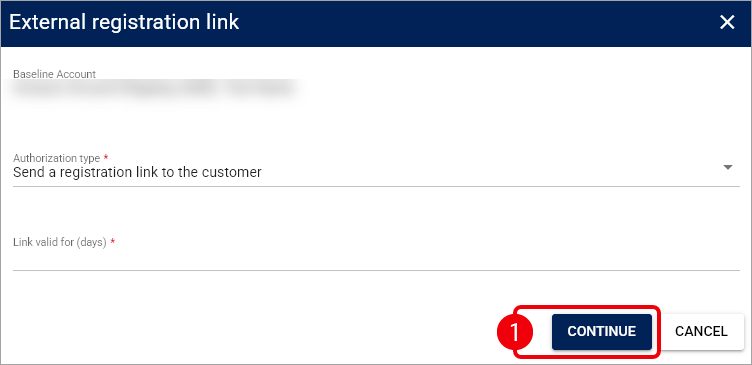
Creating a new registration flow invalidates any existing active registration link for this Baseline Account. Make sure you no longer need the previous link before you continue.
Select Copy link beside the generated External registration link.
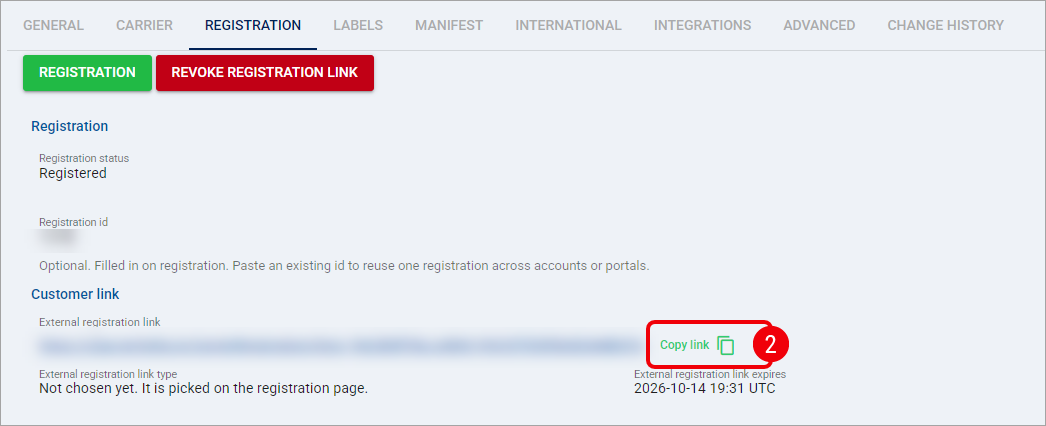
Click OKto close the confirmation prompt.
After techSHIP confirms that the link was copied, share the registration link manually through the communication channel you use with the person completing authorization.

techSHIP does not automatically send the registration link by email. The copy confirmation only indicates that the URL was copied to your clipboard.
The recipient can open the external registration link and complete the carrier authorization without signing in to techSHIP.
Complete Registration From a Shared Link
If you receive an external registration link, you do not need to sign in to techSHIP to complete the registration.
Open the registration link that was shared with you.
On the external registration page, review the displayed requester, carrier, account, marketplace country, and expiration information; select the appropriate carrier sign-in option; and select Continue to the carrier.
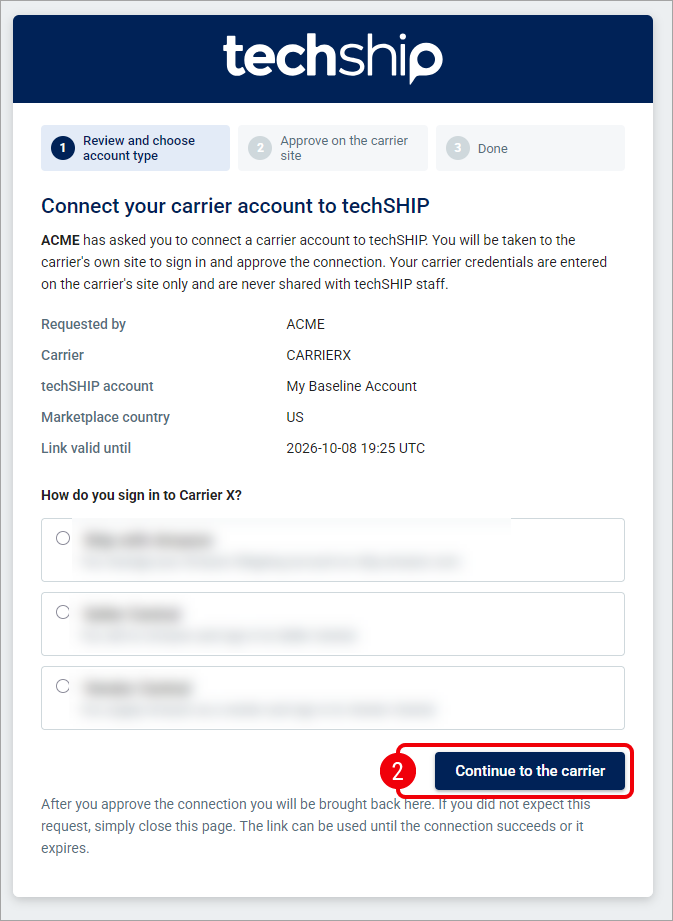
On the carrier's website, sign in and approve the connection by following the carrier's prompts. This step is handled exclusively by the carrier.
After authorization succeeds, review the completion confirmation and close the page when instructed.
The carrier authorization is stored for the corresponding Baseline Account in techSHIP. If you have access to techSHIP, you can return to the account and refresh the Registration tab to inspect the result.
Check the Registration Status
The registration badge and the Registration tab indicate the current state of the Baseline Account.
Status or Field | Meaning |
|---|---|
Save to register | You must save the Baseline Account before you can start this registration workflow. |
Not registered | The account is saved, but the required registration has not been completed. |
Registered | techSHIP contains the registration value configured for the Baseline Account. This status does not represent a live carrier connectivity test. |
Registration ID | Displays the read-only registration identifier associated with the account. This value is different from the external registration link. |
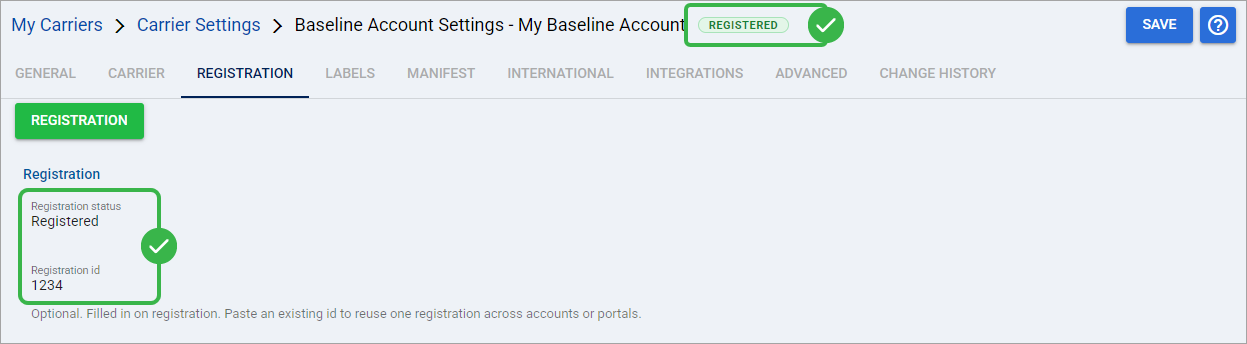
When an active registration link exists, the Registration tab also provides information about that link.
External registration link: Displays the currently active URL.
Copy link: Copies the active registration URL to your clipboard.
External registration link type: Initially displays Not chosen yet. It is picked on the registration page. and updates after a sign-in option is selected.
External registration link expires: Displays the expiration date and time in UTC.
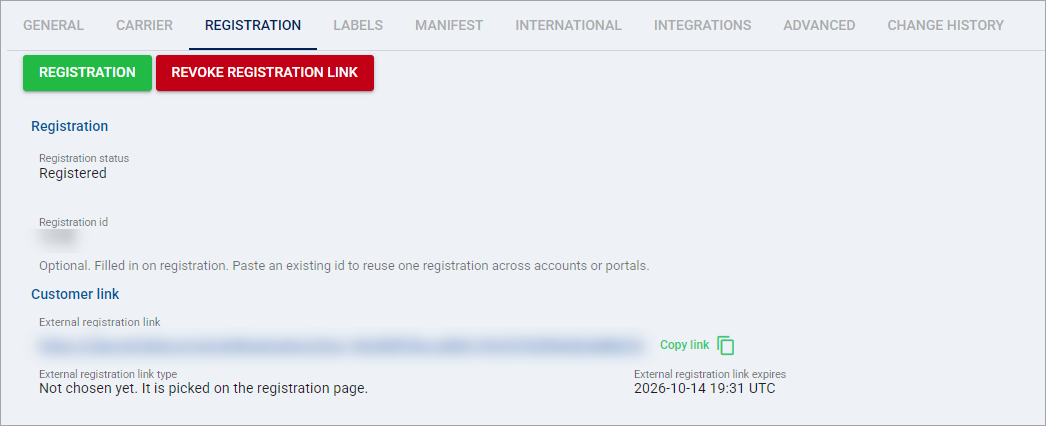
Generating a registration link does not confirm that it has been delivered, opened, or authorized. A pending link reflects the existence of the active link, not recipient activity tracking.
When the account displays Registered, the required registration value has been stored. Continue with any remaining carrier-specific configuration or validation required for your shipping workflow. To learn more about a specific carrier integration, see: 📄 techSHIP supported Carriers - Master List [Guides List].
Revoke a Registration Link
Revoke an active link when you no longer want that URL to be usable.
Revoking a registration link invalidates the link only. It does not disconnect an authorization that has already been completed or remove an existing registration from the Baseline Account.
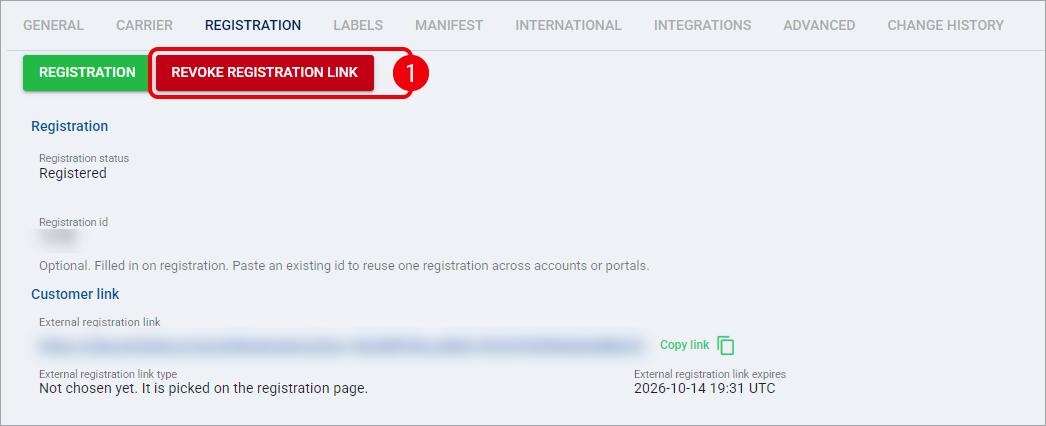
Open the Registration tab and select Revoke registration link.
In the confirmation dialog, review the revocation message and select OK to revoke the link or Cancel to leave it active.
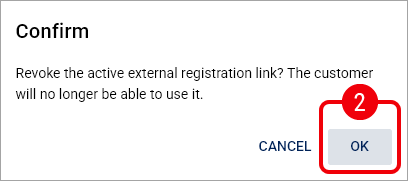
After you confirm the action, the registration link can no longer be used. If registration is still required, select Register to start a new registration flow.
Troubleshoot Registration Links
Opening a registration link does not consume it. If authorization is not completed, you can retry while the link remains active.
Situation | What You Should Do |
|---|---|
Expired link | Return to Registration and generate a new link. |
Revoked link | Create a new registration link because the revoked URL cannot be restored. |
Already-used link | Start a new registration flow if you need to authorize the account again. |
Invalid or unknown link | Verify that you opened the complete URL. If it remains invalid, request or generate a replacement link. |
Carrier handoff fails | Retry the active registration link after a few minutes. If the issue continues, start a new registration flow. |
After you resolve the link issue, either retry the active authorization or generate a new link, then return to the Registration tab to verify the resulting status.