How to Add Users to an Organization [Step-by-step guide]
Last updated: September 29, 2026
This article details how to create users under the hierarchy of an organization.

To add users to an organization:
1. Click Organizations from the left menu under the System section.
2. Find the desired organization using the search box.
3. View the desired organization details by pressing View.

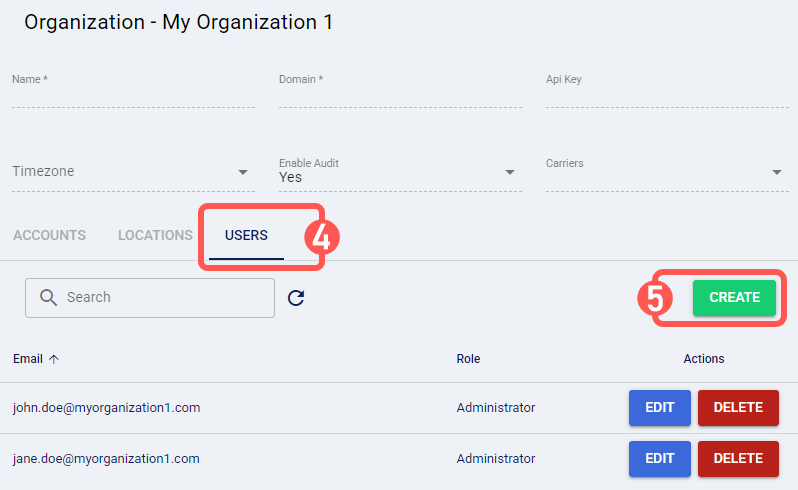
4. Click the Users tab.
5. Press Create.
6. Enter the following fields:
- Email: The user's email address.
- Role: The user's role, to define access and permissions.NOTE: To learn more about the available organizational user roles, refer to: techTRACK User Permissions Structure [Information].

7. Press Save.

Once saved, a temporary password will be sent to the user’s email address. Upon their first login, the user will be prompted to enter their Given Name, Family Name, and set a new password.

To learn more about what you can do next, refer to the Organization folder in our knowledge base.