How to Enable/Disable a Sales/Purchase Order Rule [Step-by-step guide]
Last updated: September 29, 2026
You can disable or enable a Sales or Purchase Order Rule to temporarily pause or resume it. Pausing an Order Rule prevents its evaluation and execution.

This article is divided into the following sections:
- Locating the Order Rule
- Account-Level
- Organization-Level
- Enabling or Disabling the Order Rule
I. LOCATING THE ORDER RULE
i. Account-Level
1. Select the desired account from the header switcher.
2. Click Order Rules from the left menu under the Sales or Purchases section, depending on the Order Rule type.
3. Press Edit for the desired Order Rule.

Go to the next section to change its configuration.
ii. Organization-Level

- Verify required user permissions by referring to: techOMS User permissions structure [Information].
- Make sure you understand how the Global Library works by referring to: Understanding Global Order Rules Library for Your Organization [Guide].
1. Deselect any currently selected account.
2. Click Organizations from the left menu under the System Configuration section.
3. Press Edit for the desired organization.

4. Click the Sales Order Rules tab.
5. Press Edit for the desired Order Rule.

Go to the next section to change its configuration.
II. ENABLING OR DISABLING THE ORDER RULE
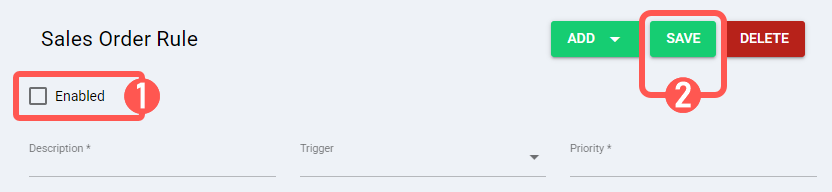
1. Click the Enabled field to set it:
- Checked: Enables the Order Rule, allowing its trigger conditions to be evaluated. If met, the Order Rule workflow will be executed.
- Unchecked: Disables the Order Rule, preventing trigger evaluation and workflow execution, even if conditions are met.
2. Press Save to apply the changes.