Rules Conditions and Actions Guide [Information]
Last updated: September 29, 2026
Order Rules workflow features allow you to set automatic actions whenever a Sales or Purchase Order matches specific conditions. These conditions and actions are covered in detail in this article.

This article is divided into the following sections:
- Conditions
- Parameters
- Operators
- Actions
- Applicability
- Description
I. CONDITIONS
Conditions will have one of two results once evaluated: True or False.
For example, if you have a condition that checks if the Sales Channel is Shopify (defined as Sales Channel > Equal > Shopify), as orders come into techOMS, the rule will detect if that is True or False.

If the result is True, techOMS will execute the following action. If False, it will ignore it.
More conditions and operators can be added. For example, if the order comes from Shopify AND is International (Canada is considered Domestic in this case), you could expand the rule by adding a condition (using the Plus icon) and defining it:
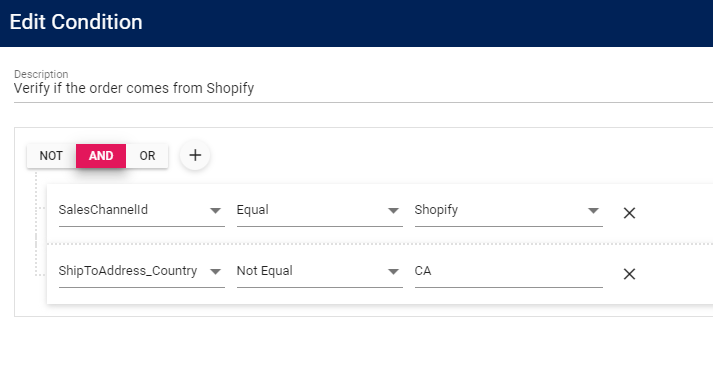
You will then find three logical operators:
- NOT: Results in True when the condition is NOT met.
- AND: Results in True when BOTH conditions are met.
- OR: Results in True when AT LEAST ONE of the conditions is met.
When setting up a Condition, these consist of three parts:
- A Parameter (e.g. Stock)
- An Operator (e.g. Less than)
- A Value (e.g. 100)
A condition set up with these three elements will result in True or False, leading to the action determined by that result.
i. Parameters

The available Parameters for Orders are:
ACCOUNT-LEVEL | ORG-LEVEL | |||||
PARAMETER / SUBPARAMETER | DESCRIPTION | SALES ORDER RULES | PURCHASE ORDER RULES | SALES ORDER RULES | ARTICLE | |
| Order Number | Order number as mapped from the Vendor System. |  |  |  | ||
| Created Date | Date when the order was created. |  |  |  | ||
| Reference Number | Reference number as mapped from the Vendor System. |  |  |  | ||
| Total Order Weight | Calculates total order weight (line weight × qty). |  |  | |||
| Source |  |  | ||||
| Ship To Address | Country/State/City |  |  | |||
Postal Code |  |  | ||||
Address Line 1/2/3 |  |  | ||||
Contact Name/Company |  |  | ||||
| Phone Number/Email Address |  |  | ||||
| Bill To Address | Country/State/City |  |  | |||
| Postal Code |  |  | ||||
| Address Line 1/2/3 |  |  | ||||
| Contact Name/Company |  |  | ||||
| Phone Number/Email Address |  |  | ||||
| Total | Total value of the order. |  |  | |||
| Fraud Score | As converted for the available Sales Channels. |  |  |  | ||
| Sales Channel | Origin Sales Channel (includes API, Manual, and Imported orders). |  | ||||
| Warehouse | Preassigned Warehouse if any. |  |  |  | ||
Carrier |  | |||||
| Shipment type | Order's Shipment type (Small Parcel or LTL) at the order level. |  |  | |||
Service |  | |||||
| Notes | Order notes value. |  |  | |||
Reference Code |  |  | ||||
Reference Value |  |  | ||||
| References | This option is available to purchase order rules only. |  |  |  | ||
Tag value (when supported) |  |  | ||||
| Line | Number |  |  | |||
| SKU Code |  | |||||
| Quantity |  |  | ||||
| Reference Code/Value |  |  | ||||
| Product Variant References | Code/Value |  |  | |||
| Target Variables | Status | Verifies if the order status matches the value. |  |  | ||
Warehouse |  |  | ||||
| Carrier |  | |||||
| Shipment Type | Determine if it is Small Parcel or LTL. |  |  | |||
| Service |  | |||||
Expected Delivery Days/Cost |  |  | ||||
| Expected Delivery Is Weekend | True or false, to determine if it is a weekend shipment or not. |  |  | |||
Expected Delivery Day of the Week |  |  | ||||
| Shipment Weight | Calculates shipment weight. Defaults to total order weight; calculates split shipment weight after a Split Shipment action. |  |  |  | ||
The available Parameters as Functions are:
ACCOUNT-LEVEL | ORG-LEVEL | |||
NAME | DESCRIPTION | SALES ORDER RULES | PURCHASE ORDER RULES | SALES ORDER RULES |
| Is Enough Stock | Checks either True or False based on the Available Quantity (see warning below). | |  | |
| Ship to Postal Code | Converts postal code string to number if possible, allowing you to set conditions on ranges (e.g. under than 20000). | |  | |
| Has Missed Product Variant(s) | Checks if the order contains lines with missing product variant(s). | |  | |

- This function should not be used multiple times with the same warehouse within a single rule.
- When used with logical operators within a single condition, this function may be re-evaluated independently, potentially resulting in misleading outcomes.
To ensure reliable outcomes, use it only once per warehouse and, if you need to check multiple warehouses, nest it to use it only once per evaluation. If your goal is to generate a list of eligible warehouses based on stock availability, use the Calculate Enough Stock Action instead, as described in the Actions section below.
ii. Operators
Once you select a parameter, you will need an operator. Depending on the parameter type, you will have different operators available:
OPERATOR | DEFINITION | FOR TEXT | FOR NUMBER |
| Equal | Verifies if the parameter is equal to the value. |  |  |
| Not Equal | Verifies if the parameter is different to the value. |  |  |
| Starts With | Verifies if the parameter starts with the entered value. |  | |
| Ends With | Verifies if the parameter ends with the entered value. |  | |
| Contains | Verifies if the parameter contains with the entered value at any point of it. |  | |
| In | Allows verifying if a value matches with more than one value at a time for a parameter with comma separated values (e.g. CA, US, GB, MX). |  |  |
| Not In | Allows verifying if a value is not within one of the values you can enter at a time for a parameter with comma separated values (e.g. CA, US, GB, MX). |  |  |
| Is Null | Verifies if the parameter is null. |  |  |
| Is Not Null | Verifies if the parameter is not null, regardless of the value. |  |  |
| Greater than | Verifies if the parameter is greater than the entered value. |  | |
| Greater Than or Equal | Verifies if the parameter is greater or equal than the entered value. |  | |
| Less Than | Verifies if the parameter is less than the entered value. |  | |
| Less Than or Equal | Verifies if the parameter is less or equal than the entered value. |  |
II. ACTIONS
i. Applicability
The available Actions are:
| ACCOUNT-LEVEL | ORG-LEVEL | ||||
| ACTION | DESCRIPTION | SALES ORDER RULES | PURCHASE ORDER RULES | SALES ORDER RULES | ARTICLE |
| Set Status | Modifies the order status. |  |  |  | |
| Send to Warehouse | Sends the order to a specific warehouse. |  |  |  | |
Send Notification | Sends notification messages to a specific user and email accounts. |  |  |  | |
Add Line(s) | Adds lines to an order, indicating the product(s) and quantity. |  | |||
Remove SKU(s) | Removes SKUs matching the codes detailed. |  | |||
Calculate Enough Stock | Creates a prioritized list of warehouses based on stock availability for the whole order. |  |  | ||
| Calculate Time & Transit | Creates a prioritized list of warehouses based on techSHIP's provided transit time for the whole order. |  |  |  | |
Select Warehouse | Selects a warehouse from a previously calculated list. |  |  | ||
Set Carrier and Service | Forces a Carrier and Service level to the order. |  | |||
Set Carrier Account | Forces a Carrier Account to the order. |  | |||
Add Order Reference | Adds new Order (Line) References. |  |  |  | |
Add Product Variant Mapping | Replaces Product Variants with their defined mappings regardless of stock, except when the original Product Variant is configured with Track by Lot Number. |  |  | ||
Add Product Variant Substitution | Replaces Product Variants with prioritized substitutes if the original item is out of stock. |  |  | ||
Raise Exception | Raises a custom exception. |  |  | ||
Split Shipment | Splits the entire order into multiple shipments, at the SKU level. |  |  |  | |
| Set Line Price | Sets an order-line price reference based on a selected source. |  |  |  |  |
| Hold | Routes the order into Virtual Allocation and places it On Hold to protect inventory prior to physical allocation. |  |  |  | |
Continue to the next subsection for a detailed description on each action.
ii. Description
Below you can find all the available order rules actions.
Set Status
Modifies the order status.

Send to Warehouse
Sends the order to a specific warehouse.

Send Notification
Sends notification messages to a specific user and email accounts. You can also insert value variables (order numbers, warehouse, etc).

Add Line(s)
Adds lines to an order, indicating the product(s) and quantity.

Remove SKU(s)
Removes SKUs matching the codes detailed; you can also choose to remove all unmatched product variant lines if the box is checked.

Calculate Enough Stock
Creates a prioritized list of warehouses based on stock availability for the whole order. If combined with the Select Warehouse Action, this action should be executed first.

Calculate Time & Transit
The action checks carrier transit times from techSHIP for the specified warehouses and selects the optimal option based on your defined priority (1 being the highest) and the transit time.

Select Warehouse
Selects a warehouse from the list produced by a previous calculation step (for example, Calculate Enough Stock or Calculate Time & Transit), applying the filter criteria defined below.

Optional filters:
- Only Enough Stock: Considers only warehouses with sufficient stock.
- Ignore Time in Estimated Delivery Date: When checked, considers only the delivery date, disregarding the estimated delivery time. Otherwise, it considers both. This information is provided by techSHIP.
Selection criteria:
- Warehouse Priority: Selects the warehouse with the highest priority (1 being the highest). No tiebreakers apply.
- Shortest Transit Time: Selects the warehouse with the shortest delivery time provided by techSHIP. If there's a tie, the cheapest option is selected.
- Lowest Shipping Cost: Selects the warehouse with the lowest shipping cost provided by techSHIP. If there's a tie, the following tiebreakers are applied in order:
- Shortest delivery time: Prioritizes the option with the shortest delivery time.
- Warehouse priority: If still tied, selects the warehouse with the highest priority.

Set Carrier and Service
Forces a Carrier and Service level to the order; you can also check Use Target Variables if you will have a Select Warehouse action that will populate CarrierID and ServiceID beforehand.

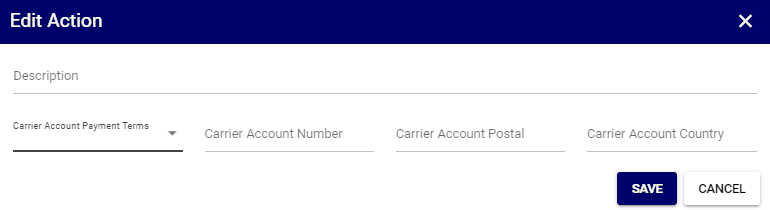
Set Carrier Account
Forces a Carrier Account to the order, specifying payment terms, number, postal code and account country.
Add Order Reference
Add Order Reference adds new Order References and Order Line References. The available Reference Type options depend on the Rule type and whether you configure an order-level or order-line Reference.
When you configure an Add Order Reference action, complete all required Reference fields before you save the action:
- For Sales Order Rules, enter the required Code and complete the value source required by the selected Reference Type. Depending on the selected option, this can be a Value, Target Variable, Entity Property, or Function value.
- For Purchase Order Rules, select the Type and enter the required Code and Value.
If the Reference configuration is incomplete, techOMS displays validation errors and does not save the new action.


If multiple tags match, all are written to the same reference as a comma-separated value. Non-matching tags are ignored, and the order of returned values is not guaranteed.
If no tag matches, techOMS skips the action. No reference is created and the order is not treated as an error.
A and B become A B.
Add Product Variant Mapping
Always replaces Product Variants with their defined substitutes, regardless of stock.

Product Variant Mapping does not replace an original Product Variant configured with Track by Lot Number. For detailed conceptual information and advanced configuration, refer to Understanding Lot and Serial Numbers [Information].
The original items and their corresponding substitutions are defined in the Product Variant Mappings table. Each line represents an Original–Substitute Product Variant pair:
- Product Variant: Original item to be substituted.
- Product Variant Mapping: Corresponding alternate Product.
When combined with Split Shipment, place the Product Variant Mapping action before Calculate Enough Stock and Split Shipment. For more details, see How to Split Shipments Automatically [Guide].
For a comprehensive guide on configuring this action, refer to: How to Create a Product Variant Mapping/Substitution Order Rules [Step-by-Step Guide].

Add Product Variant Substitution
Replaces Product Variants with prioritized substitutes if the original item is out of stock and backorders are enabled in techOMS.
If you always need to apply substitutions (regardless of the item's stock level), use the Product Variant Mapping action instead.
The original items and their corresponding substitutions are defined in the Product Variant Substitutions table. Each line represents an Original–Substitute Product Variant pair:
- Product Variant: Original item to be substituted.
- Product Variant Substitution: Corresponding alternate Product.
- Priority: Substitution priority, with 1 being the highest. Pairs with higher priority are preferred over other alternatives for the same original Product.
Using this action with Split Shipment is currently unsupported.
To learn more about backorders, refer to: Understanding Backorders in techOMS [Information].
For a comprehensive guide on configuring this action, refer to: How to Create a Product Variant Mapping/Substitution Order Rules [Step-by-Step Guide].

Raise Exception
Raises a custom exception, specifying its description, message title, and details. The exception will be logged in the Sales Channel Log and displayed in the Statistics & Exceptions Dashboard.
- Getting Started With the techOMS Statistics & Exceptions Dashboard [Information]
- How to Handle Orders Exceptions [Step-by-Step guide]
- How to review Sales Channel activity Logs [Step-by-Step Guide]

Split Shipment
Splits the entire order into multiple shipments, at the SKU level, so it can be fulfilled by more than one location:
- Maximum Number Of Shipments: Sets the maximum number of shipments the order can be split into.
- Prioritize Shipments Based On: Defines the criteria used to split the order across locations:
- Count Of Item: Splits the order based on the total number of items. Warehouses are sorted by their ability to fulfill the largest share of items.NOTE: For example, if an order contains 10 units (5 of SKU A and 5 of SKU B) and:

- Warehouse 1 can fulfill 6 units
- Warehouse 2 can fulfill 4 units
Then, the action will assign 6 units to warehouse 1 and 4 units to warehouse 2.
- Total Order Value: Splits the order based on the monetary value of the items. Warehouses are sorted by their ability to fulfill the highest portion of the order's subtotal value.NOTE: For example, if an order contains:
- 3 units of SKU A ($ 50 each)
- 2 units of SKU B ($ 100 each)
- 5 units of SKU C ($ 10 each)
Then, the total value is $ 400. If:
- Warehouse 1 can fulfill 3 units of SKU A and 2 units of SKU B (totaling $350).
- Warehouse 2 can fulfill 5 units of SKU C and 2 units of SKU B (totaling $250).
Then, the action will prioritize Warehouse 1 to fulfill the highest-value portion ($350), and assign the remaining items to Warehouse 2.
WARNING: When working with bundles, the Total Order Value split option is not supported. Attempting to use this option with bundles will result in an error. Bundles can only be split using the Count of Item method.
- Count Of Item: Splits the order based on the total number of items. Warehouses are sorted by their ability to fulfill the largest share of items.

Set Line Price
Defines which price value is used for an order line by setting its corresponding techOMSSetLinePrice line reference. To populate this value, you must select one of the following options:
- Pass line price received: Uses the price for the line item as provided by the originating Sales Channel or API endpoint.
NOTE: For bundles, the total price is applied to the first line item, and a price of 0 (zero) is applied to all other component lines. - Pass line price stored at the variant level in techOMS: Ignores the incoming price and uses the Product Variant price stored in techOMS.
NOTE: The individual catalog price for each component of a bundle is applied to its respective line.

For a detailed guide on how to implement this action, see: How to Set Order Line Prices using Rules [Guide].
Line reference values are not visible in the UI, but they can be retrieved by querying the API as detailed in Getting started using techOMS API [Information].
Hold
The Hold action acts as the automated trigger to route eligible orders into Virtual Allocation, protecting inventory globally by reducing the Available Quantity before physical allocation occurs.
For detailed conceptual information and advanced configuration, refer to Understanding Sales Order Holds and Virtual Allocation [Information].
Configuration Fields:

- Description: A free-text label used purely for internal tracking and rule identification.
- Hold Option: Specifies the source of the delay timer. Currently, only the Sales Channel option is supported. The system uses the channel’s configured Delay value to place the order On Hold while allowing immediate download.WARNING: The Hold action has strict dependencies to function correctly:

- You must configure the Sales Channel's Delay to a concrete time (e.g., 1 hr). If set to None or Minimum, Virtual Allocation is completely bypassed. For information configuring this setting, see: How to configure Automations for Sales/Fulfillment channels [Step-by-step guide].
- This action only works for orders downloaded from a Beta Sales Channel. Orders received via Stable channels or injected via the standard API v2 without channel linking, will ignore the hold and proceed to standard allocation. To verify your channel version, see: techOMS Sales Channels - Master List [Guides List].