How to View Invoice Details and Lines in techAUDIT [Step-by-Step guide]
Last updated: September 29, 2026
You can view the details of invoices that have been imported and successfully processed. This provides an in-depth view of each invoice's lines, including estimated and actual charges.

Invoice data is grouped by shipment (master tracking number), allowing you to view both shipment-level and package-level details. If a shipment includes multiple packages, you can expand it to review each one individually.
To view invoice details and lines:
1. Click Invoices from the left menu under the Audit section.
2. Optionally, click the Advanced Filter icon to further narrow down the invoices.
For a detailed guide, refer to: How to Filter Invoices in techAUDIT [Step-by-Step guide].
3. Click the desired Invoice Number.

The invoice details will appear in a table with the following columns:

- Line Type: Type of charge (e.g., Return Tracking, Service Charge, etc).NOTE: Original Tracking refers to a single package. Shipment refers to a group of packages. An arrow next to the shipment line allows you to expand and view its individual packages.


- Tracking Number: Package tracking number or master tracking number (for shipments).
- Client: Client name.
- Est. Charge: Estimated charge when processed in techSHIP.
NOTE: If a carrier only provides shipment-level estimates, N/A will be shown for packages grouped under a shipment. - Act. Charge: Actual charge from the carrier.
- Difference: Indicates if there's a mismatch between estimated and actual charges.
- Actions: Available actions for each line.
4. Optionally, click the Advanced Filter icon to further narrow down the invoice lines.
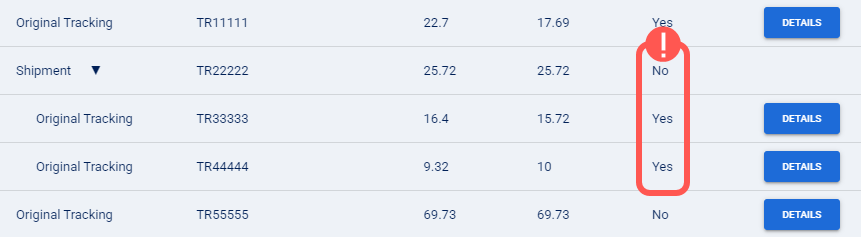
5. Press Details for the desired line.

A pop-up will open showing a side-by-side comparison of estimated and actual values. Use this view to detect round-ups, additional charges, accessorials, and other discrepancies.

If needed, you can close the pop-up and press Export to download a CSV file with all the invoice lines.
