How to Export Items for a Client to an XLSX File [Step-by-Step Guide]
Last updated: October 26, 2026
You can export the items table for a specific client to a Microsoft Excel Spreadsheet (XLSX) file to back up data, review configurations, or use it as an import template.
This guide covers the step-by-step process to export items for a single client.
The exported template includes all standard item fields, such as Container Type and Dangerous Goods Flag, as well as Manufacturer Product Identifier and UPC. Any unset values in the system are exported as blank cells.
For detailed conceptual information and advanced configuration, refer to 📄 How to Import Items for a Client from an XLSX File [Step-by-Step Guide].
The exported file includes a CUSMA Certificate column containing the PDF file encoded in base64. Be aware that Microsoft Excel cannot handle cell content longer than 32,767 characters. If you open a file where an item's certificate exceeds this limit, Excel will prompt you to "repair" the file, which will corrupt the certificate data.
A file corrupted in this way cannot be successfully re-imported into techSHIP. If you need to review items with large certificates, consider doing so via the techSHIP user interface, as detailed in 📄 How to Attach and Manage a CUSMA Certificate of Origin to an Item [Step-by-Step Guide].
If you manage multiple clients, you can export items across your entire Location at once. For detailed information, refer to 📄 Global Item Maintenance: Managing Items Across Multiple Clients [Guide].
Export Procedure
To export the items table for a client to an XLSX file:
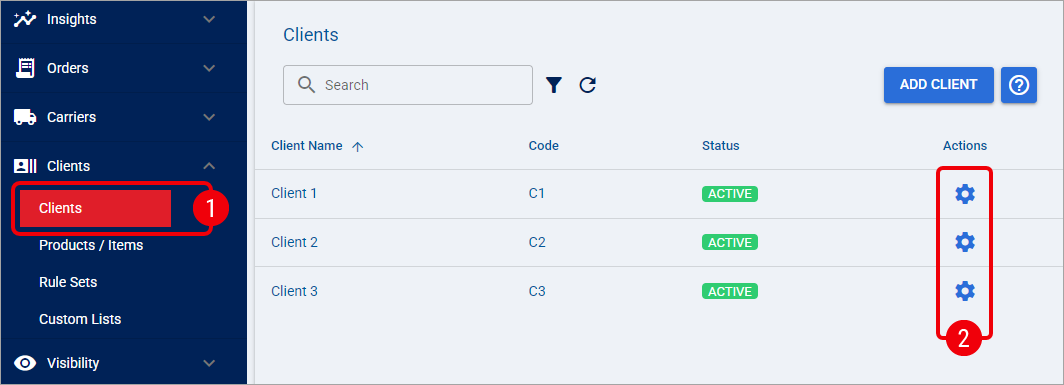
Find the desired client by clicking on Clients from the left menu under the Clients section.
Edit the desired client by clicking the Settings button.
Click the Items tab.
Click Export.
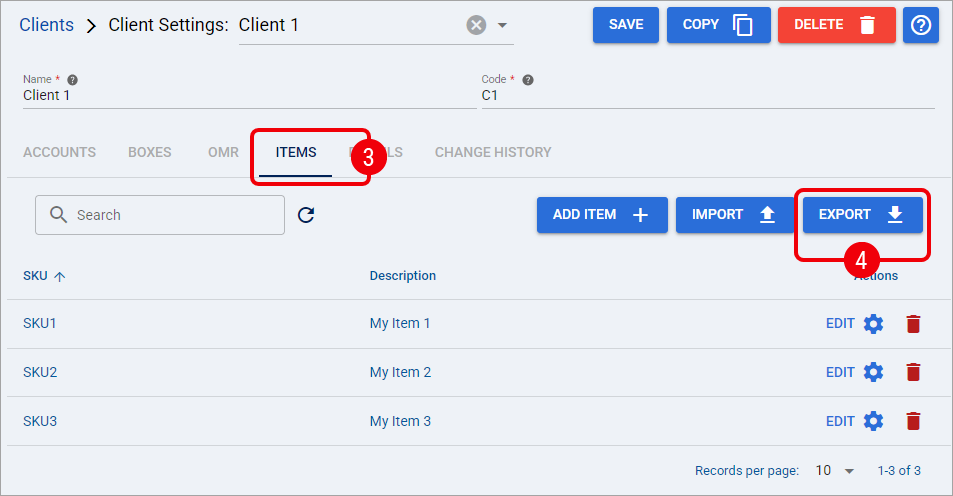
techSHIP will download an XLSX file containing the items table. You can now review the exported file or use it as an import template, following the import guide linked above.