How to Reset Another User's Password in techSHIP [Step-by-Step Guide]
Last updated: November 5, 2026
When a user needs help regaining access to their account, an authorized administrator can initiate a password reset from Location Users in techSHIP.
This guide explains how to reset another user's password and review the confirmation displayed by the application.
Before You Begin
You need the appropriate permissions to access Location Users and reset the selected account's password. For more information, refer to 📄 techSHIP User Permissions Structure [Information].
Reset a User's Password
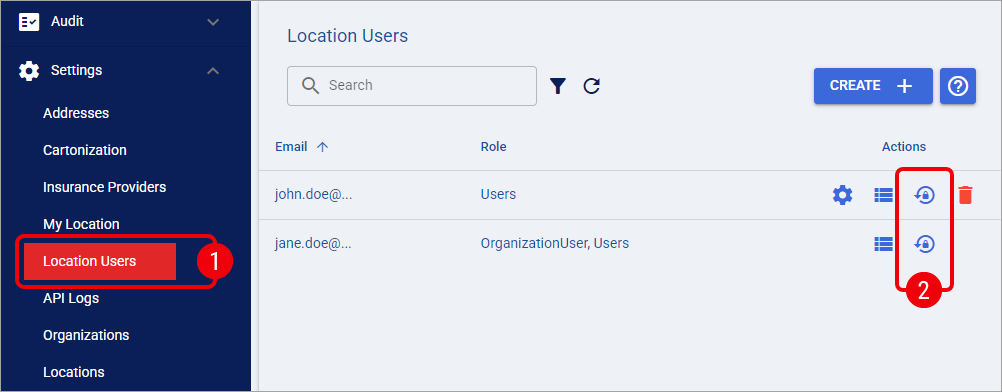
Navigate to Settings > Location Users.
Locate the account you want to reset using Search, if necessary, and select the Reset Password action in the corresponding Actions column.
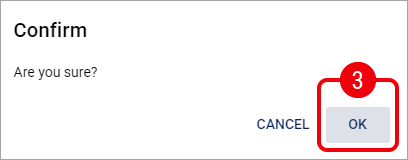
In the Confirm dialog, click OK to confirm the reset, or Cancel to dismiss the request without proceeding.
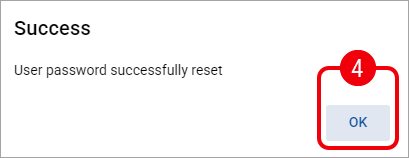
When the Success dialog displays "User password successfully reset", click OK to close it.
After the password reset, the user receives an email containing their username and a temporary password, which they can use to sign in to techSHIP.
For security, recommend that the user replace the temporary password after signing in. They can access the Reset Password option from the account menu in the techSHIP header. For more information, see 📄 Exploring the New techSHIP User Interface (UI) [Guide].
The Success message indicates that the application reported a successful password reset request. It does not independently confirm that the user has subsequently changed their credentials or signed in successfully.
Password reset requests can be recorded as account-related audit events. However, account-wide events may not appear in the User Change Log accessed from Location Users.