Managing Location Custom Fields [Guide]
Last updated: October 12, 2026
Location Custom Fields let you define reusable, Location-scoped fields in techSHIP and make them available to supported workflows without entering raw field syntax.
This guide covers how you create, edit, type, and remove customer-managed Custom Fields, how Host System-declared fields behave, and how each field definition relates to values stored on Orders and Lines.
Understand Location Custom Fields
A Custom Field definition belongs to a Location, while the value associated with that field belongs to the Order or Line being processed. Defining a field does not automatically create or populate a value on every Order; it registers the field so you can use it in supported techSHIP workflows.
A registered Custom Field can come from your Location configuration or from the assigned Host System. You can manage customer-created definitions when you have the required permissions, while Host System-declared definitions are system-managed and read-only. To check your permissions, see: 📄 techSHIP User Permissions Structure [Information].
Defining or populating a Custom Field does not by itself post a charge to your Host System billing workflow. Billing transmission depends on the specific Host System integration and its supported functionality.
Access Custom Fields
Open Settings > My Location > Custom Fields.
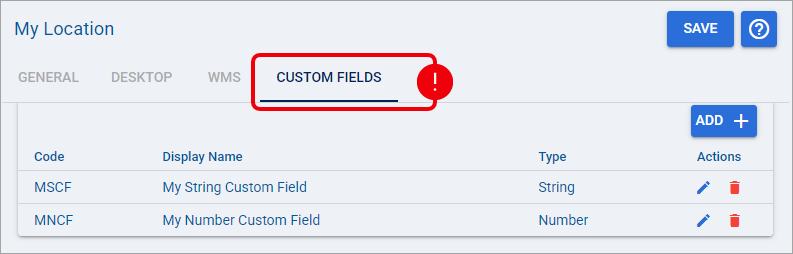
If you manage Locations with Organization Admin access, you can also open the applicable Location from Locations and select the Custom Fields tab for that Location.
For more details on accessing these pages or managing Locations, see: 📄 Managing Locations [Guide].
Understand Custom Field Properties
The Custom Fields grid uses the following properties:
Field | Description |
|---|---|
Code | The stable identifier that techSHIP uses to reference the Custom Field. Choose a Code that you can keep unchanged after you start using the field. |
Display Name | The friendly label that you see when the field appears in supported selectors and configuration screens. |
Type | Determines whether techSHIP treats the definition as String or Number for supported rule-authoring capabilities. |
When you create or edit a customer-managed field, follow these validation rules:
Code is required and accepts letters
A-Zora-zand digits0-9only. Do not use spaces, punctuation, accented letters, or other special characters.Display Name is required and accepts letters, digits, and ordinary spaces. It must contain at least one letter or digit.
Exact duplicate Codes are rejected. Customer-managed Codes that differ only by capitalization can coexist, so
Costandcostare treated as distinct customer definitions.Type can be String or Number. New customer-managed fields default to String.
Use String for text-oriented values. Choose Number when you need supported numeric rule capabilities, including numeric ordering conditions and native Add to or Subtract from authoring.
Selecting Number defines how supported workflows should treat the field, but it does not guarantee that every value already stored under that Code contains valid numeric data.
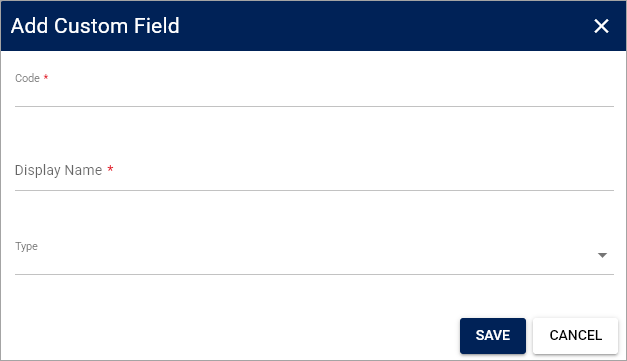
Manage Customer-Managed Custom Fields
Add a Custom Field
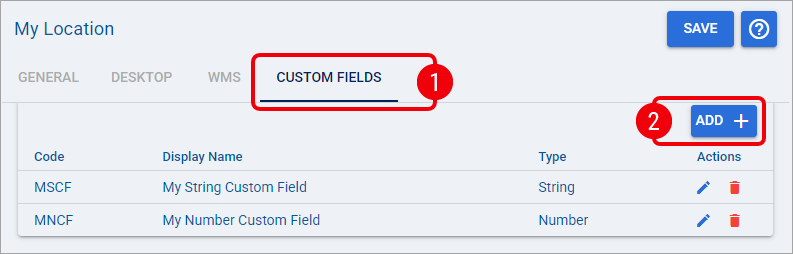
Open the applicable Custom Fields tab for the Location.
Select Add + to open the Add Custom Field dialog.
Enter the following fields and click Save:
Enter a stable identifier in Code.
Enter the friendly label you want to see in supported selectors in Display Name.
Select String or Number in Type.
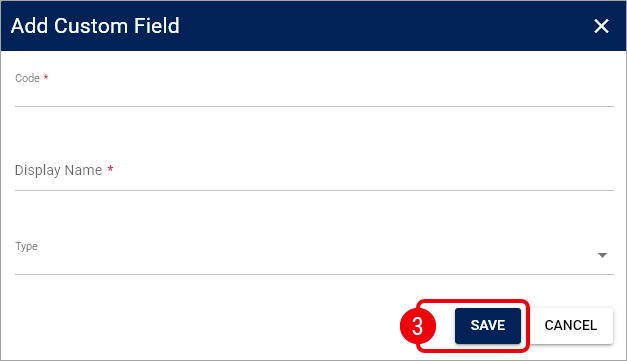
Select the page-level Saveaction to persist the Location configuration.
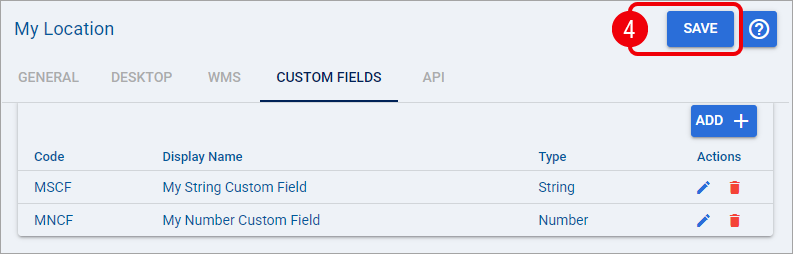
You have now registered the Custom Field for this Location.
Reopen the relevant rule editor or supported field selector when you are ready to use it.
Edit a Custom Field
In the Custom Fields grid, locate the customer-managed definition that you want to change and:
Under Actions, select the Edit pencil icon.
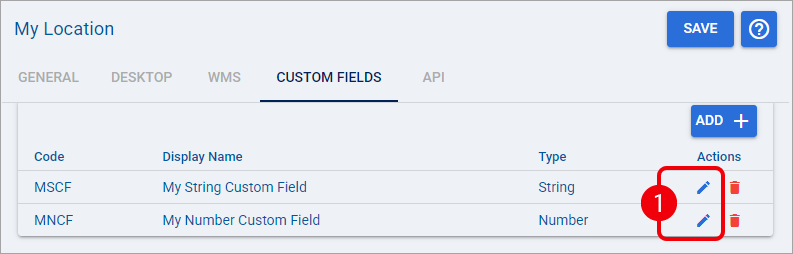
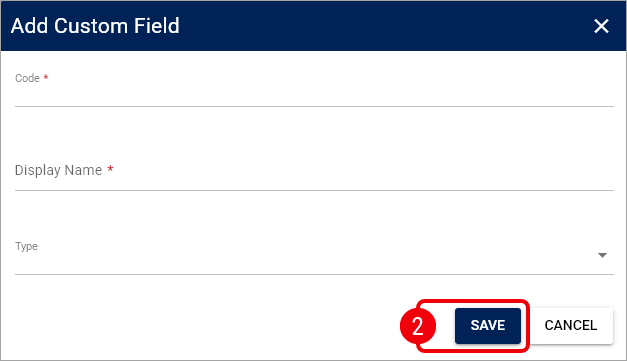
Update the applicable Code, Display Name, or Type and click Save.
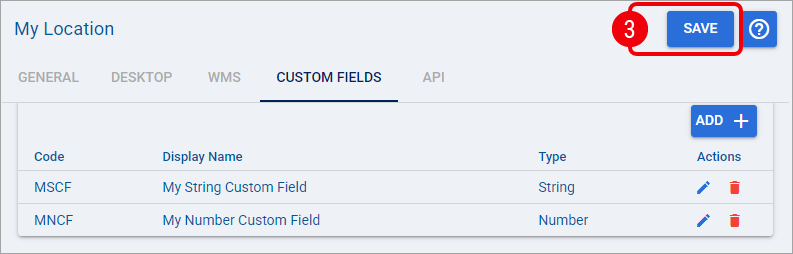
Select the page-level Save action to persist the updated Location configuration.
Changing Code changes the field identity. Existing Order Management Rule references are not automatically rewritten, and existing Order or Line values are not automatically migrated to the new Code.
Changing only Display Name preserves the existing Code and reference identity. Use this approach when you only need to change the friendly label.
You have now updated the field definition. If you changed Code, review any workflows that previously referenced the old Code before continuing to use the field.
Delete a Custom Field
In the Custom Fields grid, locate the customer-managed definition that you want to remove and:
Under Actions, select the Delete trash icon and confirm the deletion.
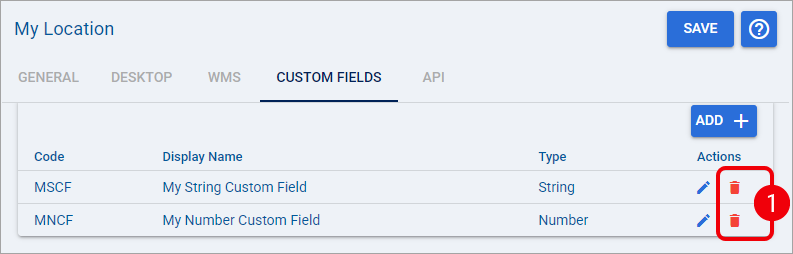
Select the page-level Save action to persist the updated Location configuration.
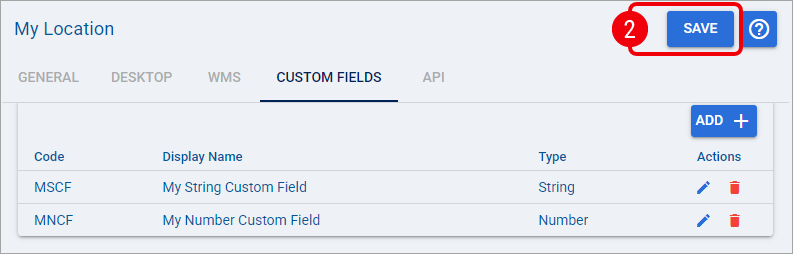
Deleting a definition does not erase historical values already stored on Orders. It removes the definition from the configured registered-field set but does not perform an Order-data cleanup.
You have now removed the Custom Field definition from the Location configuration. Review any rules or other workflows that referenced that field and update them as needed.
Work with Host System-Declared Custom Fields
Some Host System integrations can automatically declare Custom Fields that they support. These definitions are added to the Location's registered field set without requiring you to create them manually.
A Host System-declared field is read-only at the definition level. You can identify these fields in the grid because their Type indicates that they are declared by the applicable Host System, and they do not provide the normal customer Edit or Delete actions.
For example, a Host System could declare Materials and Handling, with both definitions using the Number type.
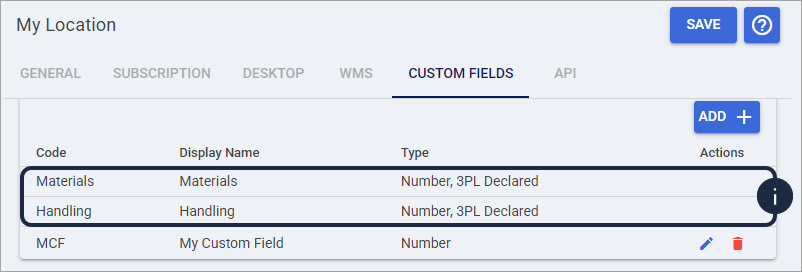
A read-only definition does not make its Order value read-only. Supported workflows can still populate or modify the corresponding value when that functionality is available.
If you configure a customer-managed Code that matches a Host System-declared Code without regard to capitalization, the Host System definition takes precedence in the registered field list. Your customer-managed definition is not automatically deleted or overwritten.
If you change or remove the assigned Host System, the set of Host System-declared fields can change accordingly. Your customer-managed definitions remain configured, and values already stored on Orders are not automatically deleted.
Use Registered Fields in Supported Workflows
After you save a customer-managed field, reopen the applicable editor or selector to load the latest registered Custom Fields. Supported Field selectors display the friendly Display Name, while the saved rule continues to reference the underlying Code.
A Number definition can make numeric capabilities available in supported rule editors, while a String definition remains available for text-oriented behavior. For detailed Action and Condition behavior, see the Next Steps section below.
Understand Custom Field Value Scope
A Location Custom Field definition is shared at the Location level, but the value used during processing depends on the applicable Order Management Rule level.
Level | Custom Field Value |
|---|---|
Order | The value belongs to the current Order for that Code. |
Package | The rule still works with the same Order-level value; registered Location Custom Fields do not receive an independent Package value store. |
Line | The value belongs to the current Line for that Code. |
This distinction is important when you configure Package or Line iterations. A Package iteration can repeatedly work with the same Order-level Custom Field, while a Line workflow can address the value stored for the current Line.
Work with Legacy Custom Fields
Existing Custom Field definitions created before the structured editor remain available in the Custom Fields grid. Definitions without explicit type information continue to use String until you change their Type.
Older definitions can also retain legacy Codes or labels that do not meet the validation rules for newly entered fields. If you edit one of those definitions, you may need to update it so that the edited values comply with the current Code and Display Name validation rules.
When you finish editing an existing definition, select the page-level Save action to persist the configuration. You can then reopen the relevant workflow to use the updated registered field.
Next Steps
To use registered fields in Rule Set Conditions and Actions, continue with 📄 What's New in Order Management Rules (OMR) for Rule Sets in techSHIP [Guide].
For a practical example that uses a numeric Custom Field to accumulate packaging costs, continue with 📄 Setting up Order Management Rules: Accumulating Packaging Costs with Custom Fields [Guide].