How to View and Filter Shipment References [Step-by-Step Guide]
Last updated: September 29, 2026
Shipment references allow you to view specific key-value pairs associated with the fulfillment process. These details provide crucial traceability between techOMS and your downstream Fulfillment Channel.
This guide explains how to access, view, and filter read-only shipment references.
TABLE OF CONTENTS
Understanding Shipment References
All data within the shipment references view is strictly read-only. You cannot manually add, edit, or delete references from this screen.
Data Sources
The data displayed in this table is automatically populated from two distinct sources:
- Inherited Data: Metadata and references originally assigned to the Sales Order are copied over to the Shipment to maintain full traceability.
- Fulfillment Channel Injection: When the Fulfillment Channel processes the order, it might generate its own internal identifiers. If applicable, the integration plugin automatically injects this data at the Shipment (header) level.
 | References associated with specific packages or package lines are not supported or displayed in this view. |
Understanding the Reference Table
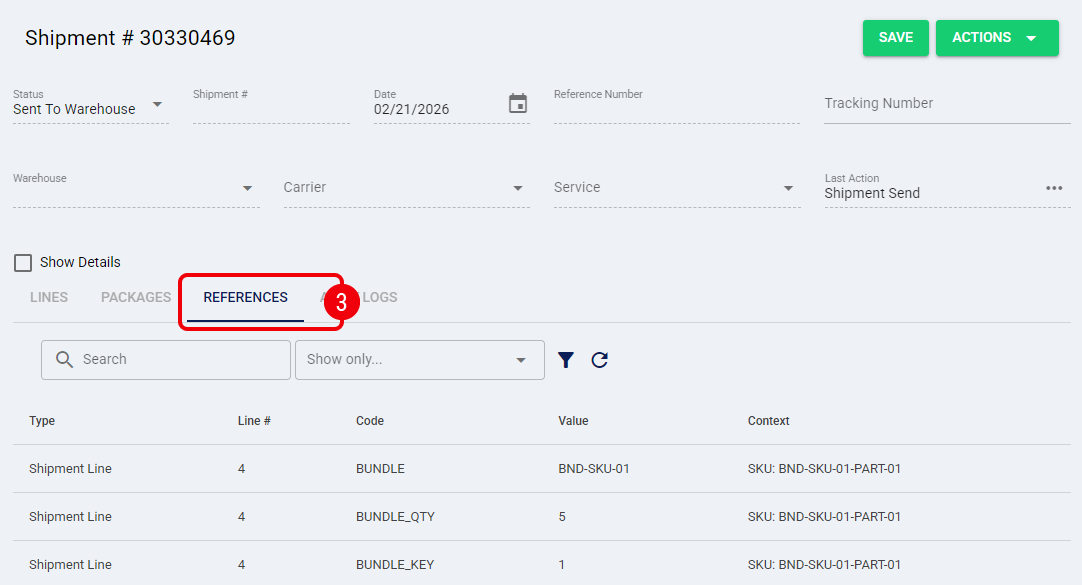
The table displays the following information columns:

- Type: Indicates the source level of the reference:
- Shipment: Applies to the shipment as a whole.
- Shipment Line: Applies to a specific line within the shipment.
- Line #: Displays the specific line number (only populated for Shipment Line references).
- Code and Value: The reference key-pair data (e.g., Code:
InternalID, Value:12345). - Context: Provides additional identifying information to help distinguish references (e.g., for Shipment Line references, it shows the SKU).
Viewing Shipment References
Accessing the References Tab
| Make sure that you are operating at the correct Account in the top header before proceeding. |
To view the references for a specific shipment, follow these steps:
 | Click Shipments from the left menu under the Sales section. |
 | Locate and click on the desired Shipment #. |
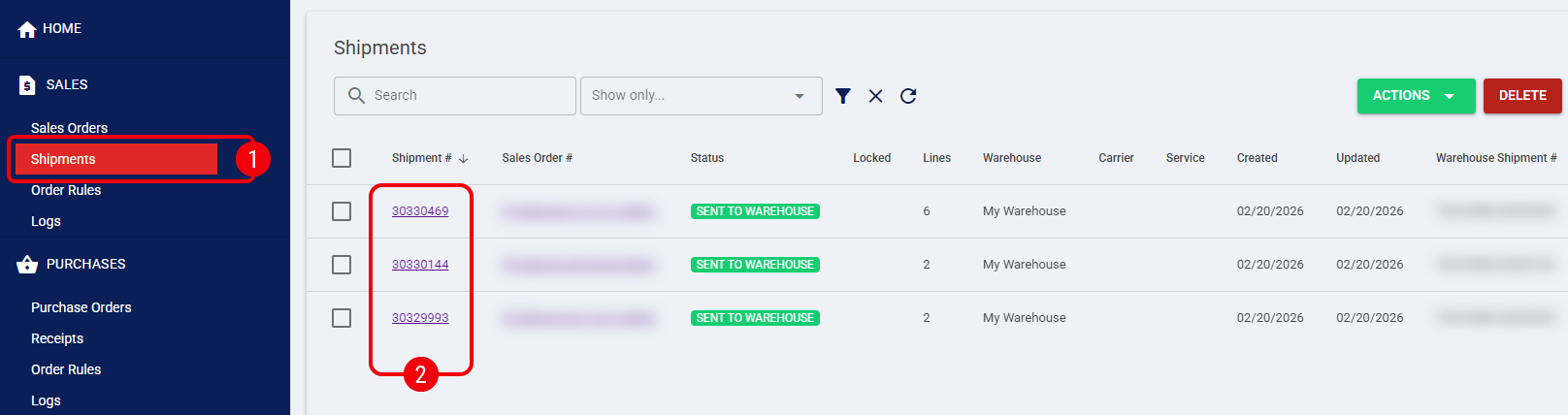
| To learn more about locating records, refer to How to find/filter Shipments [Step-by-Step Guide]. |
 | Inside the shipment details view, click the References tab. |
Filtering Shipment References
When a shipment contains a large number of references, you can use the built-in filtering tools to locate specific data.
The reference table displays the inherited and injected entries. You can filter these records using two methods:
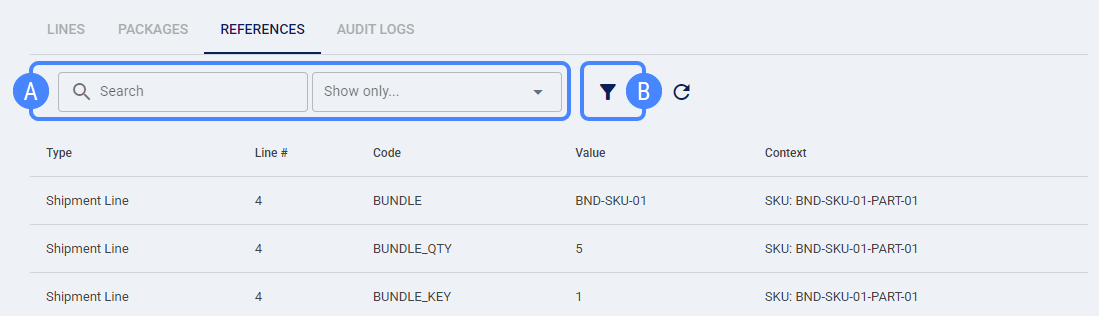
 | Quick Filter: Use the search bar to look for matching entries, or click the Show only... dropdown to instantly toggle the view between Shipment (header-level references) and Shipment Line (line-level references). |
 | Advanced Filter: Click the Filter icon to open the advanced search dialog. You can refine your search using the following fields: |
- Type: Select whether to view references at the Shipment or Shipment Line level. If filtering by Shipment Line, you can also use the following filters:
- Line #: Select the specific line number associated with the reference.
- Line SKU: Enter the specific SKU associated with the reference.
| The fields displayed in the Advanced Filter dialog vary dynamically depending on the Type selected. The screenshot provided below is for illustrative purposes. |

The table will instantly update to display only the references that match your exact criteria, allowing you to easily track specific fulfillment metadata.