How to Add Users to an Account as an Account Administrator [Step-by-step guide]
Last updated: September 29, 2026
This article details how to create users for an account as an account administrator.

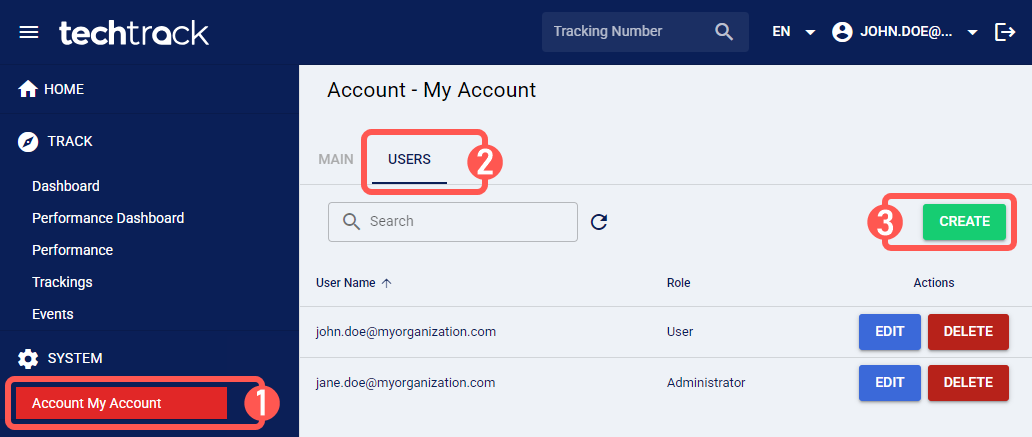
To add users to an account as an account administrator:
1. Click Account Name from the left menu under the System section.
2. Click the Users tab.
3. Press Create.
4. Enter the following fields:
- Email: The user's email address.
- Role: The user's role, to define access and permissions.NOTE: To learn more about the available user roles within an account, refer to: techTRACK User Permissions Structure [Information].
5. Press Save.

Once saved, a temporary password will be sent to the user’s email address. Upon their first login, the user will be prompted to enter their Given Name, Family Name, and set a new password.

To learn more about what you can do next, refer to the Account folder in our knowledge base.