How to View and Filter Webhook Logs [Step-by-Step Guide]
Last updated: November 2, 2026
Webhook Logs help you verify outbound notifications from techOMS and investigate delivery issues for the selected Account.
Use this guide to open Webhook Logs, search and filter records, inspect a notification, and interpret the delivery information stored for it.
Before You Begin
Select the Account whose webhook notifications you want to review. Webhook Logs only shows records for the selected Account.
Appropriate permissions are required to access this page. See 📄 techOMS User permissions structure [Information].
Open Webhook Logs
Under Notifications, select Webhook Logs.
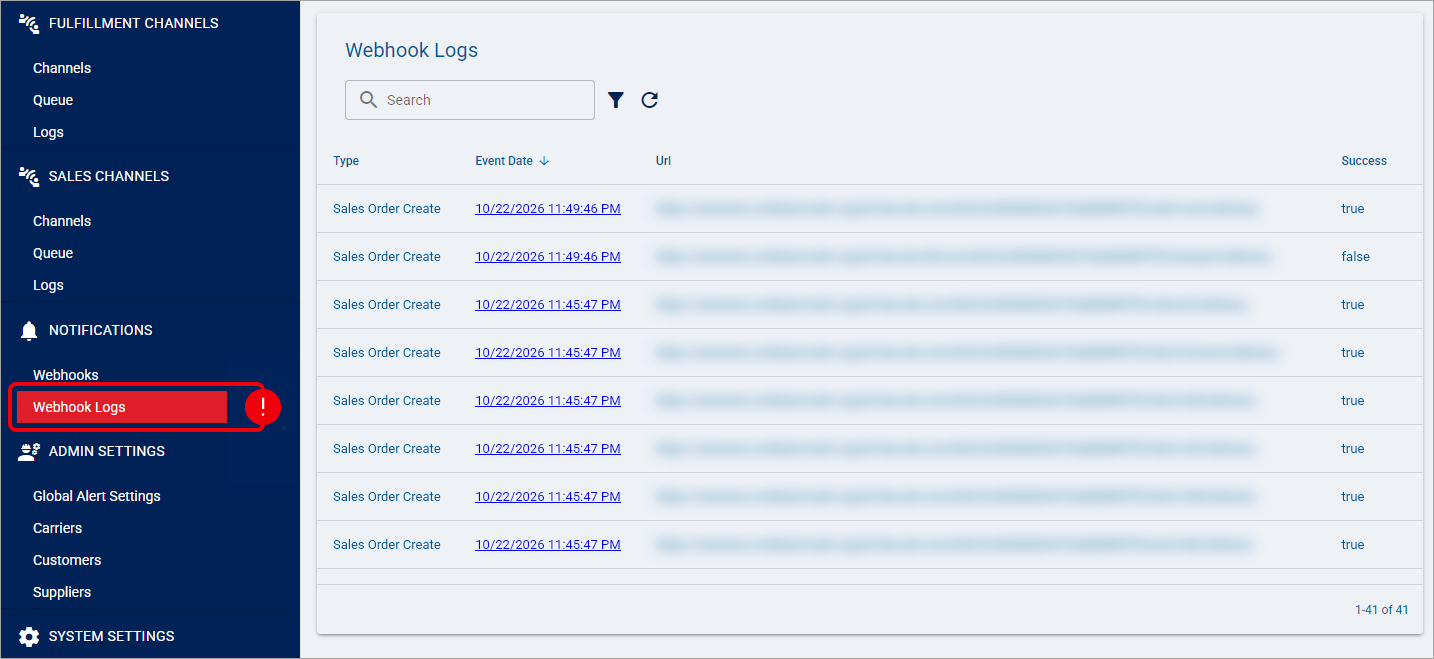
The list contains the following columns:
Column | Description |
|---|---|
Type | Business event that generated the notification. |
Event Date | Date and time when the notification log was created. Select the linked date and time to open the record. |
Url | Saved destination URL for the notification. |
Success | Indicates whether techOMS recorded a successful webhook delivery. |
Records initially appear with the most recent Event Date first. You can sort the supported columns and scroll to load additional records.
Search and Refresh Webhook Logs
Use Search to find text contained in the saved Payload or Exception.
Search does not search the visible Type or Url columns.
Select the Refresh icon to reload the list using the current search, filters, and sorting. Refreshing retrieves the latest saved information; it does not resend a webhook notification.
When filters are active, use Clear all filters to remove the current Search and Advanced Filter criteria and reload the list.
Filter Webhook Logs
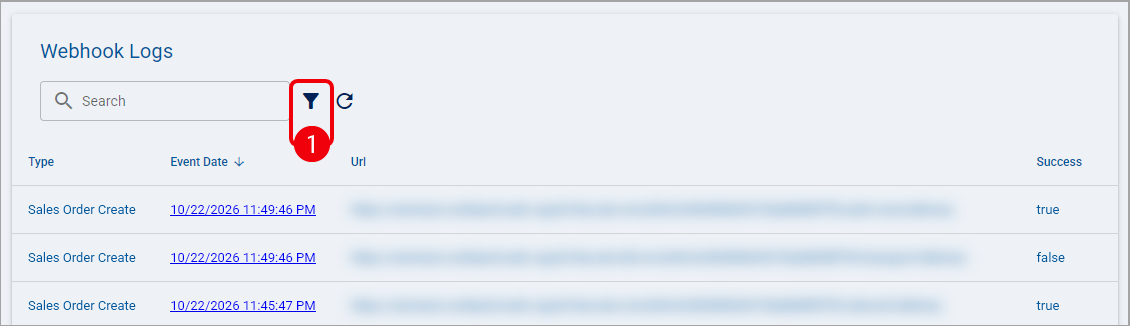
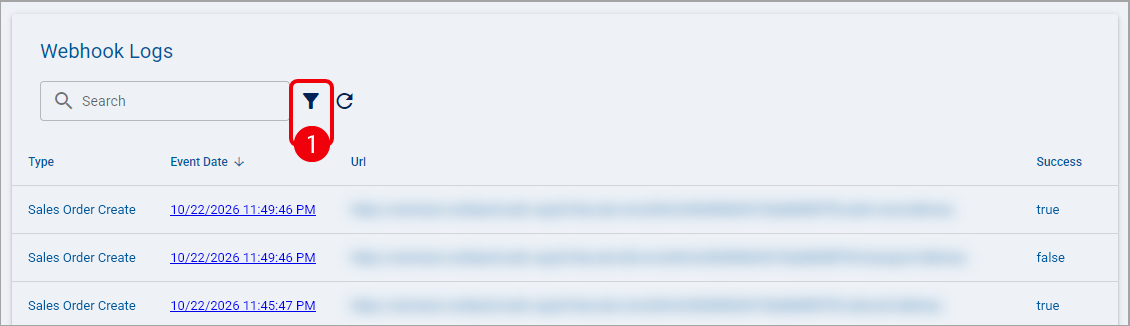
Select the Advanced Filter icon.
Set the applicable criteria and select Apply:
Type: Select the business event.
Status: When available for the selected event type, use the status field to narrow records based on status information stored in the notification payload.
Event Date Start: Enter the earliest event date and time to include.
Event Date End: Enter the latest event date and time to include.
Payload: Enter text that must appear in the saved payload.
Exception: Enter text that must appear in the saved exception.
Populated Advanced Filter criteria narrow the results together and can also be combined with Search. Date and time limits are inclusive and use the selected Account time-zone context.
A status condition examines text stored in the notification payload; it does not check the business entity's current status. Use it to narrow results rather than as an exact current-status lookup.
When you open an uninitialized Advanced Filter, Event Date Start is initially suggested at approximately seven days before the current time. This does not restrict the unfiltered page by default; the date condition applies only after you select Apply.
Inspect a Webhook Log
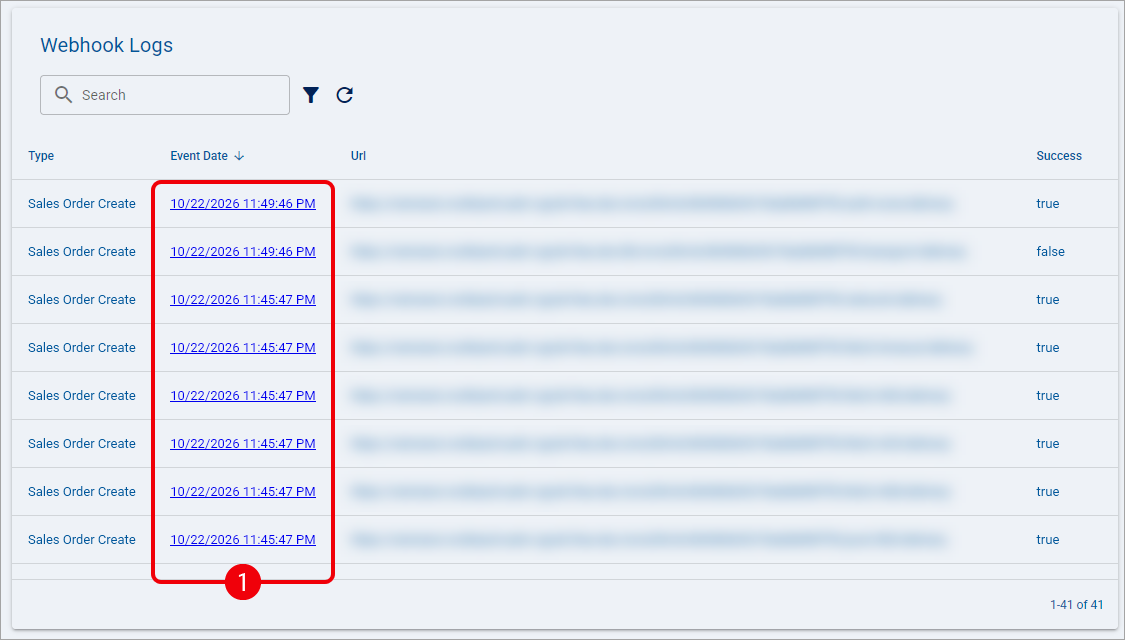
Select an Event Date link for the notification you want to inspect.
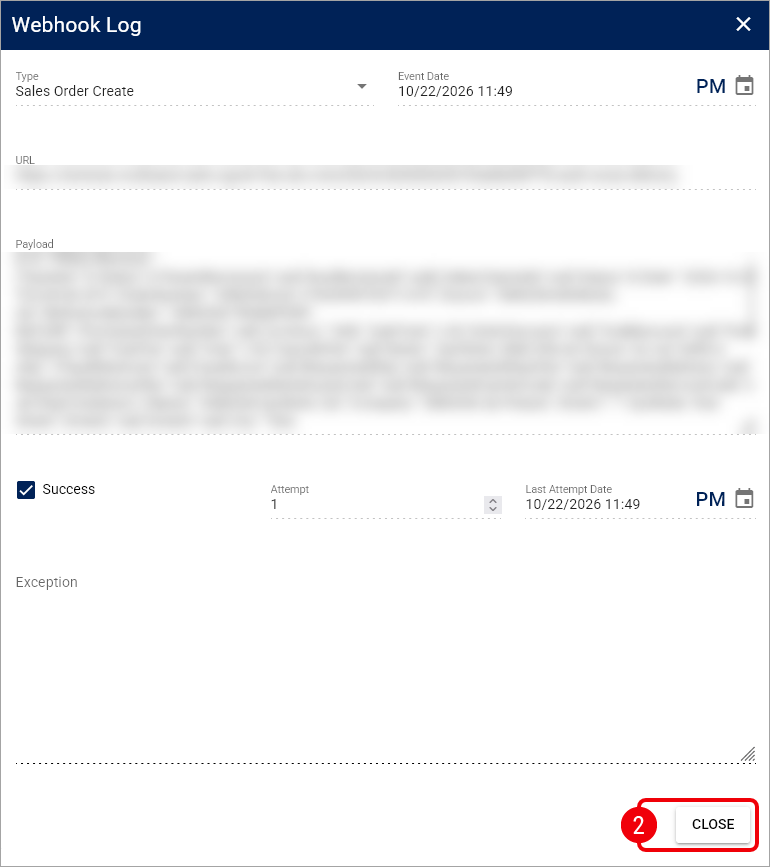
Review the read-only Webhook Log fields. Once finished, click Close:
Field | Description |
|---|---|
Type | Business event associated with the notification. |
Event Date | Date and time when the notification log was created. |
URL | Full saved destination URL for the notification. |
Payload | Saved outbound notification body. It is not the response returned by the destination. |
Success | Indicates whether a successful webhook delivery was recorded. |
Attempt | Number of delivery attempts started for this notification. |
Last Attempt Date | Date and time when the most recent recorded attempt started. |
Exception | Latest saved delivery error, when applicable. |
Event Date identifies when the notification record was created, while Last Attempt Date identifies the most recent delivery attempt. Attempt counts delivery attempts, not individual HTTP requests performed within an attempt.
Interpret Delivery Results
Use Success, Attempt, Last Attempt Date, and Exception together when reviewing delivery results.
What You See | How to Interpret It |
|---|---|
Success is selected | techOMS recorded a successful HTTP response for the webhook delivery. This does not confirm any later processing performed by the destination. |
Success is not selected | The notification may still be awaiting an attempt, may have experienced a retryable failure, or may have stopped after a failure. Review Attempt and Exception before classifying the result. |
Attempt is greater than 1 | The same notification has been attempted more than once. Retries update the same log record instead of creating a separate row for each attempt. |
Exception contains a message | The field shows the latest saved delivery error. It is not a complete history of previous attempt errors. |
An event Type ending in Error describes the business event that triggered the notification; it does not mean delivery of that webhook failed.
Authentication or CSRF-related exceptions may identify whether the failure occurred while retrieving a token or while delivering the webhook. The Webhook Log dialog does not provide a per-attempt history or a resend action.