Using the Rates Tab on an Order [Guide]
Last updated: October 15, 2026
Use the Rates tab on a saved order in techSHIP to review returned shipping rates, identify failed rate requests, and select a different Carrier, Client Account, and Service when the order is eligible for editing.
This guide covers how to estimate rates, interpret successful and failed results, understand the latest rating run, and select a successful rate.
Access and Recalculate Rates
To calculate or recalculate rates, open the saved order you want to rate and:
Select Actions > Estimate.
Allow techSHIP to complete the estimation before reviewing the updated Rates tab.
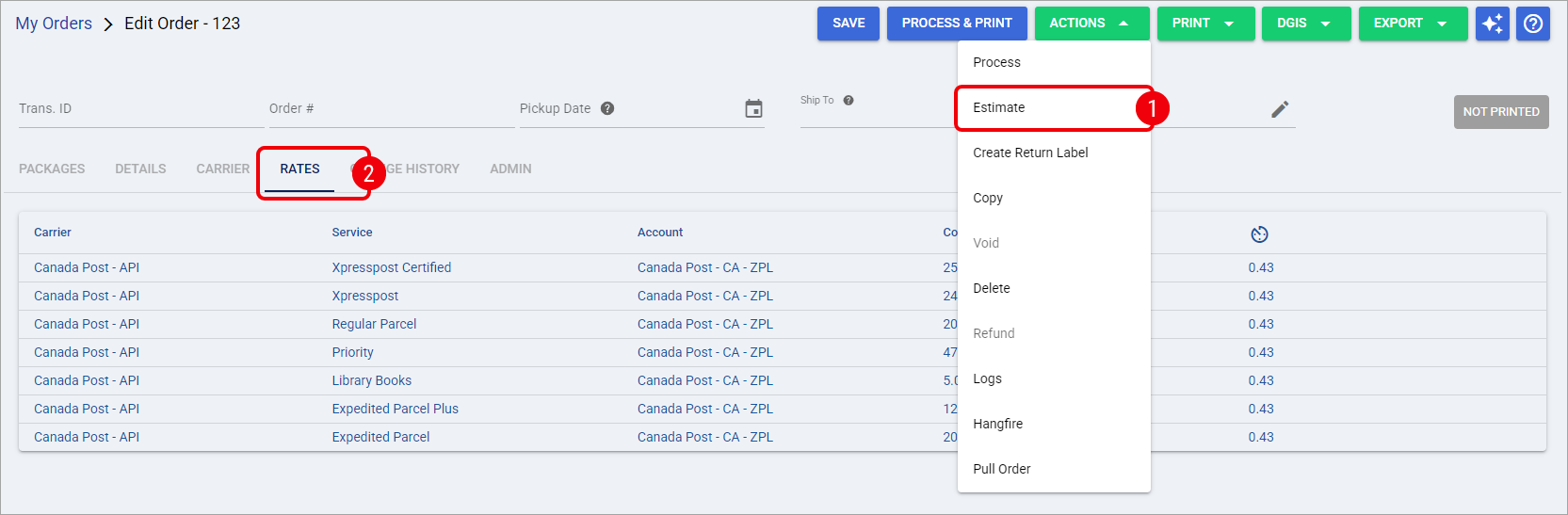
You can run Estimate when you have permission to edit the order, and the order is in Unprocessed, Failed, or Warning status. Learn more about these restrictions in the following articles:
Because Estimate is queued for processing, the new rating results may not appear on the immediate screen refresh. If necessary, refresh or reopen the order after estimation completes.
After estimation completes, the Rates tab reflects the latest saved rating results. Review the successful rates first, and then check Failed rate requests when that section is available.
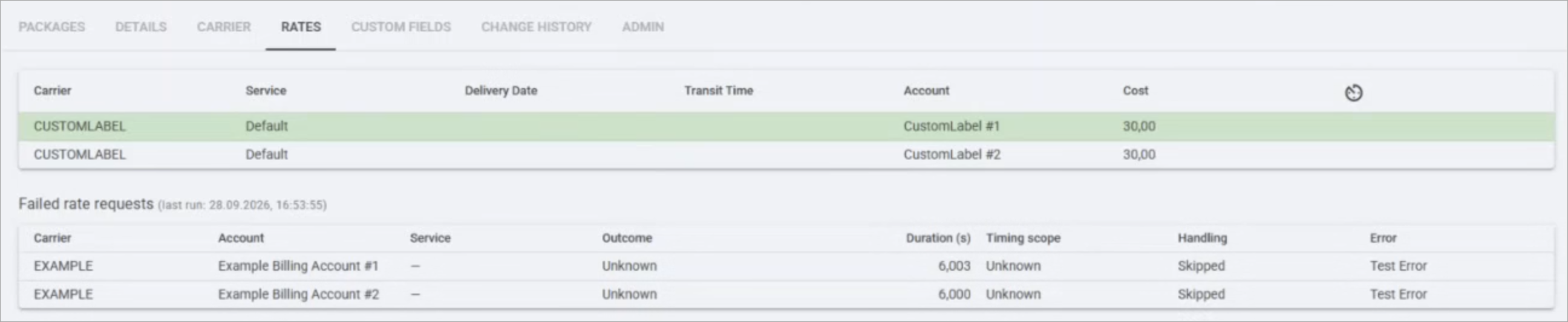
Review Successful Rates
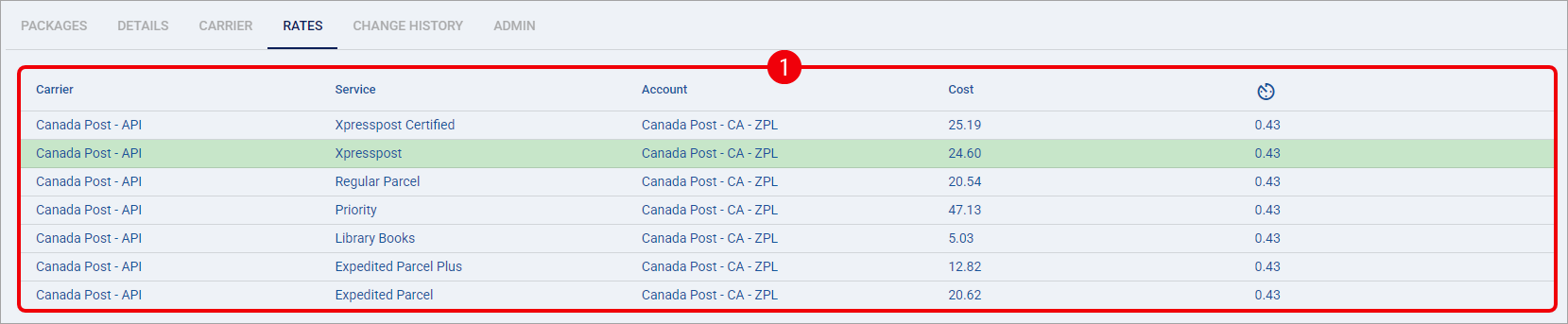
The first table on the Rates tab shows the successful rates returned for the order. When no successful rates are available, No rates returned appears instead.
The table can contain the following rate information:
Field | Description |
|---|---|
Carrier | Shows the Carrier that returned the rate. |
Service | Shows the corresponding Service. |
Delivery Date | Shows the expected delivery date when Rate Shop by Delivery Date is enabled. |
Transit Time | Shows the expected transit time when Rate Shop by Delivery Date is enabled. |
Account | Shows the Client Account used to obtain the rate. |
Cost | Shows the rate-shopping amount with two decimal places. |
Timer icon | Shows the available request duration for the successful rate, in seconds. |
The currently selected successful rate appears with a light-green row highlight, allowing you to identify the order's current Carrier, Service, and Client Account combination.
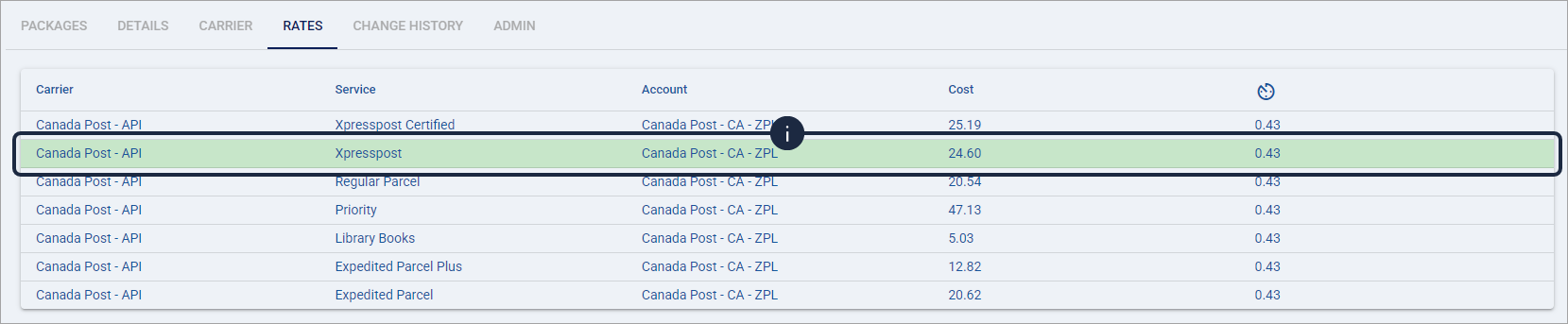
Do not interpret the table order as a guaranteed lowest-to-highest Cost sort. The visible Cost is not the value used internally to determine the row order.
Depending on the latest rating result, you can see successful rates only, successful rates together with failed requests, No rates returned together with failed requests, or No rates returned without any failure section.
For a processed order without saved fetched rates, techSHIP can also display a single selected rate based on the processed order's available shipping information.
Review Failed Rate Requests
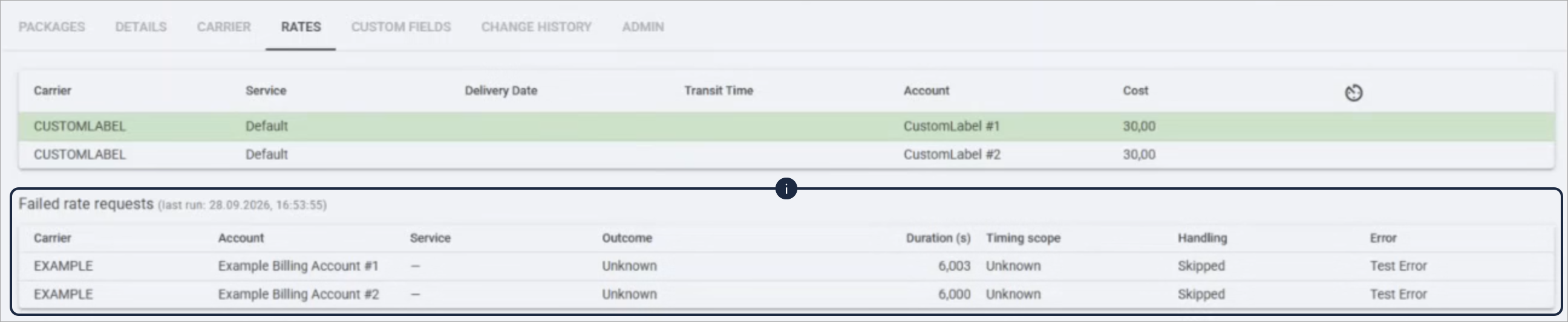
When the latest estimation run contains recorded failures, Failed rate requests appears below the successful-rates table. If the latest run contains no failures, the entire section is hidden.
Each failed request is read-only and can contain the following information:
Field | Description |
|---|---|
Carrier | Identifies the Carrier associated with the failed request when available. |
Service | Identifies the affected Service when available. |
Account | Shows the associated Client Account when available. |
Outcome | Classifies the failure as Carrier error, Timeout, Exception, or Unknown. |
Duration (s) | Shows the measured elapsed time in seconds when timing information is available. |
Timing scope | Identifies what the measured duration represents: Carrier call, Carrier operation, Plugin round trip, or Unknown. |
Handling | Shows whether the failed request was Skipped or Not skipped. |
Error | Shows the available error information associated with the failed request. |
A missing Service, account value, duration, or other unavailable diagnostic value can appear as an em dash (—). A measured duration of zero remains visible as 0.000 rather than being treated as unavailable.
Interpret Timing and Handling
When Timing scope shows Carrier call, the duration represents a measured call to the Carrier. Carrier operation represents a broader rating operation around the Carrier interaction.
When Timing scope shows Plugin round trip, do not interpret the duration as the Carrier's API response time. It can include communication and plugin-processing time in addition to the Carrier interaction.
When Duration (s) is unavailable or Timing scope is Unknown, the failure was recorded without enough timing information to provide a more precise measurement.
When Handling shows Skipped, techSHIP suppressed that failed result so rating could continue with other available results. When it shows Not skipped, the failure was not suppressed.
You can see successful rates and failed requests together. A failed request does not necessarily mean that the entire estimation failed.
Understand the Latest Rating Run
The last run information identifies the estimation run represented by the failed-request diagnostics. techSHIP retains and displays the failed requests from the latest completed rating run rather than building a history of previous runs.
When you run Estimate again, the new completed run replaces the previous failed-request snapshot. Previous failed rows do not remain or combine with the new run.
If the next completed estimate contains no failed requests, the previous Failed rate requests section disappears.
This means the Rates tab always gives you the current saved rating state. After reviewing the latest diagnostics, you can rerun Estimate when you need a new rating result.
Select a Successful Rate
When the order is eligible for carrier editing, you can select a successful row from the Rates table to change the order's shipping selection. Otherwise, the successful-rate table remains view-only.
You can select a rate when the order is editable, and it is in Unprocessed, Failed, or Warning status.
To select a rate:
In the Rates tab, click the successful rate you want to use.
Click OK to confirm the selection, or click Cancel to leave the order unchanged.
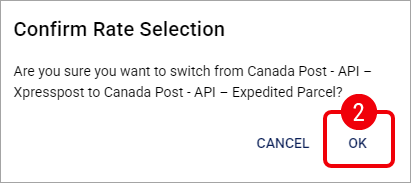
After you click OK, techSHIP updates the order's Carrier, Client Account, and Service combination and refreshes the order. Confirm the change by checking the light-green highlighted row in the successful-rates table.
Selecting a rate does not lock the displayed Cost, Delivery Date, Transit Time, or request duration. The selection updates the order's Carrier, Client Account, and Service combination.