Changing the Carrier on an Order [Step-by-Step Guide]
Last updated: October 15, 2026
Use the Carrier tab in techSHIP to change the configured Carrier/Account combination on an existing order without recreating it.
This guide explains how to select another configured combination or return the order to [Rate Shop].
Before You Begin
The Edit Carrier action is available only when all of the following conditions are met:
You have Edit Order permission and are not working in read-only mode. To check your permissions, see: 📄 techSHIP User Permissions Structure [Information].
The order is in Unprocessed, Failed, or Warning status.
If the Edit Carrier action is unavailable, verify that the order meets these conditions before continuing.
Save any unrelated changes to the order before changing the Carrier. The Select Carrier dialog saves through a separate action and refreshes the order after a successful change, so unsaved changes on the main order may be lost.
Use this workflow when you need to change the configured Carrier/Account combination without selecting a quoted rate or replacement Service. If you want to choose a returned rate and its Service, see 📄 Using the Rates Tab on an Order [Guide].
Review the Carrier Configuration
On the Carrier tab, review the fields associated with the current shipping configuration:
Carrier identifies the currently assigned Carrier or displays [Rate Shop] when the order does not have a fixed Carrier assignment.
Client identifies the Client associated with the order.
Baseline Account identifies the underlying Carrier account associated with the configuration.
Account identifies the client-specific account relationship configured for the order.
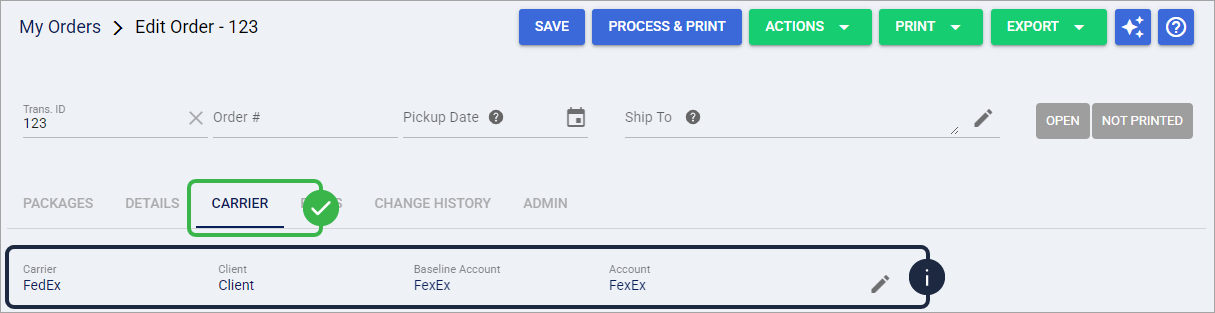
The Account and Baseline Account fields represent different relationships. Account is the client-specific relationship selected for the order, while Baseline Account is the underlying Carrier account.
Change the Carrier and Account
To assign another configured Carrier/Account combination:
Click My Orders.
Open the order you want to update.
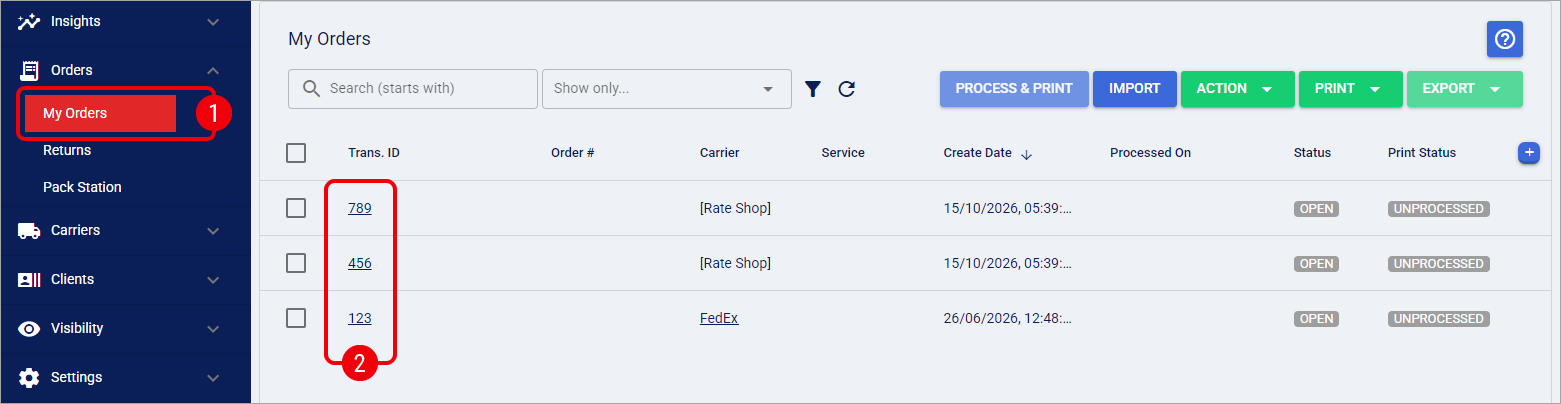
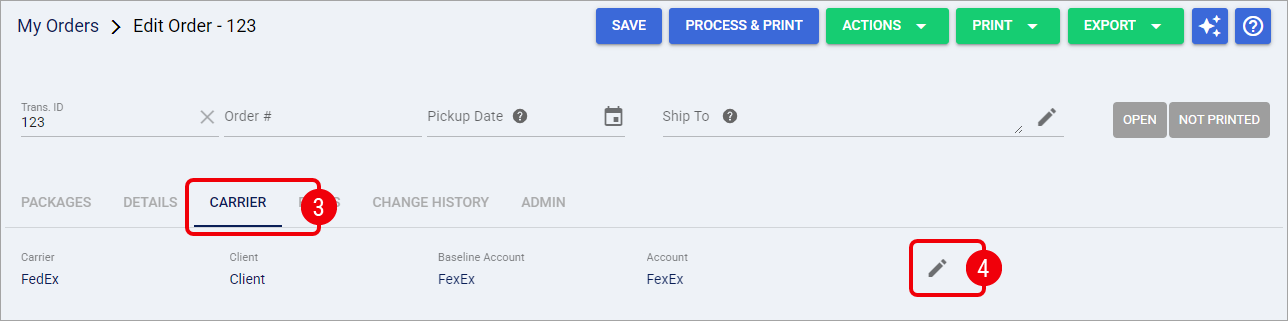
Select the Carrier tab.
Select the Edit Carrier pencil icon to open the Select Carrier dialog.
Select the row containing the Carrier/Account combination you want to use. Each regular row represents a complete configured relationship consisting of the following values:
Carrier: the Carrier associated with the configuration.
Baseline Account: the underlying Carrier account.
Billing Account: the client-specific account relationship.
To remove the fixed Carrier/Account assignment instead, select [Rate Shop]. This returns the order to the Rate Shop configuration but does not request rates, display quotes, or select a replacement Service.
Review your selection, and then select Save.
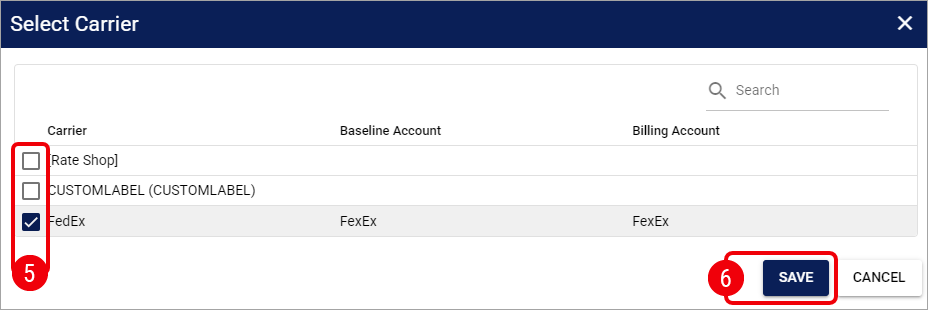
The Billing Account column in the Select Carrier dialog represents the same client-specific relationship labeled Account on the Carrier tab. Baseline Account remains a separate underlying Carrier account.
If you select Save without changing the current row, the Select Carrier dialog closes without updating the order. Select Cancel or the close icon to exit without making changes
After a successful Save, techSHIP applies the selected configuration and refreshes the order. If you selected a configured row, review the updated Carrier tab and continue editing or processing the order as needed. If you selected [Rate Shop], continue with 📄 Using the Rates Tab on an Order [Guide] when you are ready to request rates and select a Service.