How to set up Sales/Fulfillment Channel Webhooks [Step-by-step guide]
Last updated: September 29, 2026
When connecting a Sales or Fulfillment Channel, you can set up webhooks for information exchange between systems.

This article is divided into the following sections:
- Accessing the Webhooks Tab
- Choosing Webhook Usage
- Manual Configuration (Using Channel Credentials)
- Automatic Configuration (Using techOMS-Generated Webhooks)
- Saving Changes
I. ACCESSING THE WEBHOOKS TAB



To access the webhook settings:
1. Click Channels from the left menu under the Sales or Fulfillment Channels section according to your case.
2. Click the name of your channel.

3. Open the Webhooks tab.
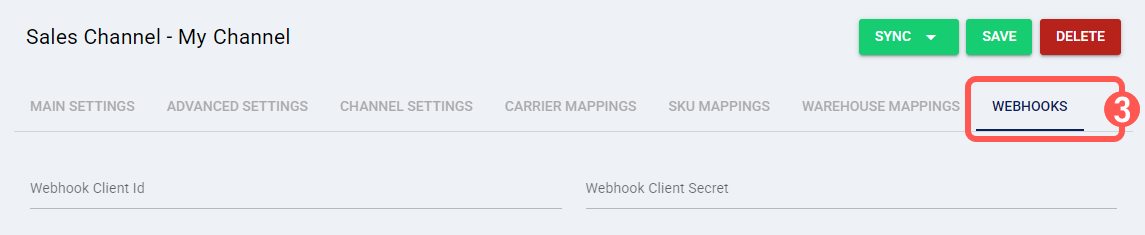
Continue to the next section to choose your webhook setup.
II. CHOOSING WEBHOOK USAGE
You can configure one of two webhook modes:
- Manually created in the channel (for customization purposes), or
- Automatically generated by techOMS (for fulfillment orders).

i. Manual Configuration (Using Channel Credentials)
Enter the webhook credentials provided by your channel:
- Webhook Client Id
- Webhook Client Secret

ii. Automatic Configuration (Using techOMS-Generated Webhooks)
1. Press Create.

2. Select the connection type from the Type dropdown.
techOMS will automatically generate the required ID and URL.
3. Press Save.

III. SAVING CHANGES
Once configured, click Save to apply your changes.
