How to Find/Filter Sales Orders [Step-by-Step Guide]
Last updated: November 3, 2026
Finding and filtering Sales Orders in techOMS helps you locate specific orders and review their current status.
Use this guide to find Sales Orders using the Search Box, Quick Filter, or Advanced Filter options.
Before proceeding, review and understand the following articles:
By default, techOMS displays records from the last 7 days to optimize performance. If you cannot find a specific record, use the Advanced Filter to adjust the Date Range. For more details, refer to: 📄 Understanding Default Date Filters [Information].
To find or filter Sales Orders:
Select the desired Account from the header switcher.
Click Sales Orders from the left menu under the Sales section.
Filter the orders using one or more of the following options:
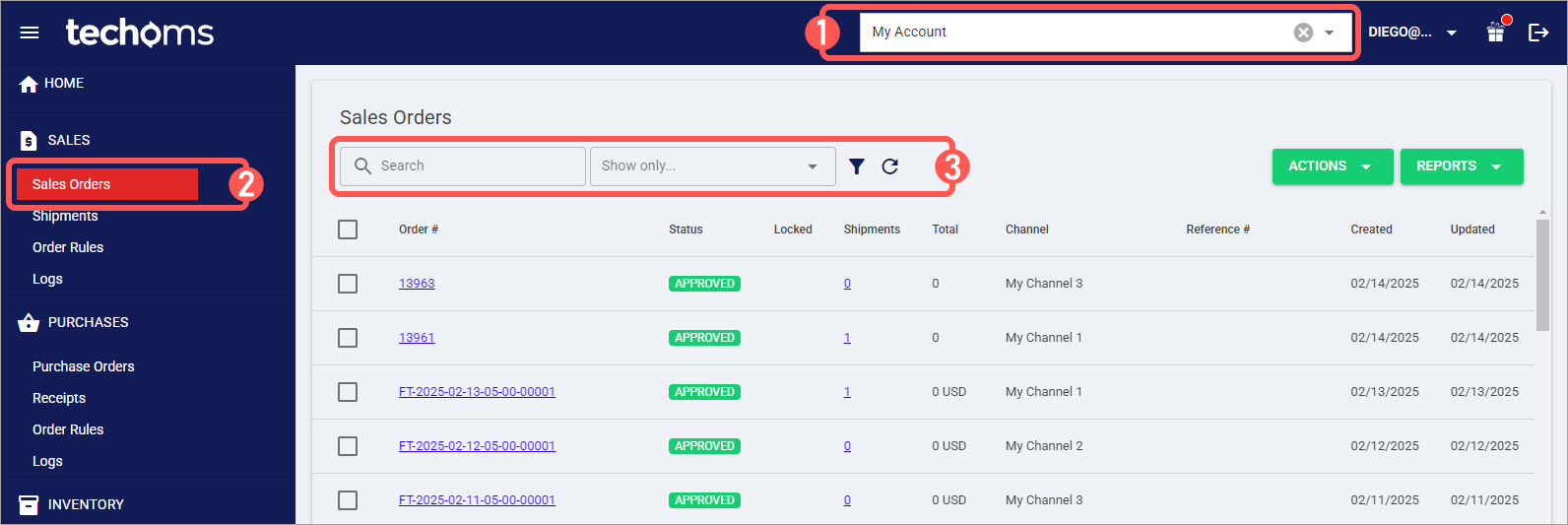
Search Box: Quickly search by any part of the Order or Reference Number.
Quick Filter: Quickly filter by the current Order Status or by the date they were last updated by clicking on the Show only... dropdown.
Advanced Filter: Click the filter icon to open the Advanced Filter popup. This allows you to filter by many order properties, such as Status, SKU, Date Ranges, and Shipping information.
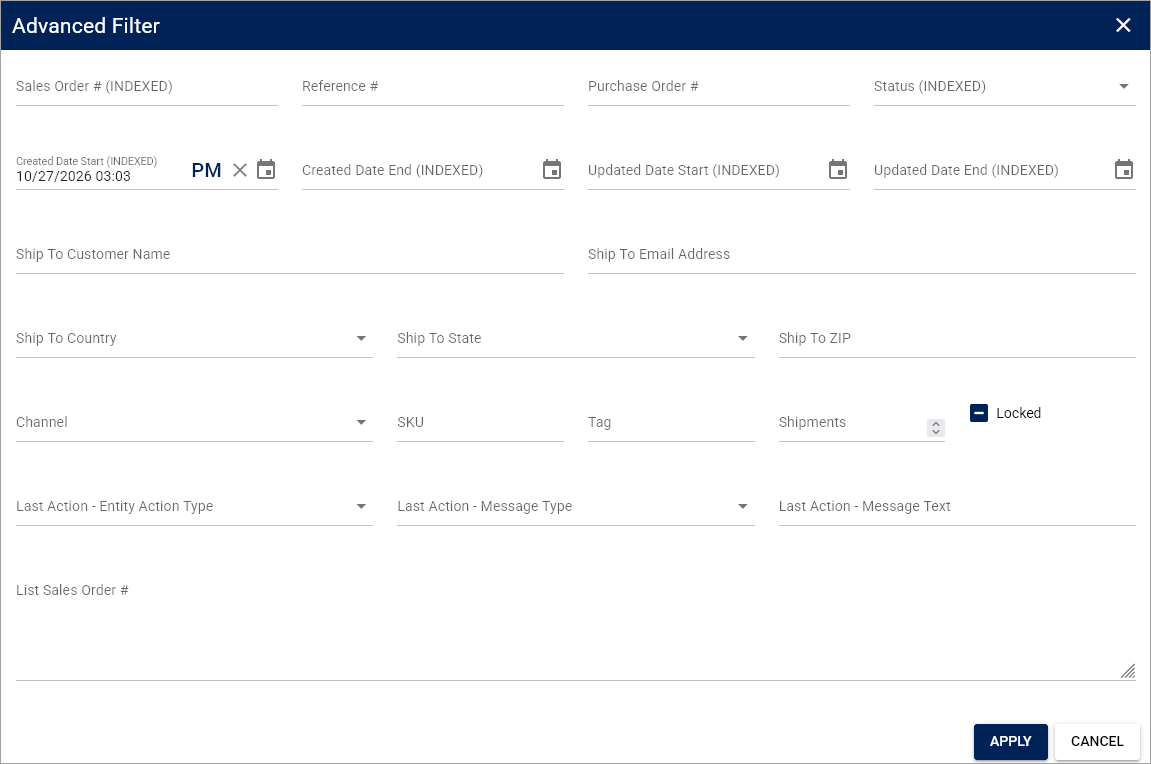
The Channel dropdown allows you to select from your integrated Sales Channels. It also includes the options Manual, Imported, and API to filter orders based on how they were created.
The Locked checkbox with a dash (neither checked nor unchecked) means the property is ignored, and both locked and unlocked orders will be shown.
Review the filtered orders.