How to Review the User Change Log in techSHIP [Step-by-Step Guide]
Last updated: November 5, 2026
The User Change Log in techSHIP helps you investigate user activity and account access by showing recorded actions performed by a selected user and changes made to their account or permissions.
This guide explains how to access the User Change Log, review and filter recorded events, inspect change details, and export the available history.
Access the User Change Log
You need the appropriate permissions to view and export the User Change Log. For more information, refer to 📄 techSHIP User Permissions Structure [Information].
Navigate to the user-management page that matches your permissions and user-history needs:
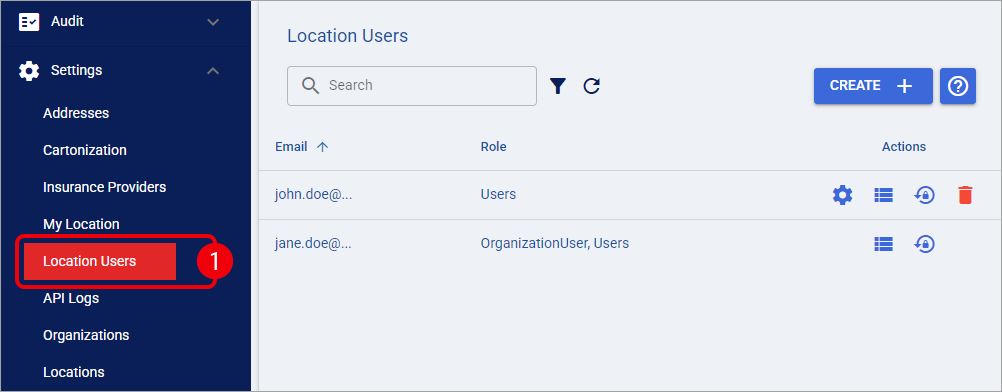
Settings > Location Users: View user's records associated with the current Location only.
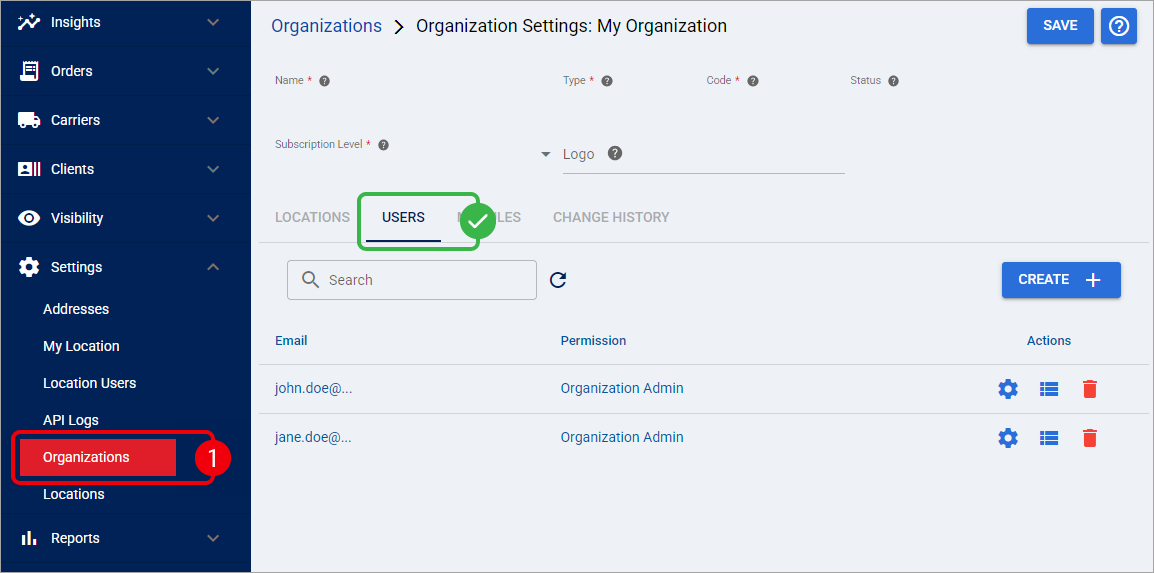
Settings > Organizations > Organization Settings > Users: View user's records across the Locations belonging to that Organization, including applicable account-wide events.
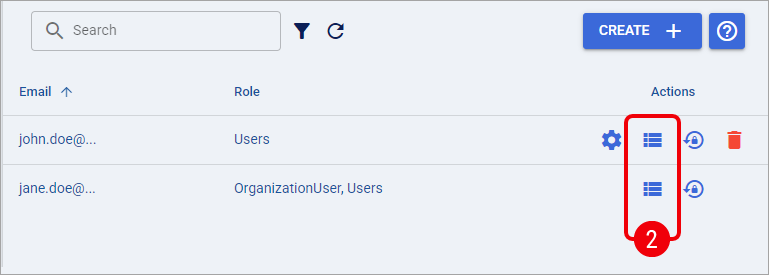
Find the account you want to investigate and select the Change Log action in its Actions column.
The User Change Log page opens, identifying the selected account.
The Location Users view excludes events associated with other Locations and account-wide events that have no Location association. As a result, some role changes, API key rotations, or password reset requests may not appear.
The Organization Users view excludes Location-specific events from other Organizations. However, applicable account-wide events can appear even when they are not associated with one specific Organization.
Understand the User Change Log
The User Change Log combines recorded actions performed by the selected user with changes made to that user's account or access.
Depending on the available history, records may include account creation, permission or role changes, API key rotations, password reset requests, configuration and order-related actions, logins, logouts, exports, navigation, and other recorded activity.
Each entry includes the following information:
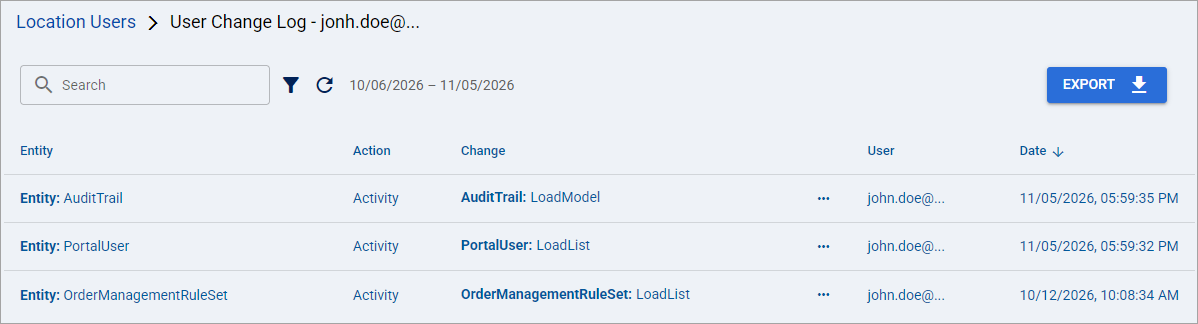
Entity: Identifies the entity or record associated with the event. When available, the Location appears within this field.
Action: Identifies the recorded action or event type, such as Modified, Login, or Activity.
Change: Displays the recorded event details, including modified properties or other action-specific information.
User: Identifies the person or system actor who performed the recorded action.
Date: Shows when the event occurred, using your local time zone where available.
The User column identifies who performed an action, not necessarily the account whose history you are reviewing. For example, an administrator's changes to another user's permissions can appear in that user's log with the administrator identified as the actor.
Available entries depend on the activity actually recorded and the visibility scope of the selected view. Historical events are not automatically backfilled.
Search and Filter the User Change Log
You can narrow the displayed records using the Search field or the Filter dialog.
By default, the User Change Log opens with a date range beginning 30 days before today and ending today. Both dates are inclusive, and you can select other historical intervals as long as the difference between the start and end dates does not exceed 30 days.
Use the following controls to narrow down entries:
Search bar to find matching records by entity, Location (when available), action, change details, or the actor responsible for the event.
Advanced Filter icon to open the Filter dialog.
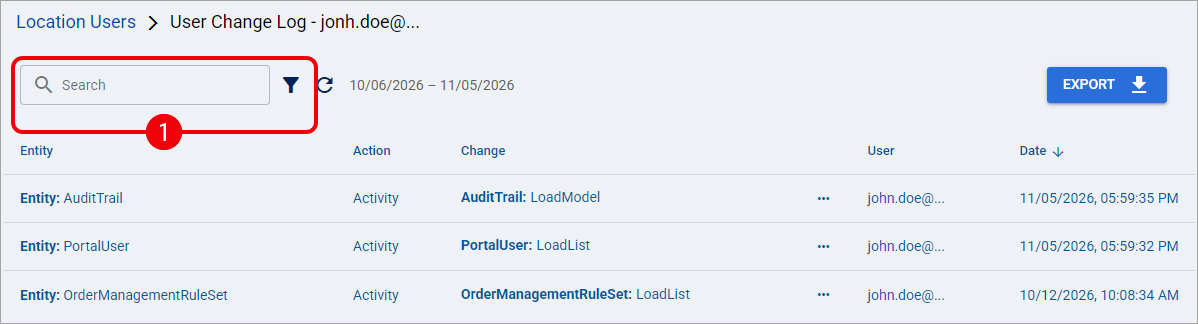
Configure the following fields and select Apply:
Date From (inclusive): Required. Select the first date of the period you want to review.
Date To (inclusive): Required. Select the last date of the period you want to review.
Action: Optional. Select one or more action types to restrict the results to matching events.
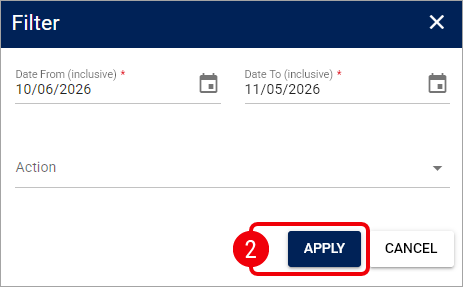
The Action filter includes standard audit actions, such as Created, Modified, and Deleted, as well as user activity and account-related classifications, such as Login, Logout, Export, Roles changed, API key rotated, and Password reset requested.
You can select multiple actions and combine them with the date range and text search. Only events that were actually recorded can appear in the results.
Date ranges exceeding the 30-day maximum cannot be applied through the Filter dialog.
Review Entries and Raw Change Details
By default, the User Change Log displays the newest entries first. You can select the Date column header to switch between ascending and descending chronological order. Additionally, you can scroll through the log to review additional entries. More records load progressively as you scroll.
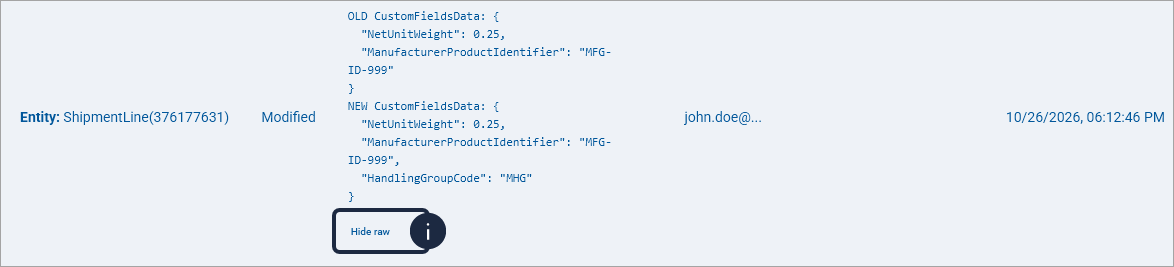
When the three-dot icon appears for an entry, select it to display the associated raw change details.

The raw view can display technical property names, identifiers, previous and updated values, and other information that may be simplified in the formatted view. The available details depend on the recorded event and applicable data-access restrictions. Select Hide raw to return to the formatted view.
The User Change Log is read-only. You cannot modify, delete, restore, or reapply recorded events from this page.
Export the User Change Log
You can download the matching records as a CSV file for further review or auditing.
Verify that the active Search, Filter, date range, and Date sorting match the history you want to export. Then, select Export.
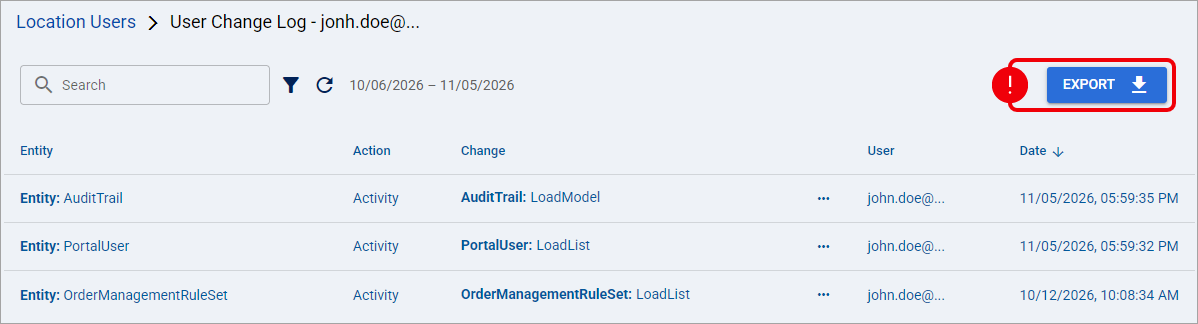
The downloaded CSV includes all matching records you are authorized to access, not just those currently visible on the screen. The export respects the applied filters and sorting.
The CSV contains the following columns:
Entity: The entity associated with the event.
Location: The associated Location, when available.
Action: The recorded event type.
Change: The recorded change details.
User: The actor responsible for the event.
Date: The event timestamp.
Unlike the on-screen log, the CSV provides Location as a separate column. Its value may be blank for certain entries, including records exported from the Location Users view.
The exported file uses the naming format UserChangeLog-YYYY-MM-DD.csv. Dates are formatted using your local time zone where available.
CSV exports are limited to 50,000 entries. If the filtered results exceed this limit, no file is downloaded and the following message appears:
"The export is limited to 50,000 entries. Apply filters and try again."
Narrow your search or adjust the filters to reduce the matching records before exporting again.