How to Edit Order Lines of a Sales Order [Step-by-Step Guide]
Last updated: October 16, 2026
You can Edit Sales Order Lines previously created if needed, as long as these are in Draft status. This article describes the steps and fields involved in the process.
If your Sales Order is eligible for Edit Order and is currently outside Draft, use Edit Order to initiate the return to Draft. Edit Order does not modify order lines directly, and you must wait until the Sales Order actually reaches Draft before continuing with the steps below. For instructions, refer to 📄 How to Edit a Sales Order and Return It to Draft [Step-by-Step Guide].
If the order is currently On Hold, its lines cannot be edited directly to protect data integrity and avoid synchronization conflicts with the Sales Channel. Refer to 📄 How to Manage Sales Orders On Hold [Guide] for instructions on how to safely move it to a Draft state to proceed.
To Edit Order Lines of a Sales Order you will have to:
Click Sales Orders under Sales
Click the Sales Order number to access it
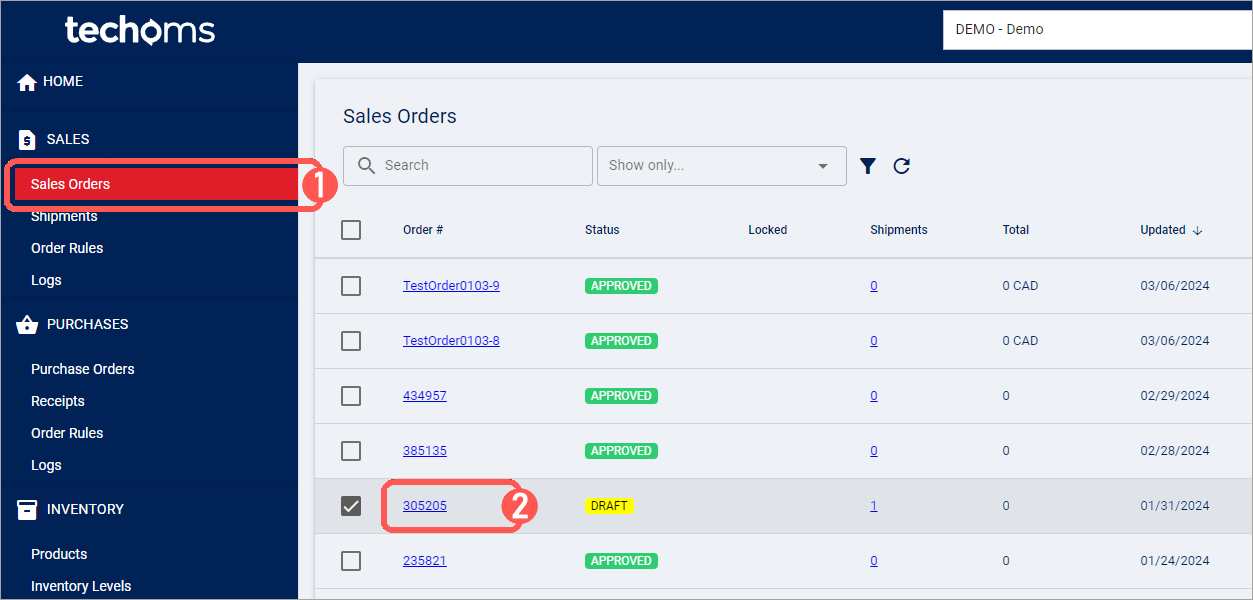
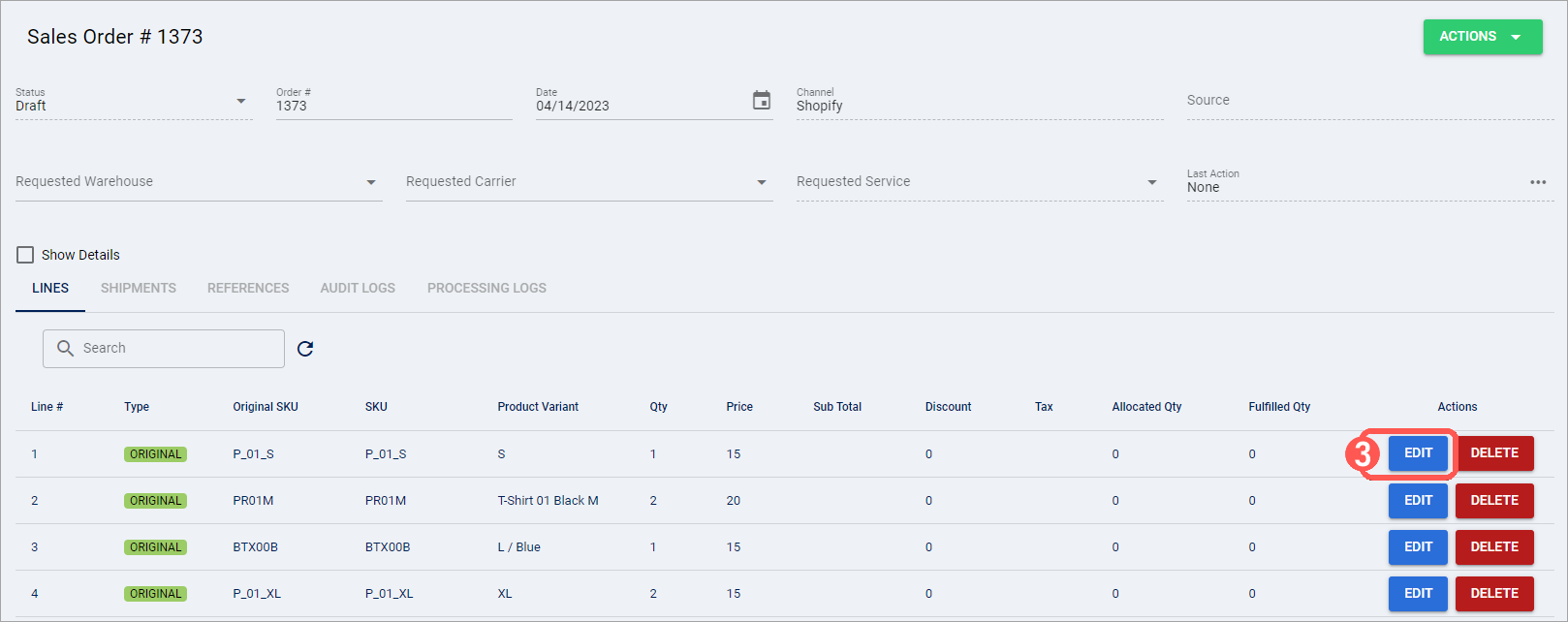
Press Edit of the Line row you wish to update
The manual interface for editing order lines does not support adding or modifying requested lot numbers. The lot number dimension is exclusively managed via integration payloads. For detailed information, refer to 📄 Understanding Lot and Serial Numbers [Information].
Update the fields accordingly
Press Save to complete the action
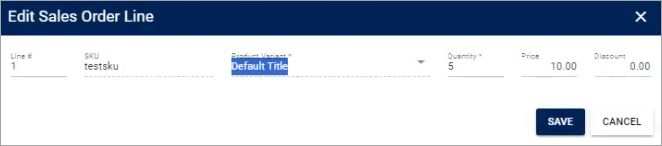
After you select Save, the Sales Order line is updated. You can select Edit for another line if additional changes are required, or continue with your Sales Order workflow.