How to Edit a Sales Order and Return It to Draft [Step-by-Step Guide]
Last updated: October 16, 2026
You can use Edit Order in techOMS when you need to prepare an eligible existing Sales Order for changes. Edit Order cancels applicable shipments in the background and returns the Sales Order to Draft when processing completes successfully; it does not modify order fields itself.
This guide covers the requirements, submission process, shipment and inventory behavior, background processing, and completion checks you need before editing the Sales Order.
Before You Begin
Before you use Edit Order, review the following requirements:
Permissions: You need the required Edit Order permission for Sales Orders. For details about available roles and permissions, refer to 📄 techOMS User permissions structure [Information].
Sales Order status: Approved and Fulfilling Sales Orders can use Edit Order when the remaining eligibility requirements are met. A Sales Order in other statuses is not eligible for a new Edit Order request.
Current Sales Order: You must have access to the active Sales Order revision, and the order must not have another conflicting operation in progress.
Bulk requests: From the Sales Orders list, you can submit up to 100 eligible Sales Orders in one request. The limit applies after ineligible selections are filtered out.
Edit Order replaces the previous To Draft and Move Orders To Draft actions. Do not look for the previous action as an alternative.
If the Sales Order is On Hold, use the separate Release Hold And Edit workflow instead of Edit Order. For more information on this workflow, see: 📄 How to Manage Sales Orders On Hold [Guide].
Start Edit Order
You can start Edit Order from either the Sales Orders list or an individual Sales Order. Both entry points schedule the same background process.
From the Sales Orders List
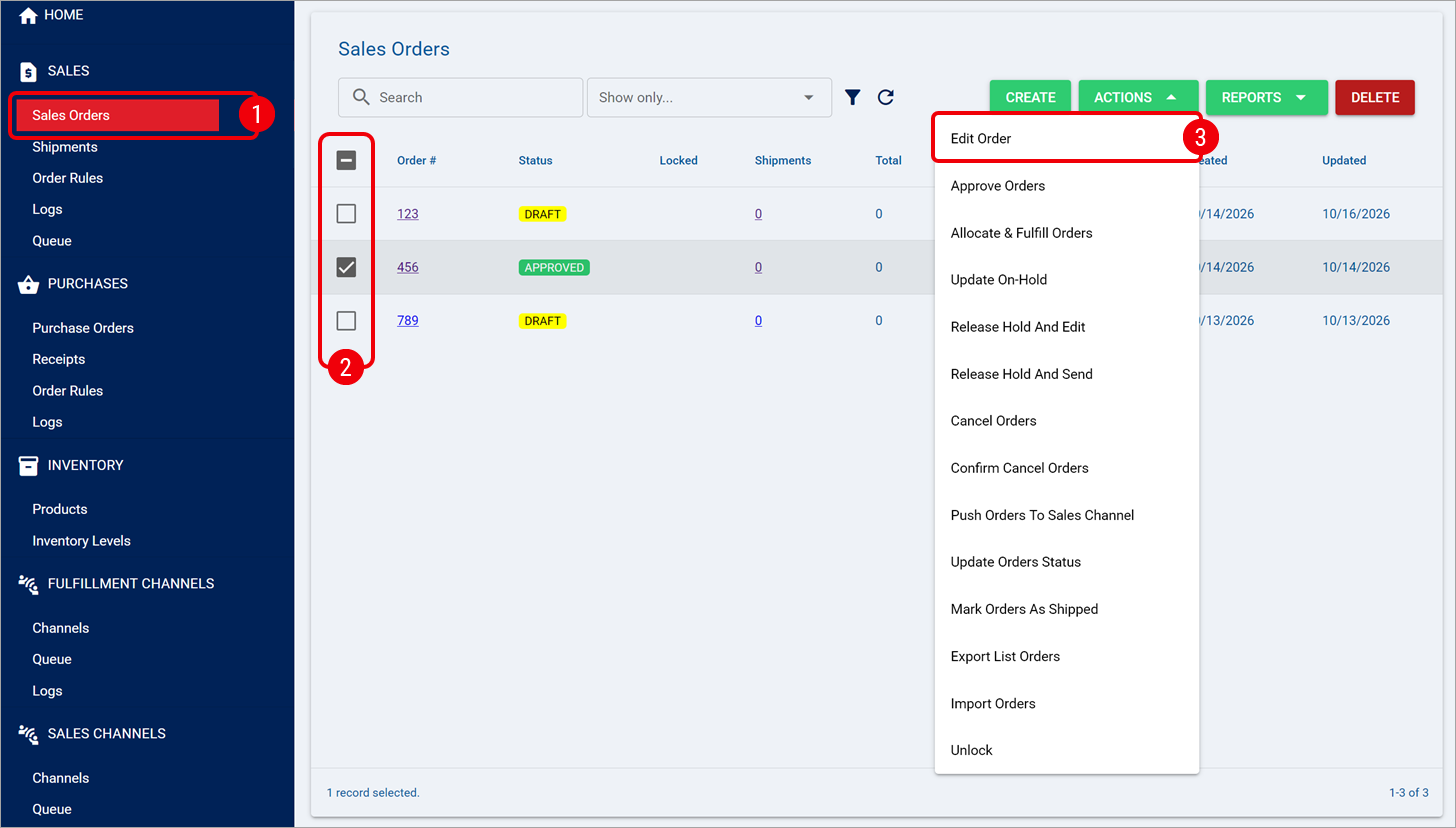
Go to Sales > Sales Orders.
Select one or more eligible Sales Orders that you want to prepare for editing.
Select Actions > Edit Order.
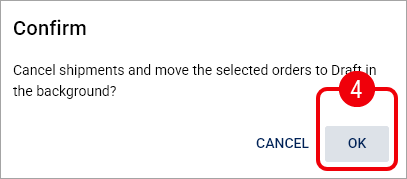
In the confirmation dialog, review the message and select OK.
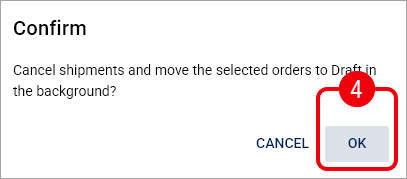
Review the notification displayed after submission. A successful submission confirms that the accepted Sales Orders were scheduled for shipment cancellation and moving to Draft.
Scheduling the request does not mean that the Sales Orders are already in Draft. Each accepted Sales Order is processed independently in the background.
From Sales Order Details
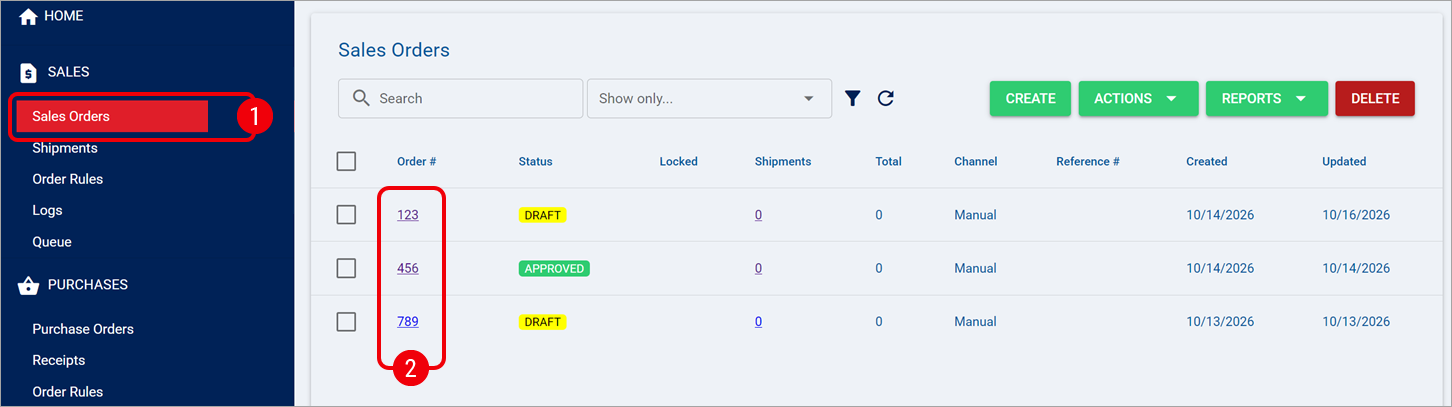
Go to Sales > Sales Orders.
Open the Sales Order that you want to prepare for editing.
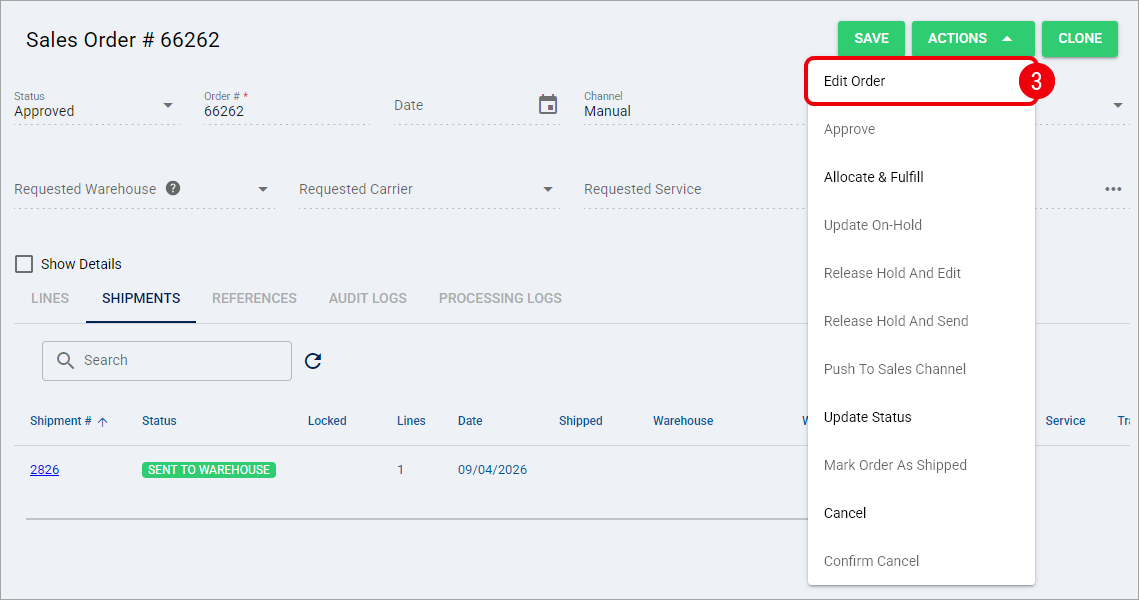
Select Actions > Edit Order.
In the confirmation dialog, review the message and select OK.
Review the notification confirming that the Sales Order was scheduled for background processing.
After either procedure, the Edit Order request is scheduled. Your next step is to monitor the operation and wait until the Sales Order actually reaches Draft before you modify it.
Understand What Happens During Processing
Each accepted Sales Order is processed as an independent background operation. If you submit multiple Sales Orders, one order can complete successfully even if another order is skipped or fails.
The immediate notification confirms submission, not final completion. If all eligible selections are accepted, you receive a success response; if only some are accepted, you can receive a warning; if none can be accepted, the submission returns an error.
While Edit Order is processing, the Sales Order can remain Approved or Fulfilling until the required shipment cancellations and final validation are complete. The order can also temporarily display Locked while the operation is active.
Locked indicates that an operation is currently controlling the Sales Order. It is not a Sales Order lifecycle status.
Starting Edit Order from the Sales Orders list does not automatically open the affected Sales Orders in new browser tabs. You must wait for background processing to finish before editing an order.
Understand Shipment and Inventory Behavior
Edit Order evaluates the current Sales Order and its shipments before returning the order to Draft. Sales Order statuses and shipment statuses are separate concepts, even when similar terms appear in both.
Shipment Handling
Shipment Status | Edit Order Behavior |
|---|---|
New or Ready To Send | The shipment is submitted through the existing cancellation process. The Sales Order can continue toward Draft after cancellation succeeds and final checks pass. |
Packing or Packed | The shipment is processed through the existing cancellation behavior. A successful cancellation can allow the Sales Order to continue toward Draft. |
Sent To Warehouse | Edit Order requests cancellation and waits for confirmation. The Sales Order remains out of Draft while cancellation is pending. |
Cancellation Requested | The operation waits for the existing cancellation request to finish and does not repeatedly submit the same request during retries. |
Cancellation Failed | The failed shipment prevents the Sales Order from returning to Draft. Other shipment cancellations that already succeeded remain effective. |
Cancelled | The shipment remains Cancelled and does not block the Draft transition. |
Shipped | The shipment remains Shipped and is not cancelled or modified. In an otherwise eligible partially fulfilled Sales Order, other cancellable shipments can be cancelled and the Sales Order can still return to Draft. |
Short Shipped, On Hold, or Processing | These shipment states are not supported by the initial cancellation-state validation and can prevent the Sales Order from returning to Draft. |
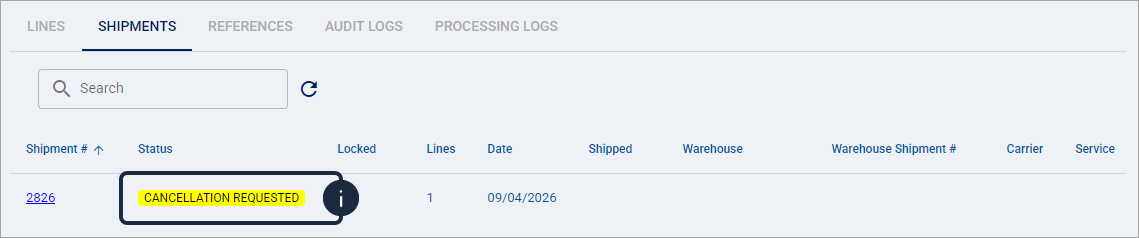
For a Sent To Warehouse shipment, the cancellation can remain pending while the external fulfillment process confirms the request.
Before completing the transition, techOMS reevaluates the Sales Order and its current shipment states. If the Sales Order no longer qualifies or a blocking shipment remains, the order does not move to Draft.
Inventory Impact
Inventory is restored through the existing shipment cancellation process for each shipment that is successfully cancelled. Edit Order does not perform an all-or-nothing inventory reversal for the entire Sales Order.
If one shipment is successfully cancelled but another shipment reaches Cancellation Failed, the successful cancellation remains in place and its corresponding inventory remains restored. The system does not roll back a successful cancellation because another shipment failed.
Inventory and fulfilled quantities associated with a retained Shipped shipment remain unchanged. An eligible partially fulfilled Sales Order can therefore return to Draft while retaining a shipment that was already shipped.
Edit Order is not a complete reversal of fulfillment. Previously Shipped shipments remain shipped, and the action does not return their inventory or fulfilled quantities.
For additional context about inventory and lifecycle statuses, refer to 📄 Understanding Inventory Levels and Order Status Impact [Information] and 📄 Sales and Purchase Order Statuses Definitions [Information].
Monitor Progress and Confirm Completion
Because Edit Order runs in the background, the notification displayed after submission only confirms that the operation was scheduled. To track its progress, use the Sales Orders Queue and identify the task with Action Type: Edit Order.
For instructions on how to access the queue, locate and filter tasks, review queue statuses, and view task details, refer to 📄 How to Manage System Queues [Guide].
When monitoring an Edit Order task, keep the following behavior in mind:
While the task is Scheduled or Processing, the Sales Order is not yet ready for editing and can remain in its previous status while shipment cancellation is processed.
A Completed queue status means that the background operation returned successfully, but you must still verify that the Sales Order has reached Draft before making changes.
A Failed queue status means that the Edit Order operation did not complete successfully. However, shipment cancellations that completed before the failure remain effective, including their corresponding inventory adjustments.
The queue task status and the Sales Order status represent different things. A completed queue task does not replace verification of the current Sales Order status.
After processing finishes, return to the Sales Order and verify that its Status is Draft.
Once the Sales Order reaches Draft, you can make the required changes. If you need to modify its lines, refer to 📄 How to Edit Order Lines of a Sales Order [Step-by-step guide].
When you confirm the Draft status, the Edit Order preparation is complete and you can continue with the appropriate Sales Order editing workflow.
Handle Incomplete or Failed Processing
The following conditions can prevent Edit Order from returning the Sales Order to Draft:
Cancellation is still pending: The Sales Order remains out of Draft while cancellation is waiting for confirmation. The operation can retry automatically, but retries are limited and there is no fixed completion time.
A shipment reaches Cancellation Failed: The Sales Order remains out of Draft. Any other shipments that were already cancelled remain cancelled, including their corresponding inventory adjustments.
A shipment is in an unsupported state: The operation cannot complete the Draft transition while a non-cancellable blocking shipment remains.
The Sales Order changes during processing: techOMS reevaluates the current order before writing Draft. If the Sales Order or its shipments no longer meet the requirements, the Draft transition does not occur.
The fulfillment integration cannot support cancellation: Edit Order does not add cancellation functionality to integrations that do not already support the required cancellation flow. For more information con fulfillment channel support, see: 📄 techOMS Fulfillment Channels - Master List [Guides List].
Queue Reprocess: The general queue Reprocess action does not support Edit Order. Do not use Reprocess as a recovery procedure for a failed Edit Order task.
If an Edit Order task ends in Failed, verify the current Sales Order and shipment states before taking any further action. Do not assume that all shipment changes were reversed simply because the Sales Order did not reach Draft.