How to Search and Filter Tracking Records in techSHIP [Step-by-Step Guide]
Last updated: October 27, 2026
You can use the Tracking page in techSHIP to search and filter shipment tracking records associated with your selected Location. Shipment tracking information is provided by the techTRACK monitoring engine.
This guide explains how to access the Tracking page, search for specific shipments, apply Advanced Filters, and open a shipment's public tracking details.
For a full overview of new features, see 📄 What's New in techSHIP: A Guide to the Latest Features [Information].
This feature requires specific user permissions, as detailed in 📄 techSHIP User Permissions Structure [Information].
Accessing the Tracking Page
The tracking functionality is located within a dedicated section of the main menu:
Click Visibility from the left menu.
Click Tracking.
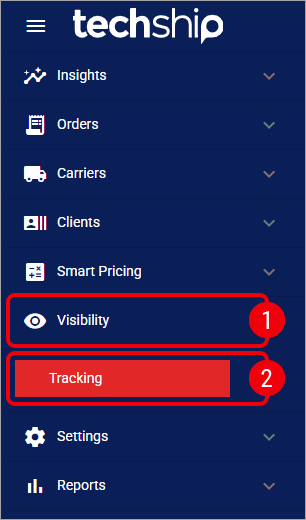
The Tracking page opens, where you can search and filter the shipments associated with your current location.
Searching and Filtering
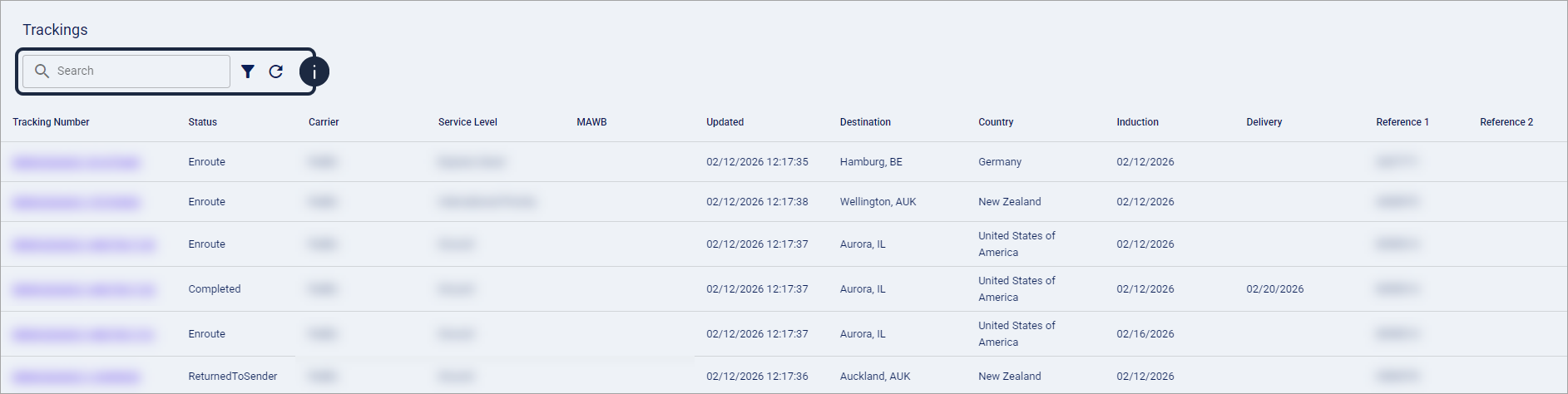
The Tracking page provides a centralized list of shipments for the current location.
The list only displays tracking records associated with the specific location currently selected in the header switcher.

To locate specific records, you can enter a Tracking Number or Master Tracking Number in the search bar for a quick search. For more complex queries, click the filter icon to open the Advanced Filter window.
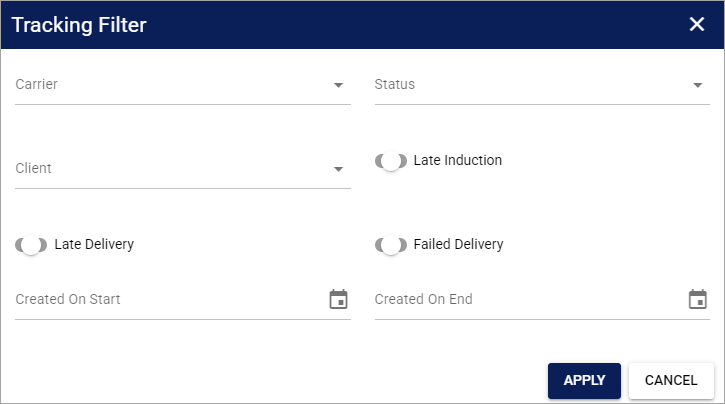
The available Advanced Filter fields have been optimized for techSHIP operations:
Carrier: Filter results by the Carrier responsible for the shipment.
Status: Filter by the current lifecycle stage of the shipment.
Client: Filter by the specific client associated with the shipment.
Late Induction: Identify shipments not yet inducted by the Carrier within the expected timeframe.
Late Delivery: Filter shipments by their Late Delivery classification.
Failed Delivery: View shipments where a delivery attempt was unsuccessful.
Created On Start / End: Define a date range based on when the records were created in the system.
All date filters are inclusive and processed in the UTC timezone.
Late Delivery
Late Delivery uses the shipment's Expected Delivery Date (EDD) to determine whether a shipment meets the late-delivery rule. A shipment without an EDD is not classified as late by this rule.
Delivered shipments: A shipment can be classified as Late Delivery when it is delivered after its EDD.
Undelivered shipments: A shipment can also be classified as Late Delivery after its EDD has passed. An undelivered shipment becomes eligible after 12:00 UTC on the day following its EDD.
Delivery-attempt exception: A delivery-attempt event recorded on or before the EDD prevents the shipment from being classified as Late Delivery, including when the shipment remains undelivered.
Late Delivery = On: This filter can include both delivered shipments completed after the EDD and undelivered shipments that meet the Late Delivery rule.
Late Delivery = Off: Where this option is available, it returns delivered shipments that are not classified as Late Delivery.
For more information about how the Expected Delivery Date (EDD) is determined and interpreted, see 📄 How to View the Expected Delivery Date (EDD) [Step-by-Step guide].
Opening Public Tracking Details
From the Tracking list, click the shipment's Tracking Number.
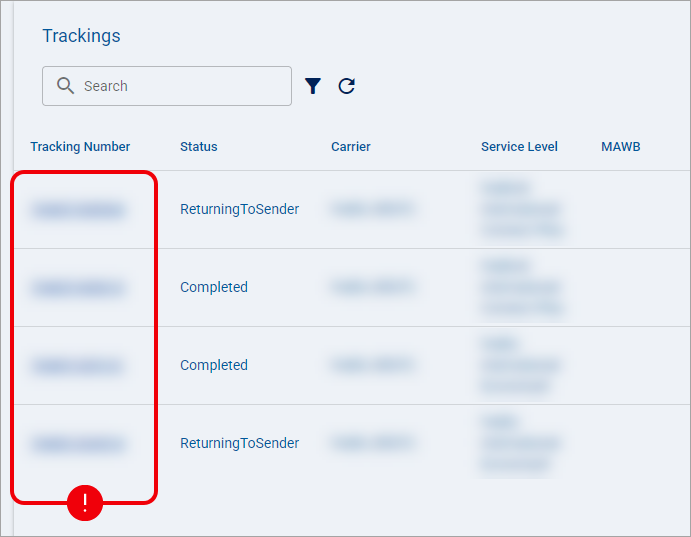
The shipment's public tracking details open in a new browser tab. To learn how to interpret the displayed information and use the available actions, see 📄 Understanding Public Tracking Details in techSHIP [Guide].