Understanding Public Tracking Details in techSHIP [Guide]
Last updated: October 27, 2026
The public tracking page in techSHIP lets you check a shipment's delivery status, review carrier tracking events, view available shipment details, and access additional information without signing in.
This guide explains how to use the public tracking page, understand shipment progress and Travel history, and access available features such as the shipment map and Proof of Delivery (PoD).
Available tracking information is provided by the techTRACK tracking engine.
Accessing the Public Tracking Page
You can access the public tracking page directly from a desktop or mobile browser without a techSHIP account, an active session, or a selected Location.
To look up a shipment, open https://tracking.techship.io and:
Enter the shipment's Tracking number in the search field.
Click Track.
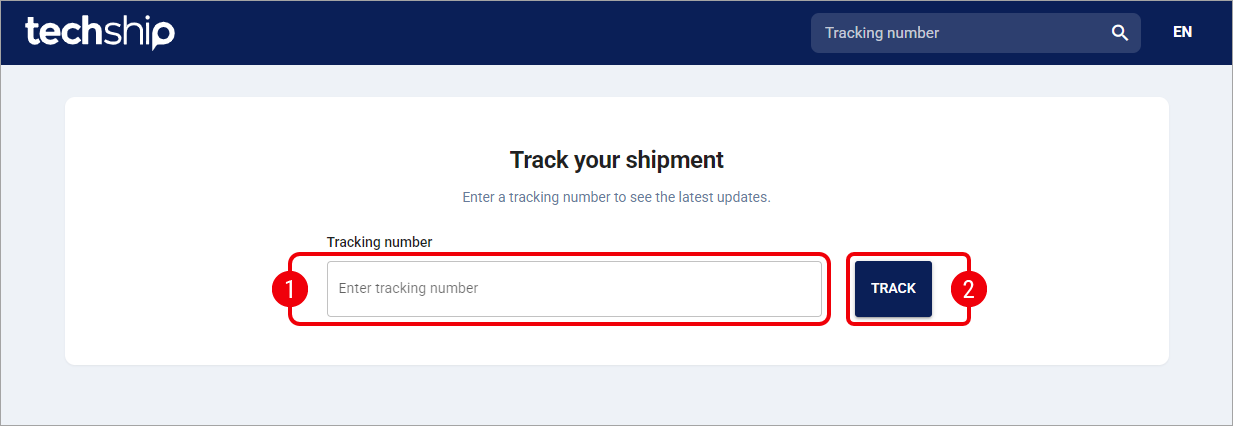
If the tracking number is found, the shipment details page opens, displaying the shipment's current status and available tracking information.
You can search for another shipment at any time using the Tracking number field and search icon in the page header.
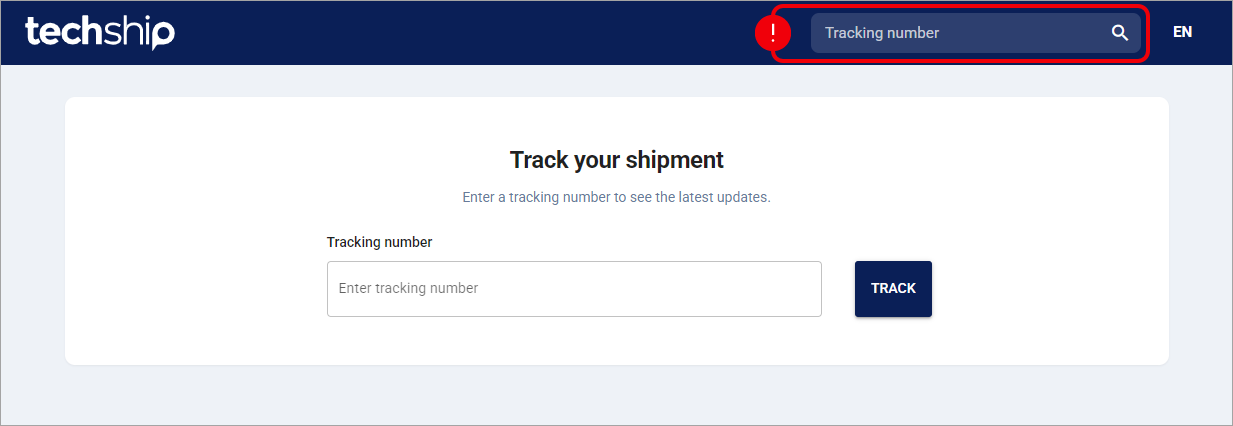
Accessing Tracking Details from techSHIP
If you have access to the authenticated Visibility > Tracking page in techSHIP, you can also open public tracking details by clicking a shipment's Tracking Number in the tracking list.
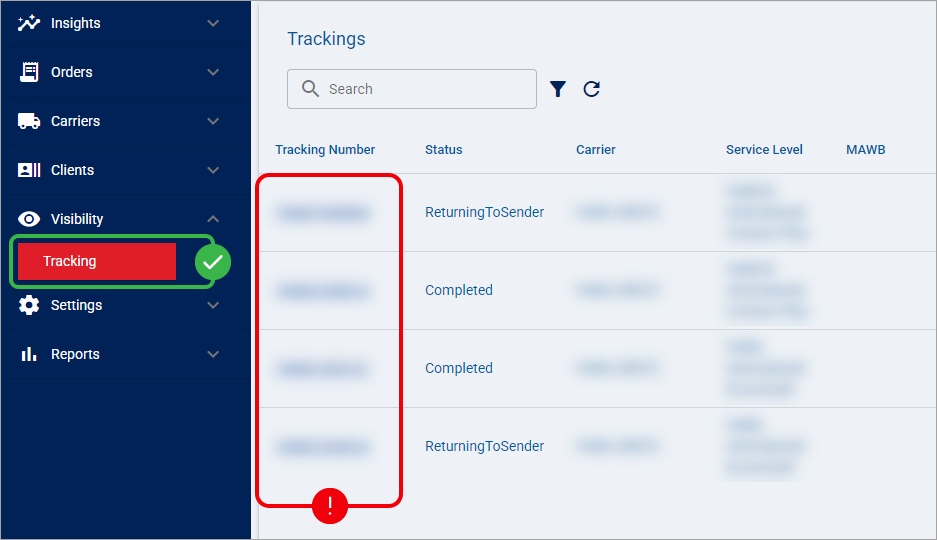
The shipment's public tracking details open in a new browser tab.
For instructions on locating shipments in the authenticated tracking list, see 📄 How to Search and Filter Tracking Records in techSHIP [Step-by-Step Guide].
Changing the Display Language
The language selector in the page header lets you change the interface language.
The selected language affects supported interface labels and date or numeric formatting.
However, Carrier-provided descriptions, event names, and address information may remain in their original language.

Understanding Public Access and Sharing
The public tracking page does not require authentication. Anyone who knows a valid tracking number can look up its available public shipment information.
Depending on the shipment data and available features, the page may expose:
Tracking information: The shipment's tracking number, Carrier or Service, delivery status, and public tracking events.
Shipment details: Origin and destination information, shipment weight, master tracking number, and reference values.
Location information: Map markers and tooltips that may contain shipment addresses, including street addresses when supplied.
Proof of Delivery (PoD): Available delivery documents that can be downloaded directly from the public page.
Public tracking information is accessible without signing in. Before sharing a tracking number or public tracking link, consider that the available shipment details, location information, and PoD documents may also be accessible to anyone with that number or link.
To share tracking details, you can copy the URL from your browser's address bar after opening the shipment and send it to the intended recipient.
Opening a shared link displays the same public tracking experience. It does not grant access to the authenticated Visibility > Tracking list or other techSHIP account features.
Understanding Shipment Status and Progress
The top section of the shipment details page summarizes the shipment's tracking information and its progress toward delivery.
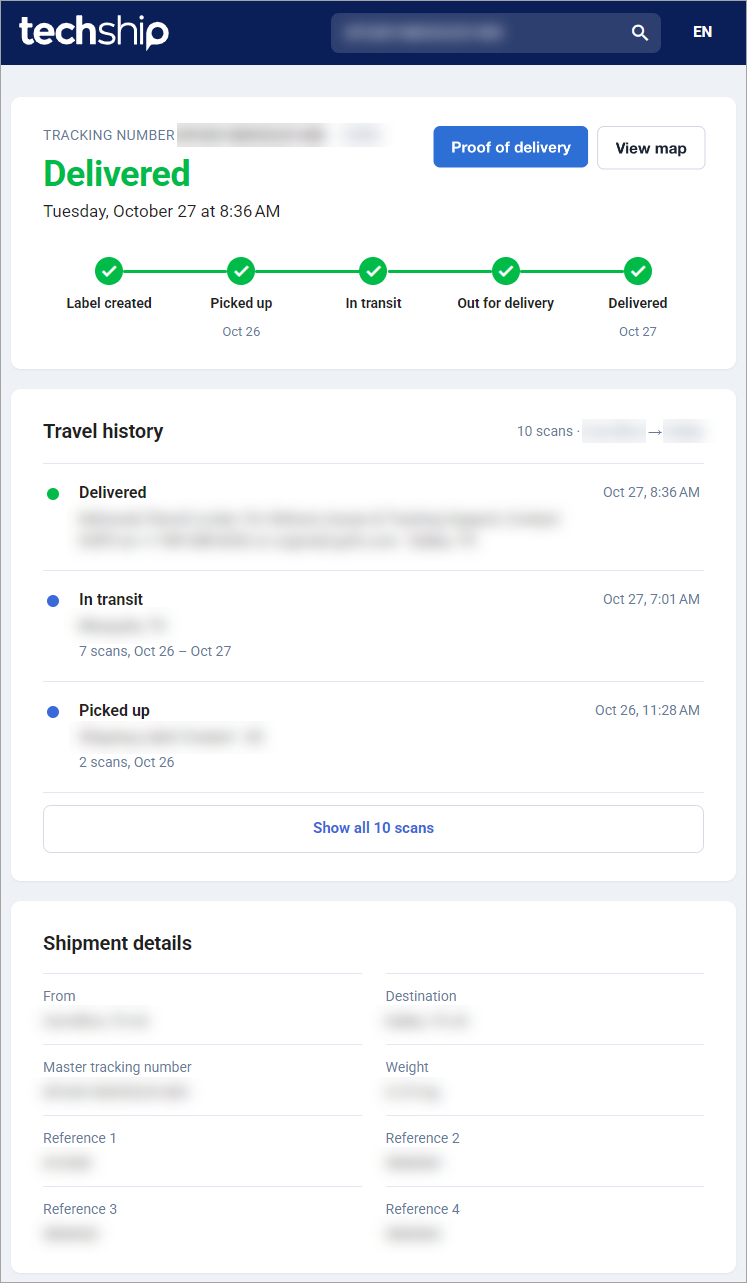
Shipment Summary
The shipment summary displays the following information when available:
Tracking number: Identifies the shipment you searched for.
Carrier or Service: Identifies the shipping provider or Service associated with the shipment.
Current tracking status: Displays the shipment's overall status, such as In transit or Delivered.
Latest tracking event: Displays the date, time, and location associated with the latest available public tracking event.
The current tracking status represents the overall state of the shipment. It may not correspond directly to the description of its latest individual tracking event.
Shipment Progress
Below the shipment summary, a progress indicator displays five shipment milestones:
Label created: The initial stage of the shipment's tracking lifecycle.
Picked up: The pickup stage of the shipment.
In transit: The shipment's movement through the delivery network.
Out for delivery: The final delivery stage before completion.
Delivered: The completed delivery stage.
The indicator uses green checkmarks to identify milestones marked as reached. Milestones that have not been reached appear without a checkmark.
When available, a date appears below the corresponding milestone.
The overall tracking status and the progress milestones are different representations of shipment progress. A checked milestone does not necessarily mean that a separate Carrier scan or timestamp was recorded for that specific stage.
Reviewing Travel History
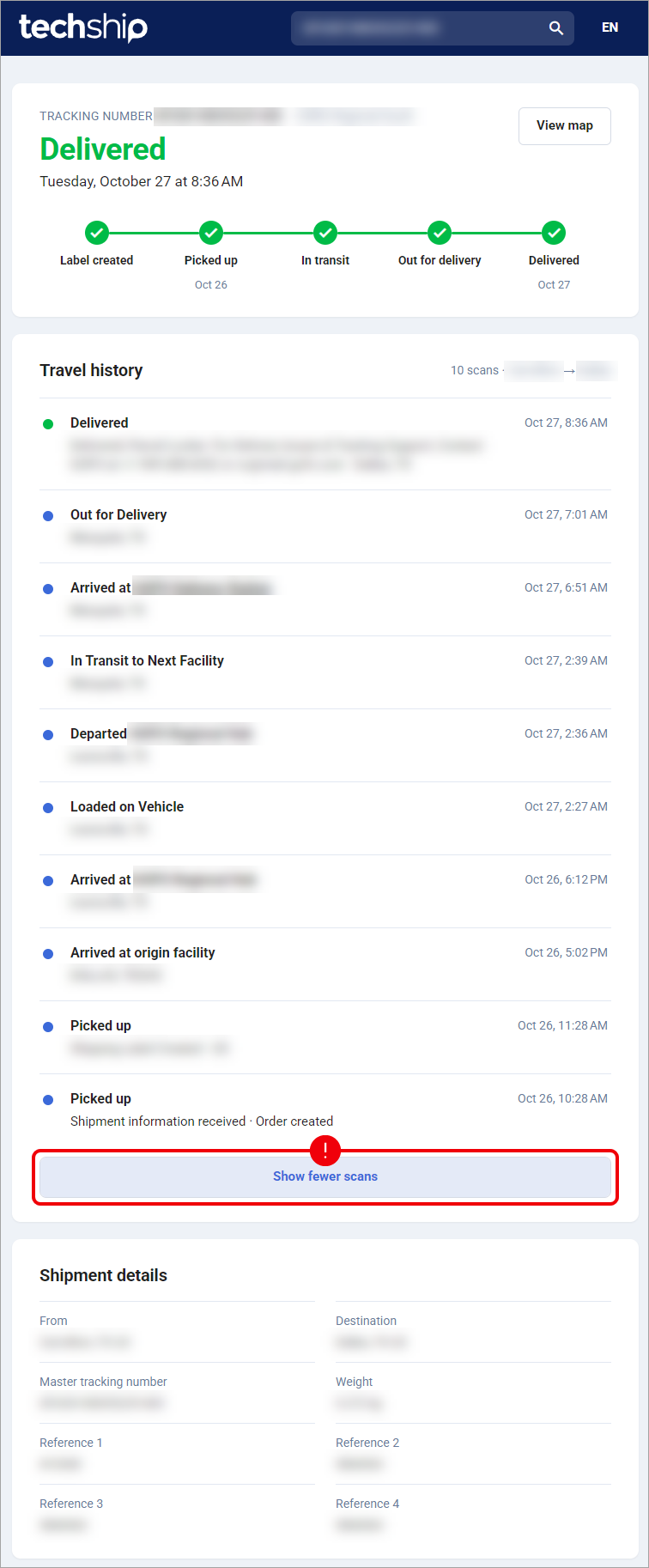
The Travel history section displays the shipment's available public tracking events, helping you understand how its status has changed throughout the delivery process.
Events are arranged with the most recent tracking event first.
Depending on the available tracking information, this section displays:
Scan count: The total number of available public tracking events.
Origin and destination: A summary of the shipment's route between the available origin and destination cities.
Event status: A tracking event heading, which may use a standardized shipment status.
Event details: Available descriptions and location information supplied through the Carrier tracking data.
Event timestamp: The date and time associated with the tracking event.
Expanding and Collapsing Tracking Events
By default, Travel history presents a condensed view of the shipment's events.
When consecutive scans belong to the same tracking milestone, the page may combine them into a single entry. A grouped entry can display the number of included scans and their date range.
To inspect the individual events, click Show all N scans, where N represents the total number of available public scans.
The expanded view displays the available public tracking events individually, rather than grouping them under summarized milestones. Click Show fewer scans to return to the condensed view.
Expanding Travel history displays the available public scans only. Events that are not designated as public are not included in the displayed history.
Understanding Event Timestamps
Each tracking event displays its associated date and time.
The page uses the event's local timestamp when provided. If no local timestamp is available, it uses the event's UTC timestamp instead.
These timestamps are not automatically converted to your browser's local time zone.
The date and time formatting may change according to your selected page language.
The public tracking page does not automatically refresh tracking information in the background. To retrieve the latest available information, refresh your browser page. Newly reported Carrier events may not become available immediately.
Reviewing Shipment Details
The Shipment details section displays additional information about the shipment.
Only fields with applicable shipment data are displayed, so the information available may vary between shipments.
The section can include:
From: The shipment's origin city and available state or region and country.
Destination: The shipment's destination city and available state or region and country.
Expected Delivery Date: The estimated date when the shipment is expected to arrive.
Master tracking number: The master tracking identifier associated with the shipment, when available.
Weight: The shipment's recorded weight.
Reference 1–4: Up to four additional reference values associated with the shipment.
Understanding the Expected Delivery Date
When available, the Expected Delivery Date (EDD) appears in Shipment details.
The EDD provides an estimated delivery date based on the information available through the applicable Carrier integration or tracking data.
The Expected Delivery Date is an estimate, not a guaranteed delivery commitment. Its availability and interpretation depend on the Carrier integration and available shipment information.
For details about date sources and Carrier-specific estimates, see the Carrier-Specific EDD Details section in 📄 How to View the Expected Delivery Date (EDD) [Step-by-Step guide].
Understanding Field Availability
The presence of shipment details depends on the information available through the tracking integration.
For example, a shipment may have a valid tracking status without an Expected Delivery Date, shipment weight, or reference values.
You can review shared Carrier capabilities, including EDD, location information, and PoD support, in 📄 techTRACK & techAUDIT Supported Carriers - Master List [Guide].
A supported Carrier feature does not guarantee that every shipment will contain the corresponding data. Information such as an EDD, geographic coordinates, or PoD documents may be unavailable for individual shipments.
Viewing the Shipment Map
When geographic information is available, the shipment summary includes a View map button.
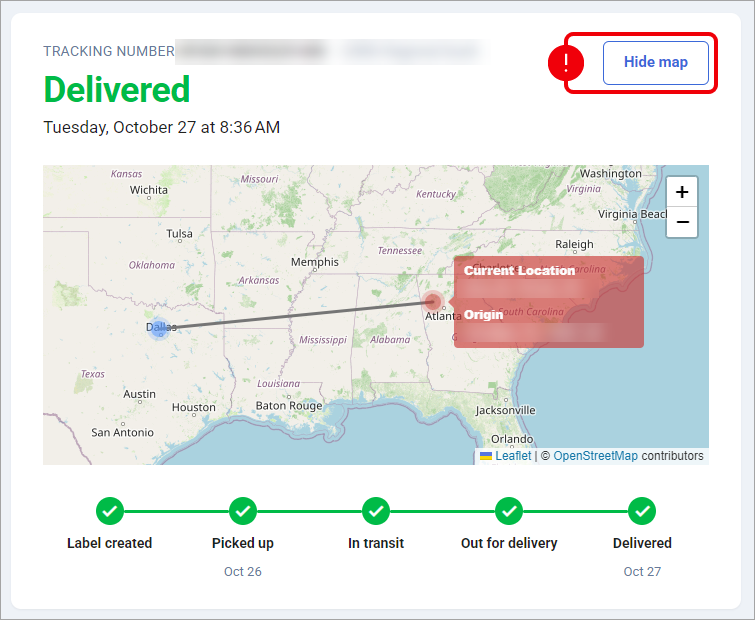
The map is hidden by default. Click View map to display the available shipment locations. Click Hide map to return to the previous state.
Understanding Map Information
Depending on the available coordinates, the map can display:
Origin: The location where the shipment originated.
Destination: The shipment's intended destination.
Current location: The most recent public tracking-event location for which geographic coordinates are available.
The map displays location markers for the available points and can connect them with a line.
You can use the + and − controls to zoom in or out.
Location tooltips may display additional information, including available street addresses supplied through the tracking data.
The current location marker reflects the most recent public event with usable coordinates. If newer tracking events do not contain geographic coordinates, the mapped location may represent an earlier event.
The connecting line does not necessarily represent the route traveled by the Carrier. The map is not a live GPS tracking system and does not provide continuous shipment location updates.
Map Availability
The View map button appears only when usable geographic coordinates are available for at least one of the following: the shipment's origin, destination, or a public tracking event.
If no usable coordinates are available, the View map button is not displayed.
Downloading Proof of Delivery
For supported delivered shipments, the public tracking page may provide access to Proof of Delivery (PoD) documents.
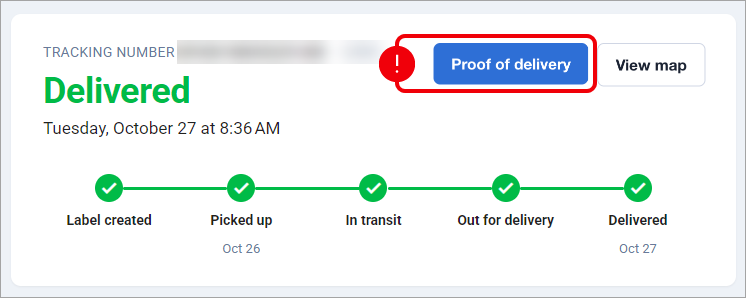
The Proof of delivery action appears in the shipment summary when the shipment meets the applicable conditions and the documents are available.
Downloading Available Documents
The download interaction depends on the number of available PoD documents:
One document: Click Proof of delivery to download the available file directly.
Multiple documents: Click Proof of delivery (N) to open the list of available documents, then select the file you want to download. N represents the number of available documents.
No available documents: The Proof of delivery action is not displayed.
Once you select an available document, your browser handles the file download. You can then save or review the downloaded document using your browser or device.
The public PoD download does not require you to sign in, enter a destination postal code, or complete an additional verification step.
The absence of the Proof of delivery action does not necessarily mean that the Carrier never supports PoD. Availability also depends on the shipment's delivery status and the documents accessible through the tracking integration. To verify carrier support, see: 📄 techTRACK & techAUDIT Supported Carriers - Master List [Guide].
Understanding Tracking Lookup Results and Messages
Depending on the tracking information available, the public tracking page may display different results or messages.
No Public Tracking Events Available
If the tracking number identifies a known shipment but no public events are available, the page displays:
"There are no carrier tracking events for this shipment yet."
You may still see the shipment's tracking status and other available Shipment details.
This message does not necessarily mean that the Carrier has never recorded an event. It indicates that no events are currently available for display in the public tracking history.
Tracking Number Not Found
If no tracking information is found for the entered number, the page displays:
"No tracking information was found for this number."
Check the Tracking number and try searching again. If the number is correct but no information is found, contact the shipper to confirm the shipment's tracking details.
Tracking Temporarily Unavailable
If the tracking information cannot be retrieved due to a temporary service issue, the page may display:
"Tracking is temporarily unavailable. Please try again later."
You can retry the tracking lookup later.
Too Many Requests
To manage public tracking traffic, the page limits the number of requests that can be made within a given period.
If the request limit is exceeded, the page displays Too many requests, along with instructions about when to try again.
Follow the displayed retry guidance before submitting another request.
Multiple Shipments Matching a Tracking Number
In some cases, a tracking number may be associated with more than one shipment.
When this situation is detected, the page may display a notice explaining that one matching shipment is being shown.
If the displayed shipment does not correspond to your package, contact the shipper to verify the tracking information.
The public tracking page does not provide a separate shipment selection interface for choosing between multiple matches.