How to Find and Filter Inventory Levels [Step-by-Step Guide]
Last updated: September 29, 2026
When you manage your stock in techOMS, you might need to find a specific inventory record or group of records. This guide covers how to search, filter, and view your inventory data, including nested lot-level details.
 | For detailed conceptual information and advanced configuration, refer to Understanding Inventory Levels and Order Status Impact [Information]. |
To find, filter, and review your Inventory Levels, follow these steps:
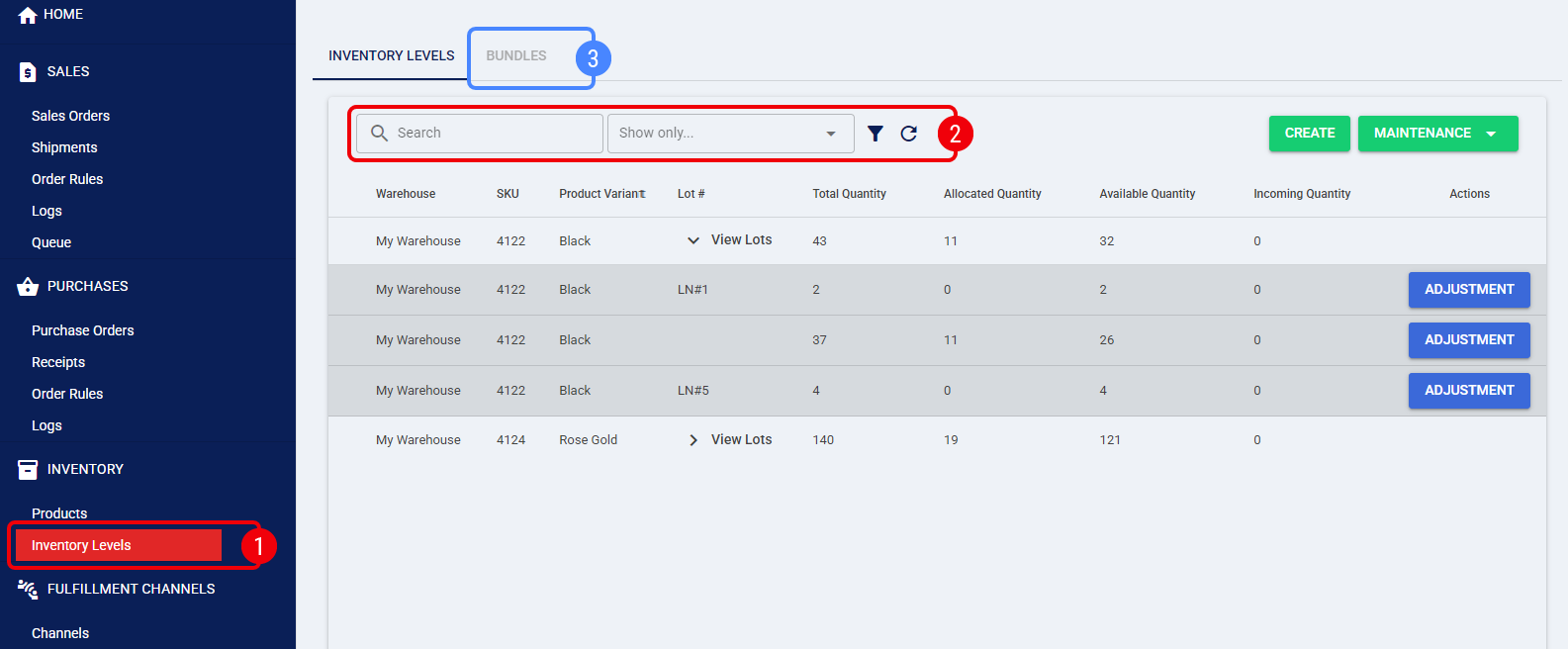
 | Click Inventory Levels from the left menu under the Inventory section. |
 | Locate the specific records you need using one of the following methods: |
- Quick Search: Enter the beginning of a SKU or Product Variant Name directly in the search bar. techOMS returns records when either value begins with what you entered.
- Advanced Search: Click the Filter icon to open the advanced options. You can use Warehouse, SKU, or Product Variant to narrow the results. When you apply multiple criteria, techOMS returns only records that match all specified criteria.
Then, review the results in the inventory grid.
| Product Variant searches use a begins-with match and are case-insensitive. techOMS automatically removes leading and trailing spaces from your search value, and you can search using a single character. To view lot-level details, use the Lot # column: 
For detailed information, refer to Understanding Lot and Serial Numbers [Information]. |
| To review the Sales Orders associated with an inventory allocation, locate an interactive value in the Allocated Quantity column and select it.  When you select an interactive Allocated Quantity, the Allocated Orders dialog opens:
 |
 | If needed, click the Bundles tab to view availability for bundled products. |
You can also use Quick Search or Advanced Search on the Bundles tab to search by Product Variant Name using the same begins-with behavior.
Each Bundle SKU displays an available quantity equal to the component that has the least availability.
| For a detailed definition of what each column represents and how they are calculated based on order statuses, refer to Understanding Inventory Levels and Order Status Impact [Information]. |
You have successfully filtered your Inventory Levels and can now accurately track your available quantities and specific lot allocations across your warehouses.