How to View a Lot and Serial Numbers [Step-by-Step Guide]
Last updated: September 29, 2026
You can view lot and serial numbers for purchase orders, receipts, and shipments for tracking purposes.


For detailed information on how customers can purchase by lot number via sales channels, refer to Understanding Lot and Serial Numbers [Information].
To view lot and serial numbers:
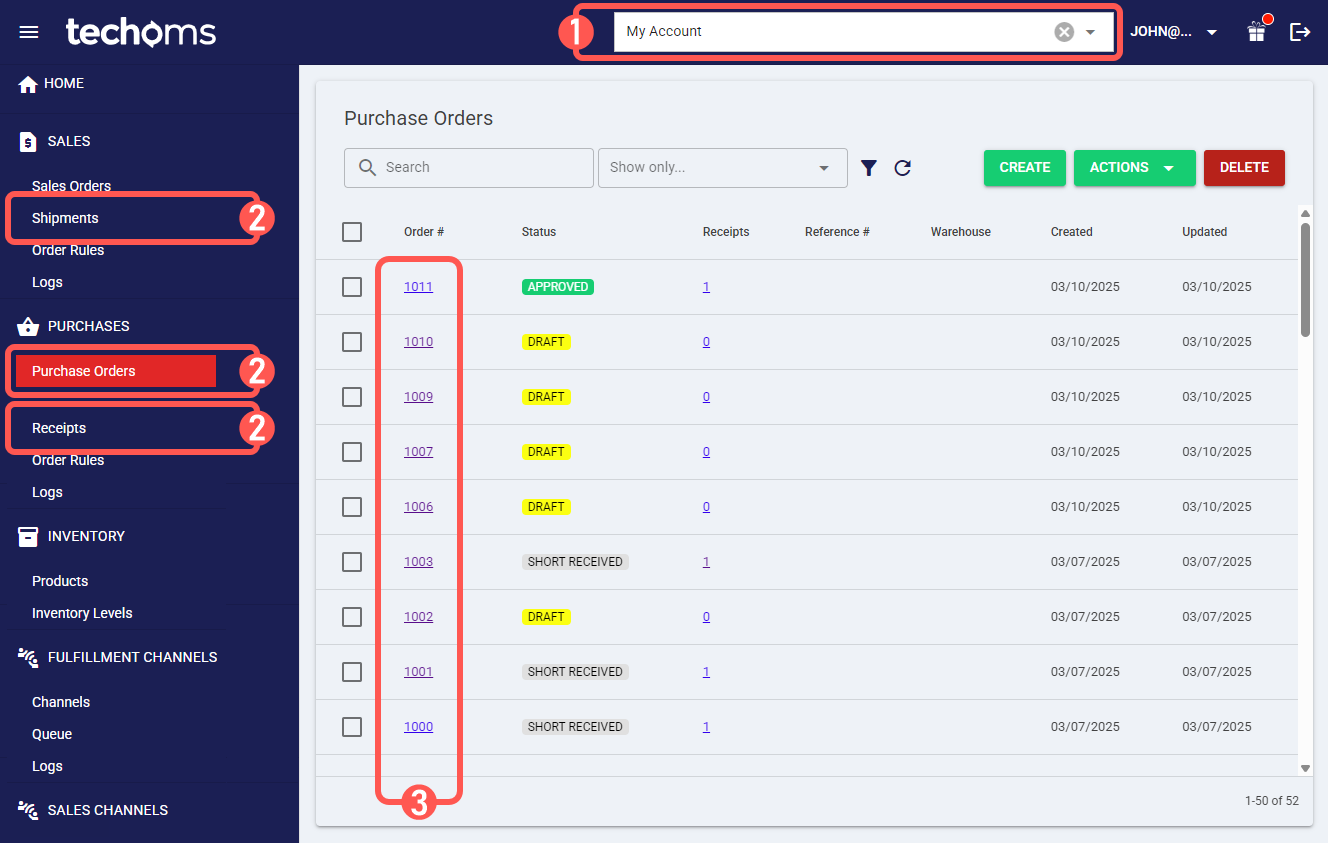
1. Select the desired account from the header switcher.
2. Click the desired element from the left menu:
- Purchase Orders under the Purchases section.
- Receipts under the Purchases section.
- Shipments under the Sales section.
3. Click the desired record number.
4. Locate the desired line and review the Lot # or Serial # column.

If you are reviewing a receipt or shipment, click View in the Lot # or Serial # column for the desired line. A pop-up window will open displaying the corresponding lot or serial numbers.
