How to Import Products via file [Step-by-step Guide]
Last updated: September 29, 2026
The most effective way to add products to techOMS is by using the import feature. This guide walks you through the process.

Otherwise, be aware that imported data:
- Will propagate to your non-master channels.
- Will not sync back to your designated Master Product Channel.
- May be overwritten during future synchronizations from the Master Product Channel.
Proceed with caution. For details, see: Understanding the techOMS Master Product Source [Information].


To import products:
1. Click Products from the left menu under the Inventory section.
2. Press Maintenance.
3. Click on Import Products.

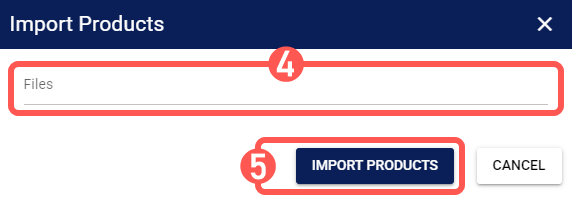
4. Click on the Files field and select the file.
5. Press Import Products.
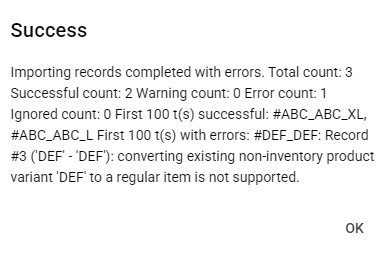
techOMS will import the valid Products and skip those with errors. When the process finishes, a popup will display the operation results. Example: 3 entries were processed, 2 successfully and 1 with error.
Alternatively, you can export your current product catalog as detailed in How to Export Products as a CSV file [Step-by-step guide] and use that export as your template. The file includes read-only Profit and Margin columns; as these columns are calculated, they are automatically ignored during import.
Product imports support the optional Product Category field. In the Product Import Template, the Product Category column appears immediately after Currency. When you update an existing Product, leaving Product Category blank keeps the Product's current Category unchanged. For more information con the Category field, see: How to Edit a Product [Step-by-Step Guide].

If the Bundle column is set to True, the system will automatically ignore the Track By Lot Number configuration and reset it to False. Bundles cannot be tracked by lot number in techOMS.
techOMS will display an error message describing the issue. Duplicate checking is based on the SKU Code and is case-insensitive. To prevent conflicts, techOMS automatically trims any leading or trailing whitespace from the imported values. If there is a duplicate during import or product creation, the system will display an error message describing the issue.
