How to Cancel Shipments [Step-by-Step Guide]
Last updated: November 12, 2026
In techOMS, you can request Shipment cancellation through the warehouse or manually confirm the cancellation, depending on your fulfillment workflow.
This guide explains how to select the appropriate cancellation mode and confirm the action for your selected Shipments.
Cancel shipments: Sends the cancellation request to the warehouse, expecting updates from the integrated system on the status.
Confirm Cancel shipments: Manually requests cancellation and confirmation of the action, without expecting updates from the fulfillment channel; after confirmation, the reserved goods are released and the fulfilled order quantity is cleared.
When Backorder Mode is set to Manage in Fulfillment Channel, a partial Fulfillment Channel confirmation can create a separate open Shipment for the outstanding quantity. To cancel that quantity, select the currently open Shipment rather than a previously Shipped part. For details about related Shipments, see 📄 Understanding Backorders in techOMS [Information].
Once a Shipment is Cancelled, it can no longer be edited. Proceed with caution.
Shipments are automatically set to Cancelled if the Fulfillment Channel reports a shipped quantity of zero during synchronization. To learn more, refer to: 📄 How to Synchronize Data Through a Fulfillment Channel [Step-by-Step Guide].
Cancellation support varies by integration. Refer to 📄 techOMS Fulfillment Channels - Master List [Guides List] for compatibility details.
For a detailed breakdown of how shipment statuses impact inventory, refer to 📄 Understanding Inventory Levels and Order Status Impact [Information].
To cancel shipments you will have to:
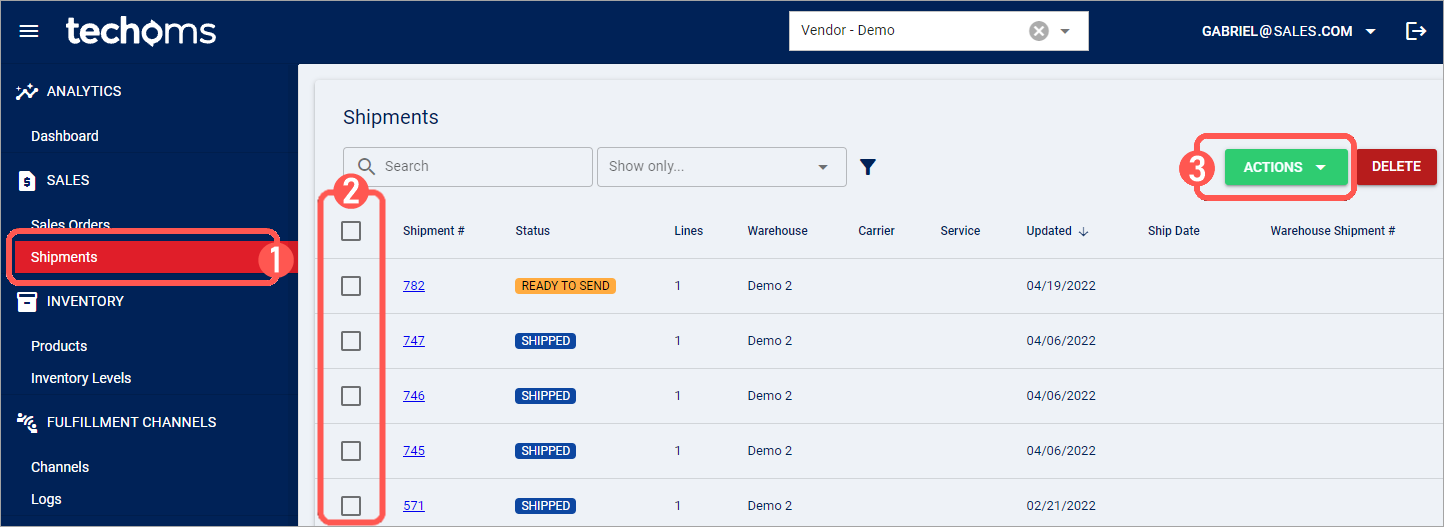
Click Shipments under Sales.
Select all the orders you wish to cancel.
Click Actions and select either option that applies the action as you'll like to execute, as described above:
Cancel shipments
Confirm Cancel shipments
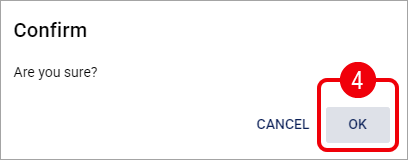
Click OK to confirm the action.
The system will confirm the result of the action for either positive or negative result through a pop-up message.