How to Review Change History Logs for Supported Entities [Step-by-Step Guide]
Last updated: November 5, 2026
You can use Change History in techSHIP to trace configuration changes, review who performed an action, and inspect how supported records have changed over time.
This guide helps you review and interpret Change History records for supported entities.
How Change History Logs Work
The Change History tab records supported actions performed against a record and presents the resulting audit information in a searchable log.
Checkbox changes are logged when they change. However, when a checkbox value is false, which is the default value, it can be omitted from the settings displayed in the log.
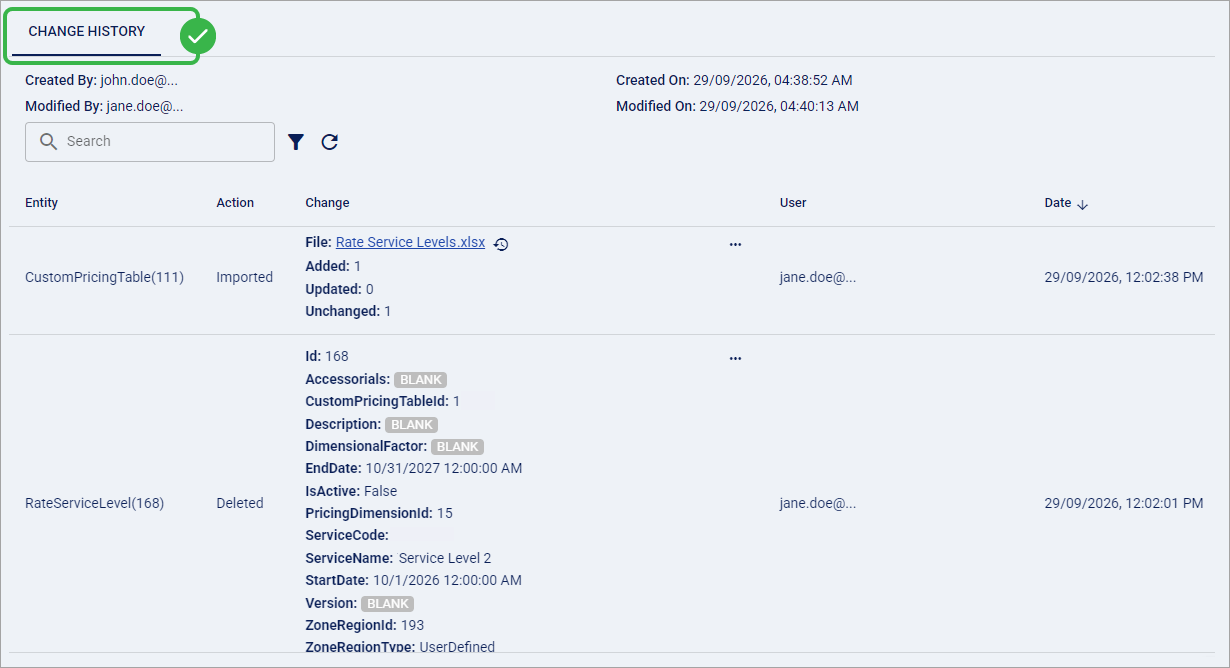
Standard Change History tracks changes to supported records. The separate User Change Log is accessed from user-management lists and combines recorded actions performed by a user, changes made to their account or access, and session activity.
To review user-account or session history, see 📄 How to Review the User Change Log in techSHIP [Step-by-Step Guide].
Record Properties
The record properties identify when the current record was created and last modified and who performed those actions.
Created By: Shows who originally created the current record.
Modified By: Shows who most recently modified the current record.
Created On: Shows the date and time when the current record was created.
Modified On: Shows the date and time when the current record was last modified.
Logs Table
Each Change History entry is organized into columns that identify the affected record, the action, its change details, the person who performed it, and when it occurred.
Entity: Identifies the entity or record associated with the audit entry.
Action: Identifies the recorded action, such as Created, Modified, Imported, or Restored.
Change: Shows a formatted representation of the information associated with the action. Depending on the entry, this can include changed properties, import results, archived files, restore information, or other action-specific details.
User: Shows who performed the recorded action.
Date: Shows when the action was recorded.
Select the Date column header to sort entries in ascending or descending order.
Formatted and Raw Change Data
By default, the Change column presents audit information in a formatted view that makes the most relevant values and action results easier for you to review.
For example, a Restored entry can show its Snapshot, Reason, restored components, and a summary of affected records instead of exposing the complete underlying data structure.

When the three-dot icon appears for an entry, select it to display the associated raw data.
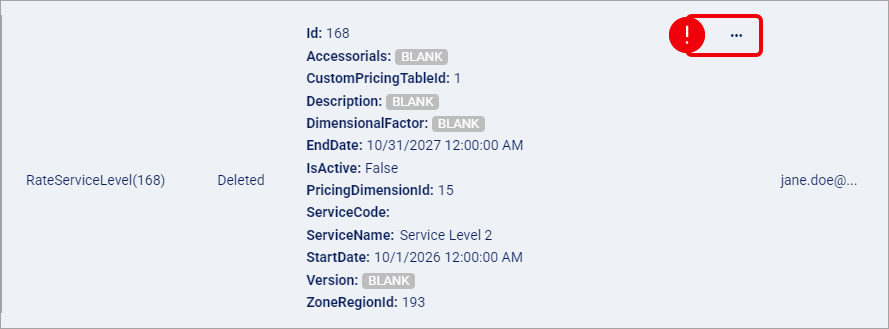
The raw view can expose technical property names, identifiers, Boolean values, timestamps, and other values that are simplified or reorganized in the formatted view. Select Hide raw to return to the formatted view.
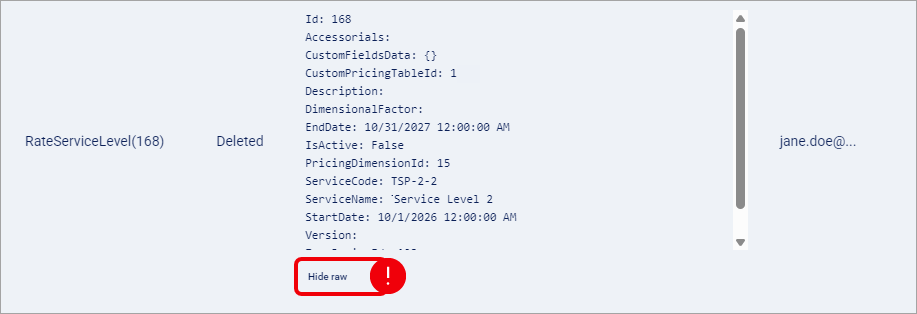
The raw view is intended for inspecting underlying audit data. An archived import filename can appear in the raw data, but you cannot download the file from the raw view. When an archived file is available, you can use its formatted File link to download it.
You can now switch between views depending on the level of detail you need: use the formatted view for regular audit review and the raw view for additional technical information.n
Quick Search Bar and Filter
Use the search and filter controls to narrow the entries displayed in Change History.
Search Bar: Finds entries matching values in Entity, Action, Change, or User.
Advanced Filter: Lets you filter entries using Date From (inclusive), Date To (inclusive), or both fields. You can also select one or more values from the optional Action multiselect, including Created, Modified, Deleted, Imported, and Restored, and combine them with the date filters.
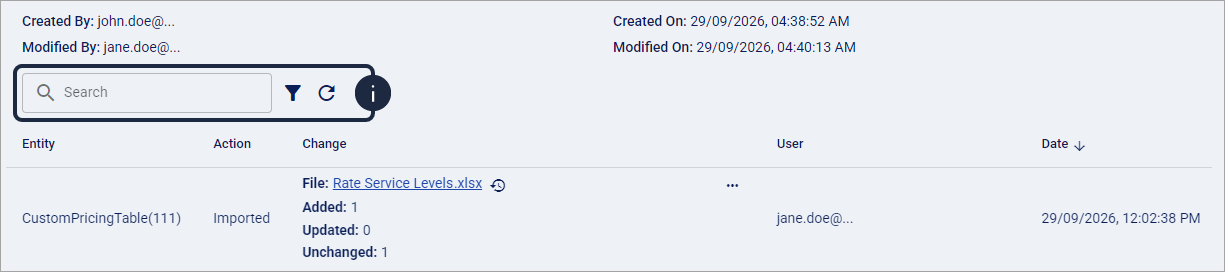
Dates displayed and filtered in Change History respect your user time zone.
You can now narrow the audit trail before reviewing individual entries or inspecting their formatted and raw change information.
Archived Import Files and Re-apply
An eligible Imported entry can include an archived File that you can download from its formatted Change view.
When the import supports reapplication, a Re-apply action appears beside the File. Selecting Re-apply retrieves the archived workbook, so you do not need to locate and upload the original file again.

Re-apply processes the archived workbook against the configuration as it exists now using the applicable import behavior.
This functionality does not return the complete configuration to a historical point in time and is separate from Restore from backup. For more information about restoring from a backup, see: 📄 Configuration Backups and Restore in techSHIP [Guide].
The Re-apply action is available only when the entry represents a compatible import, its archived file remains available, and you have the permissions required to perform the corresponding import.
Entries such as Created, Modified, incompatible imports, and imports without an archived file do not expose Re-apply.
Archived imported workbooks use the existing 90-day retention period. After an eligible file passes that retention period, you cannot download or re-apply it, although its Change History entry remains available.
When a Re-apply operation writes a new import record, Change History represents it using the normal Imported action and import summary together with Source information identifying the archived import used for the operation.
You can now use an eligible Imported entry to download its archived file or initiate Re-apply from the formatted Change view.
Where to Find Change History
The Route column represents the page hierarchy rather than every individual click required to reach a record. A singular entity name such as Client, Carrier, or Organization represents that entity's page after you open the applicable record.
Supported Entity | Route | Re-apply Supported? | Observations |
|---|---|---|---|
Carrier | Carriers > My Carriers > Carrier > Change History | ❌ | When Simple Rates is selected, edits made in the Rates tab are not logged. |
Carrier Baseline Account | Carriers > My Carriers > Carrier > Baseline Account > Change History | ❌ | — |
Client | Clients > Clients > Client > Change History | ❌ | — |
Client Billing Account | Clients > Clients > Client > Billing Account > Change History | ❌ | — |
Insurance Provider | Settings > Insurance Providers > Insurance Provider > Change History | ❌ | — |
Insurance Account | Settings > Insurance Providers > Insurance Provider > Insurance Account > Change History | ❌ | — |
Custom Pricing Table | Smart Pricing > Custom Pricing Tables > Custom Pricing Table > Change History | ✅ | Successful imports create one Imported summary. Service Level create, edit, and delete actions also appear here; deletions are shown as Deleted. Added or changed Service Levels become Unpublished. |
Service Level | Smart Pricing > Custom Pricing Tables > Custom Pricing Table > Service Level > Change History | ✅ | Rate Items Save creates one Modified summary when values change. Successful Rate Items imports create one Imported summary. These entries do not appear on the parent Custom Pricing Table. Only eligible Rate Items imports support Re-apply. |
Zones & Areas | Smart Pricing > Zones & Areas > Zone & Area > Change History | ❌ | — |
Pricing Dimension | Smart Pricing > Pricing Dimensions > Pricing Dimension > Change History | ❌ | — |
Accessorial Collection | Smart Pricing > Accessorial Collections > Accessorial Collection > Change History | ❌ | — |
Client Template | Clients > Templates > Client Template > Change History | ❌ | — |
Organization | Settings > Organizations > Organization > Change History | ❌ | — |
Markup Profile | Smart Pricing > Markup Profiles (beta) > Markup Profile > Change History | ❌ | The parent Markup Profile is not the current Re-apply entry point for service-group workbook imports. Use the applicable Markup Profile Period instead. |
Markup Profile Period | Smart Pricing > Markup Profiles (beta) > Markup Profile > Period > Change History | ✅ | Eligible service-group workbook imports use validation and preview before application. Service Groups absent from the workbook remain unless you explicitly select them for removal. |
Markup Service Group | Smart Pricing > Markup Profiles (beta) > Markup Profile > Period > Service Group > Change History | ✅ | Eligible matrix imports use validation and preview. Normal matrix-import behavior can clear values absent from the archived workbook. |
You can now use the appropriate Change History page to review audit entries, switch between formatted and raw data, narrow results with Search or Advanced Filter, and work with an archived import when Re-apply is available.