How to Enable or Disable a Product or Product Variant [Step-by-Step Guide]
Last updated: September 29, 2026
When working with items, you may need to discontinue them without deleting their records. In such cases, techOMS allows you to disable a Product or a Product Variant (referred to as Variant throughout this article).

This article is divided into the following sections:
- Disabling and Enabling Effects
- General Effects
- Additional Effects on Products
- Additional Effects on Variants
- How to Enable or Disable a Product or Variant
I. DISABLING AND ENABLING EFFECTS
i. General Effects
When a Product or Variant is disabled:
- They are excluded from inventory sync operations (e.g. inventory updates to or from sales and fulfillment channels).NOTE: Sync attempts involving disabled items are logged as warnings.

Its name becomes read-only.
A (disabled) suffix is appended:
To the display name (except in pages under the Inventory menu section)
In lookup fields (e.g., when adding a Sales Order line)
In exported data

ii. Additional Effects on Products
When a Product is disabled:
All its Variants are automatically marked as disabled.
You cannot enable or disable individual Variants until the Product is re-enabled.
You cannot add new Variants to the Product.
Merging is not available.
When the Product is re-enabled, each Variant is restored to its previous enabled or disabled state.
iii. Additional Effects on Variants
When a Variant is disabled individually, its related Product remains unaffected.
II. HOW TO ENABLE OR DISABLE A PRODUCT OR VARIANT


To enable or disable a Product or Variant:
1. Click Products from the left menu under the Inventory section.
2. Click the Products or Variants tab accordingly.
3. Use the search component to find the desired entries.
4. Press Disable or Enable, depending on your case.

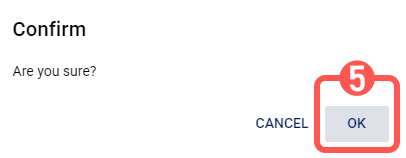
5. Click OK.
Your Product or Variant is now enabled or disabled.
