How to configure Midland Transport (MIDLANDTRANSPORT) in techSHIP [Guide]
Last updated: November 17, 2026
This guide explains how to add and configure this carrier connection, review its available carrier-specific settings, and understand the shipment requirements and operational constraints that apply.
Carrier Requirements and Specifications
This section summarizes onboarding requirements and lists confirmed carrier-specific constraints.
To review all supported carriers and their specific requirements, see: 📄 techSHIP supported Carriers - Master List [Guides List].
Onboarding Requirements
The Midland Transport integration supports:
Void
Rate Shopping
3rd Party Billing
Collect (COD)
Label References
Signature Required
Dangerous Goods
Carrier Insurance
Pickup Scheduling for LTL shipments
Bill of Lading (BOL) generation
Recipient Delivery Notifications by Email
Information to be Provided
The following credentials and data points are required to configure Midland Transport in techSHIP. Ensure you have the applicable information available before starting the setup:
DATA ELEMENT | SOURCE (HOW TO OBTAIN) |
|---|---|
Midland API Key | Provided by Midland Transport to authenticate the shipping connection. |
Sender ID | Provided by Midland Transport to identify the sender account. |
Pickup API Key | For LTL pickup requests, obtain a separate API key from Midland Transport at productsolutions@midlandtransport.com. |
Induction Address | Confirm the sender or induction address associated with the Midland Transport account. |
Specifications and Constraints
Operational Details
Midland Transport supports courier and Less Than Truckload (LTL) shipping through the same integration. The shipment type is selected when configuring the Baseline Account.
Midland Courier: Supports Courier Ground, Courier Air, Courier Speed Letter, and Courier Deferred Air services.
Midland LTL: Supports Regular, Refrigerated, Intermodal, and Intermodal Refrigerated services.
Bill of Lading (BOL): Midland Transport can provide a BOL as part of its shipment document response. When supplied, techSHIP stores the document with the shipment.
Pickup Scheduling: For Midland LTL, techSHIP automatically requests pickup when a manifest is finalized, provided the Baseline Account is configured for pickup processing at manifest finalization. A pickup request is submitted for the manifest rather than after every individual Order.
Separate pickup credentials: LTL pickup requests require the PickUp API Key configured in the Baseline Account.
Pickup time window: Midland Transport requires at least two hours between the calculated pickup Ready time and the applicable closing time.
Automatic rescheduling: If the calculated pickup window is shorter than two hours, techSHIP searches for the next eligible pickup slot using the configured scheduling rules.
Weekend scheduling: The Weekends Mode determines whether Saturday and Sunday are considered available pickup days.
Manual Ready time: An explicitly entered Ready time on an Order or manifest takes precedence over automatic scheduling and is not automatically rescheduled.
Multiple packages: Every package must have valid dimensions. Pickup requests use the shipment's total weight, piece count, and the maximum individual dimension for each dimension field.
Pickup cancellation: Cancellation of an already requested pickup is not supported through the Midland Transport pickup integration.
Configuring a Baseline Account
A Baseline Account serves as the fundamental connection point between techSHIP and the carrier's system. It acts as a template that holds the credentials and fundamental properties required to process shipments.
The techSHIP AI Assistant is available from the Carrier page for supported Carrier configuration tasks. For detailed conceptual information and advanced configuration, refer to 📄 techSHIP AI Assistant: Overview & Availability [Information].
Adding a Carrier
Before adding an account, you must ensure the Carrier entity is available for your location.
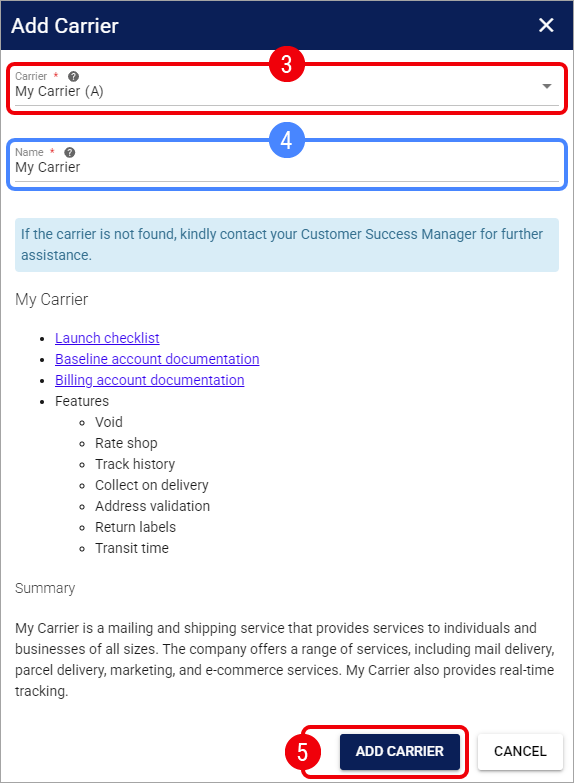
Click My Carriers from the left menu under the Carriers category.
Click Add Carrier.

Select the desired Carrier.
You may encounter additional messages depending on the carrier status or your plan:
Subscription Required (⭐): If the carrier has a star icon, you will see a message stating "To use this carrier, a subscription upgrade is required." Press Contact to Upgrade to proceed.

Carrier Suspended: If the carrier has not been used for an extended period, you will see a message stating “This carrier is currently on hold...” Click Request Assistance to reactivate it.

Setup Fee Waived: If a carrier from the same carrier group is already installed in your location, you can add this carrier without incurring additional fees.

If needed, update the carrier Name.
Click Add Carrier.
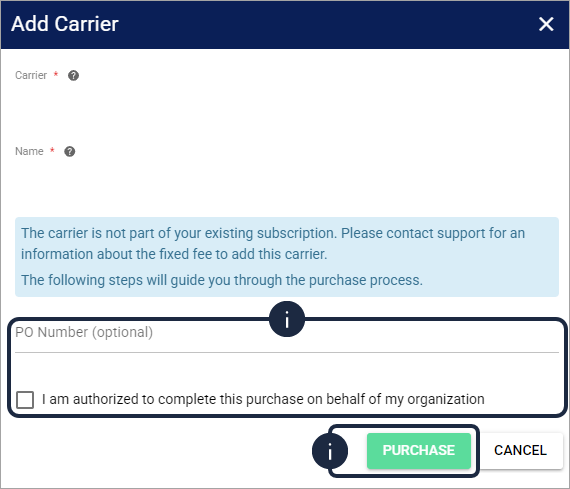
If the purchase confirmation appears, complete the following steps:
Review the purchase notice and any applicable charge information.
Optionally enter a PO Number.
Select I am authorized to complete this purchase on behalf of my organization.
Click Purchase to confirm the Carrier addition.
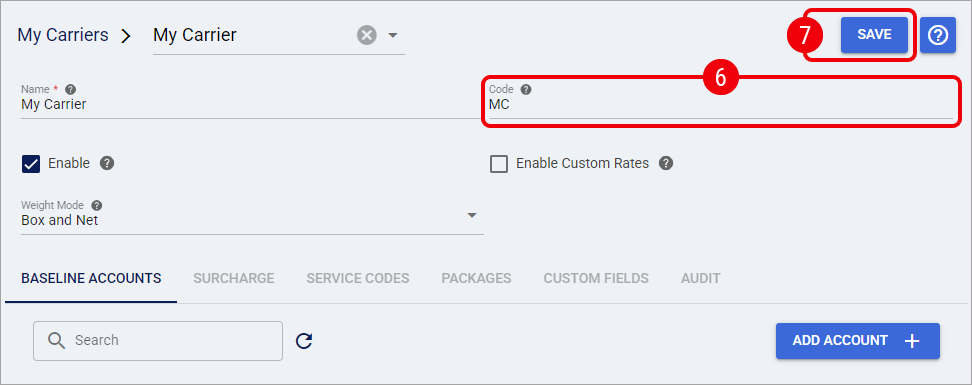
Once the Carrier is added, you will be automatically redirected to the Carrier page to continue setting it up.
Enter the Code of the Carrier as it appears in your host system.
The Code of the Carrier must match exactly the value defined in the host system. Any discrepancy (including casing or extra spaces) may prevent the carrier from working correctly.
Click Save.
If your facility utilizes the centralized Pickup Schedule, we highly recommend adding this new carrier to your calendar now. While not required to process labels, this ensures accurate induction metrics for your Insights dashboards. To learn more, see 📄 Understanding the Centralized Pickup Schedule & Expected Induction Logic [Information].
Adding a Baseline Account
From the Carrier page, click Add Account to create a new Baseline Account.

You will be redirected to the Baseline Account page to complete the setup.
Entering incorrect values will prevent the system from generating shipping labels.
General Tab
In the General tab, define the administrative properties:

Name: Enter a descriptive name for the account.
Enter a descriptive name based on unique properties. E.g.:
Carrier Name - Account Number (CarrierX - 123456789)
Carrier Name - Consolidator Name (CarrierY - MyConsolidator)
Carrier Name
Usage: Select the most suitable option:
Test: Used for sandbox or onboarding purposes.
Production: Used for live shipping.
Keep the Status field set to its default Active value. An account must be Active to remain fully editable. For detailed conceptual information on account statuses, refer to 📄 How to Inactivate and Activate a Carrier Baseline Account [Step-by-Step Guide].
Carrier Tab
The Carrier tab contains the connection credentials, shipment type, pickup settings, and sender information for the Midland Transport Baseline Account.
Connection and Carrier Selection
API Key: Enter the API key provided by Midland Transport to authenticate shipping requests.
Sender ID: Enter the sender identifier provided by Midland Transport.
Carrier Id: Select the applicable shipment type:
Midland Courier for courier shipments.
Midland LTL for Less Than Truckload shipments.
PickUp API Key: Enter the separate pickup API key provided by Midland Transport when configuring LTL pickup processing.
Pickup Scheduling
For Midland LTL, configure the following settings to control automatic pickup scheduling:
Weekends Mode: Determines which weekend days are excluded from automatic pickup scheduling. Select Saturday and Sunday when neither day should be considered available.
Pickup open time: Specifies the beginning of the available pickup window.
Pickup close time: Specifies the end of the available pickup window.
Pickup ready hours: Specifies the preparation time added when calculating pickup availability.
Default pickup instructions: Enter instructions to include in pickup requests when Order-specific instructions are not provided.
Midland Transport requires a minimum two-hour interval between the calculated pickup Ready time and the applicable Pickup close time.
If the remaining interval is shorter than two hours, techSHIP automatically searches for the next eligible pickup date and time according to the configured scheduling rules.
For example, when Pickup open time is 08:00, Pickup close time is 16:00, and the calculated Ready time is 14:30, the pickup is moved to the next eligible pickup day at 08:00, provided an eligible slot is available.
A calculated Ready time of 13:00 remains on the same day because the two-hour minimum is satisfied.
The automatic calculation respects Pickup ready hours, Weekends Mode, and applicable pickup scheduling availability.
If Ready time is explicitly specified at Order or manifest level, that value is preserved rather than replaced by the automatic calculation.
Sender Address
Configure the sender address associated with the Midland Transport connection:
Sender name: Enter the sender's name.
Sender company: Enter the sender's company name.
Address 1: Enter the primary address line.
Address 2: Enter an additional address line when applicable.
City: Enter the sender's city.
State/province: Enter the sender's province or state.
Zip: Enter the ZIP or postal code.
Country: Select the sender's country. The available origin countries are Canada and United States.
Contact Name: Enter the sender's contact name.
Contact Phone: Enter the sender's contact telephone number.
Ensure that Country is selected and saved. Existing accounts without a sender country must be updated to avoid incorrect domestic or international shipment classification.
Labels Tab
Midland Transport supports the following label formats:
PDF
PNG
ZPL, for supported courier services only
ZPL is available for Courier Ground, Courier Air, Courier Speed Letter, and Courier Deferred Air.
For Midland LTL, use PDF or PNG.
In the Labels tab, configure the applicable label preferences:
Mode: Select a supported label format.
Size: Select the required label size. The integration maps 4 × 6 and 8.5 × 11-inch output sizes to the corresponding carrier print preferences.
Orientation: Configure label orientation when required by the printing workflow.
Finalizing the Setup
Once you have entered the required information, click Save.

After you save the Baseline Account, check whether the Registration tab or a registration status badge is available.

If neither is available, the Carrier does not use this Registration workflow in techSHIP. If registration is still pending, open the Registration tab and press Registration, then complete 📄 How to Register a Carrier Baseline Account [Step-by-Step Guide] before creating shipments.
From the Carrier page, you can now see the Baseline Account listed with the administrative status Active. The Active status is separate from the account's registration status.

The Baseline Account configuration is now saved. You can continue with Configuring a Client Account below to assign the Baseline Account to a specific Client.
Configuring a Client Account
Adding an Account
Before adding a Client Account, ensure that the Client has been created. For instructions creating a Client, see: 📄 10 - How to create a Client profile [Step-by-Step guide].
Click Clients from the left menu under the Clients section.
Click the Edit icon for the desired Client.

Click Add Accounts.

Optionally, use the Search box to search by Baseline Account Name or Carrier.
Select the Baseline Accounts that will serve as the foundation for your new Client Accounts.
Click Add Accounts.

A toast notification will confirm the accounts were successfully assigned. Click the Refresh icon if recently added accounts are not displayed.

Click Edit on each newly created account.
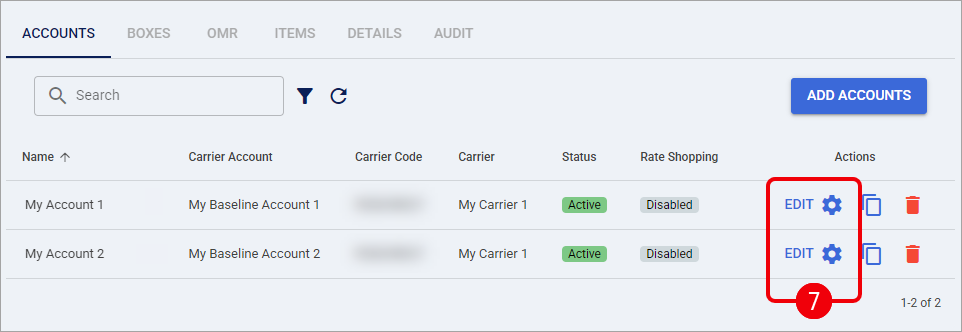
Configure the available options in each tab (except Carrier).

For complete instructions on configuring this settings, see 📄 How to configure the Billing Account General Options tab [Step-by-Step guide].
Carrier Tab
The Carrier tab contains the Client (Billing) Account's carrier-specific shipping settings.
Service and Payment Settings
Service code: Select the default service code to use for the Client Account. Standard service-code selection and override rules apply when an Order supplies its own service.
Recipient Delivery Notification by Email: Enable this option to request delivery-related email notifications through Midland Transport using the recipient's Ship-to email address.
Package reference 1: Select the value to send as the first package reference.
Package reference 2: Select the value to send as the second package reference.
Package reference PO Number: Select the value to send as the package purchase order number.
Package Invoice Number: Select the value to send as the package invoice number.
Payment type: Select the applicable billing arrangement:
Prepaid
Collect
Third Party
The selected Payment type is used when the Order does not provide its own freight payment terms. Order-level freight payment terms take precedence when provided.
For Third Party billing, ensure that the required billing address information is available.
Address Overrides
Override billing address: Enable this option when the shipment must use a billing address different from the standard address.
Override sender address: Enable this option when Midland LTL shipments must use sender information configured specifically for the Client Account.
When Override sender address is enabled, techSHIP sends the applicable overridden sender information together with the existing Midland Transport Sender ID.
The overridden sender information can be reflected in the shipping label and BOL.
When the Client Account sender override is disabled, an applicable Order-level Ship From address can also supply sender information for Midland LTL shipments.
If neither override applies, Midland Transport uses the sender identification associated with the configured account.
Specifying Rate Shopping Service Codes
Midland Transport supports Rate Shopping.
Configure the Client Account's available service codes to control the services considered during Rate Shopping. Ensure that the selected services are appropriate for the configured Midland Courier or Midland LTL account.
For detailed instructions on how to configure this, see: Include or exclude Service Codes when Rate Shopping [Step-by-Step Guide].
Label References
Midland Transport supports package and shipment reference values.
The Client Account's Carrier tab provides the following package-level reference fields:
Package reference 1
Package reference 2
Package reference PO Number
Package Invoice Number
These values are mapped to the corresponding package reference fields in the carrier shipment request.
Additionally, the General tab contains the shared Labels group, where the configured Reference 1–4 values can be used for applicable shipment-level references.
Use the appropriate reference source or fixed value according to the information that must accompany the shipment.
For a comprehensive guide on how to use label references, see: Using order References in your labels [Step-by-Step guide].
Finalizing the Setup
Once you have entered the required information, click Save.

With the account configured and requirements verified, you can now proceed to process orders as described below.
Configuring an Order
The steps described in this section are not required for carrier setup, and they are offered as an optional review if further order-level configuration is required.
Follow the UI Navigation steps in 📄 05 - How to edit an order’s information - [Step-by-Step guide], using the carrier-specific values provided in this guide.
The following carrier-specific settings are available when editing a Midland Transport Order.
Shipping Options
Service code: Select the service to use for the shipment.
Insurance: Enable carrier insurance when applicable.
Declared value: Enter the declared shipment value.
Collect on Delivery Amount: Enter the COD amount when applicable.
Freight NMFC class: Enter the applicable freight classification.
Freight NMFC sub class: Enter the applicable freight subclass.
Residential: Specify the residential delivery setting.
Tailgate delivery: Request tailgate service at delivery.
Tailgate Pickup: Request tailgate service during pickup.
Freeze protection: Request protection from freezing.
Keep Frozen: Indicate that the shipment must remain frozen.
Heated Service: Request heated transport service.
Dangerous goods: Identify shipments containing dangerous goods.
Stackable: Indicate whether the shipment can be stacked.
9AM Delivery: Request the applicable early delivery service.
Delivery Appointment: Indicate that a delivery appointment is required.
Oversized Shipment: Identify an oversized shipment.
Hold for Pickup: Request shipment holding for pickup.
Inside Delivery: Request inside delivery.
Signature required: Request a recipient signature.
Availability of individual services and shipment options is subject to the selected Midland Transport service and account eligibility.
Pickup Options
For Midland LTL, the following Order-level pickup fields are available:
Ready time: Specify the required pickup date and time. When entered, this value takes precedence over automatic scheduling.
Pickup close time: Specify an Order-specific pickup closing time. This value takes precedence over the applicable account or portal closing time when determining the pickup window.
Pickup Instructions: Enter instructions to include in the pickup request. These take precedence over the Default pickup instructions configured in the Baseline Account.
If Ready time is not specified, techSHIP calculates the pickup date and time using the applicable Baseline Account pickup settings.
If the calculated time leaves less than two hours before closing, techSHIP searches for the next eligible pickup slot.
An explicitly entered Ready time is sent as entered, even when it does not satisfy the automatic two-hour scheduling check.
For automatically calculated pickups, an Order-specific Pickup close time takes precedence over the configured closing time. If the Order does not specify one, the applicable portal pickup window or Baseline Account closing time is used.
Manifest Processing
For Midland LTL, pickup requests are automatically submitted when the manifest is finalized, provided the Baseline Account uses pickup processing at manifest finalization.
The pickup request includes the shipments associated with the manifest and the applicable pickup schedule.
Each package must have valid length, width, height, and weight information.
For shipments containing multiple packages, the pickup request uses the total package count and weight, together with the maximum individual length, width, and height values.
If the carrier rejects the pickup request, techSHIP returns the corresponding pickup processing error.
Click Save to apply the order-level changes. After the Order is updated, continue with the standard shipping workflow.
Troubleshooting
Midland authentication fails: Verify that the API Key and Sender ID are correct in the Baseline Account's Carrier tab. Confirm that the credentials correspond to the intended account and environment.
Pickup API Key is required: For Midland LTL pickup requests, verify that the separate PickUp API Key is configured in the Baseline Account. The shipping API key does not replace the pickup credential.
Insufficient time to make this pickup today: Midland Transport requires at least two hours between the pickup Ready time and closing time. Review Pickup open time, Pickup close time, Pickup ready hours, and Weekends Mode. Automatically calculated pickup times are moved to the next eligible slot when possible. If the Order or manifest contains an explicit Ready time, review or change that value manually.
Pickup scheduled on an unexpected weekend day: Review Weekends Mode in the Baseline Account. Select Saturday and Sunday when both weekend days must be excluded from automatic pickup scheduling.
Pickup close time is incorrect: Review the Order's Pickup close time and the applicable Baseline Account or portal pickup window. An explicitly configured Order closing time takes precedence.
Pickup is not requested when the manifest is finalized: Confirm that the Baseline Account is configured as Midland LTL, that the applicable Pickup mode is set for manifest processing, and that the PickUp API Key is available.
Length, width and height are required for Midland pickup: Verify that every package in the shipment has valid dimensions before finalizing the manifest.
Total weight is required for Midland pickup: Confirm that the shipment contains valid package weights and that the total weight is greater than zero.
Pickup request fails for a multi-package shipment: Verify the dimensions of each package. The pickup request uses the maximum individual dimensions rather than adding package dimensions together. Correct any individual package dimensions that exceed the carrier's accepted limits.
Shipping label or BOL displays an unexpected sender: For Midland LTL, verify Override sender address in the Client Account's Carrier tab and review any Order-level Ship From address. Ensure the desired sender company and contact information are configured before processing the shipment.
Domestic shipment is classified as international: Confirm that Country is selected and saved in the Baseline Account's sender address. Update accounts with missing sender-country information.
Payment type is missing or invalid: Confirm that Payment type is configured in the Client Account's Carrier tab or that valid freight payment terms are provided at Order level. Review the billing address when using Third Party billing.
Rate Shopping fails or returns unexpected services: Confirm that the selected services are appropriate for the configured Midland Courier or Midland LTL account. Review service filters and the carrier's response for the affected request.
Requested label format is unavailable: Verify the label Mode selected in the Baseline Account's Labels tab. Use PDF or PNG for Midland LTL. ZPL is available only for the supported courier services.
Expected reference values are missing: Review the Client Account's configured package reference fields and the General tab's Labels group. Verify that the selected reference source contains a value for the Order or package.
Void request fails: Confirm that the Order has a tracking number and that the shipment is eligible for cancellation. Voiding a Midland Transport shipment is distinct from cancelling an LTL pickup request.
Pickup cancellation is required: Pickup cancellation is not supported through this integration. Contact Midland Transport to arrange cancellation of a previously requested pickup.