How to Generate a TNT Rate Shop Comparison Table Report [Step-by-Step Guide]
Last updated: November 2, 2026
The TNT Rate Shop Comparison Table report shows how techOMS selected shipping options based on Time and Transit (TNT) rate shopping for successfully allocated sales orders. It helps you compare shipping options, quantify cost savings, and audit the recorded financial breakdown associated with each option.
Use this guide to interpret the exported CSV and generate the report for the reporting period you need.
These decisions rely on transit time data provided by techSHIP. A sales order rule with the Calculate Time & Transit Action must be enabled; otherwise, the report will be empty.
For more details on the Calculate Time & Transit Action, refer to 📄 Rules Conditions and Actions Guide [Information]. For guidance on creating a sales order rule, see 📄 How to Create Sales/Purchase Order Rules [Step-by-step guide].
This report includes data only for orders that successfully ran through the TNT process and resulted in a shipment creation.
Report Structure
The exported report is a comma-separated value (CSV) file that you can use for business analysis. Applicable rate-shopping information recorded by techOMS is included with the available shipping-cost components so you can audit the financial breakdown. It serves two main purposes:
It allows you to analyze the shipping options considered for each order to quantify cost savings achieved by comparing the selected option against alternatives.
It provides data to analyze the profitability of the selected rate, helping you understand how much revenue is generated from your shipping markups.
Its schema is:
Order #: Sales order number.
Reference #: Shipment reference number.
Client Id: Customer ID as configured in the Extensiv Stable Fulfillment Channel settings. Blank otherwise.
Warehouse Id: Identifier of the warehouse considered.
Date And Time: Timestamp when the TNT options were evaluated for the order (this value is in UTC).
Selected: Indicates whether this specific shipping option (row) was the one selected by the TNT logic.
Enough Stock: Indicates whether the considered warehouse had enough stock to fulfill the entire order at the time of evaluation.
Carrier: Carrier code provided by techSHIP.
Service: Service code provided by techSHIP.
Rate: The recorded total rate for the shipping option, provided by techSHIP.
Estimated Delivery Days: Estimated delivery days, as provided by techSHIP.
Minimum Saving: The difference between the selected rate and the next cheapest rate.
Maximum Saving: The difference between the selected rate and the most expensive rate.
Amount: The shipping amount including fuel and other applicable surcharges or discounts, excluding taxes and markup.
Fee Markup: The applicable monetary value of the markup recorded for the rate.
Zone Skipping: The applicable zone-skipping charge recorded for the rate.
Base Amount: The Carrier base rate before surcharges, when provided by the Carrier.
Tax Amount: The applicable tax amount recorded for the shipping rate.
The CSV exports rate-shopping information already recorded by techOMS; generating the report does not request new rates from Carriers. Monetary fields may be blank when the corresponding information was not provided or stored. Base Amount is Carrier-dependent and may not be available for every rate.
For Minimum and Maximum savings, only warehouses with enough stock are considered. This information appears only on the row where Selected is Yes.
How to Generate the Report
To generate a TNT Rate Shop Comparison Table report:
You need the appropriate techOMS permissions to generate the TNT Rate Shop Comparison Table. Access is controlled separately from general Sales Orders export permission; see 📄 techOMS User permissions structure [Information].
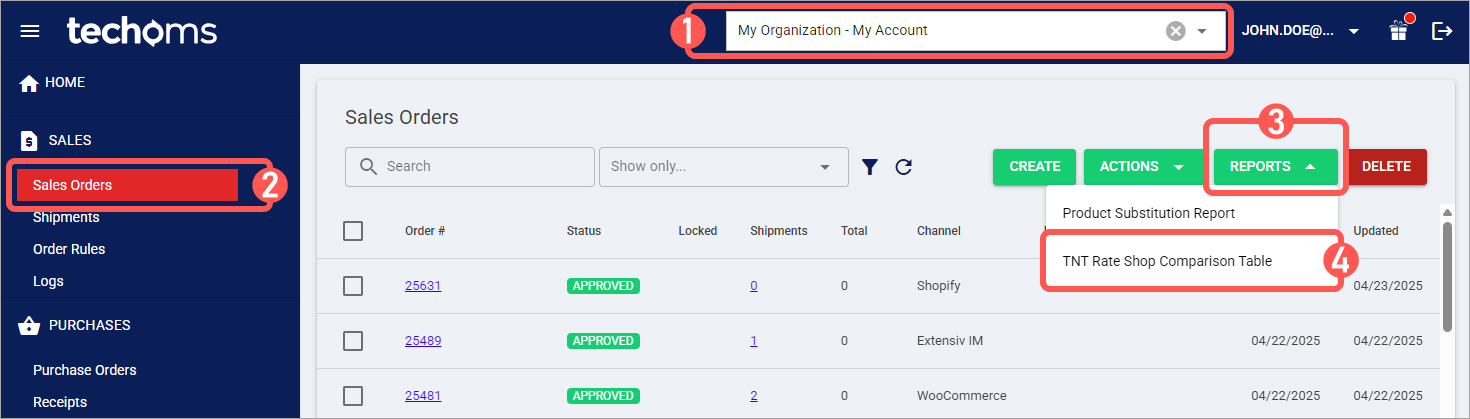
Select the desired account from the header switcher.
Click Sales Orders from the left menu under the Sales section.
Press Reports.
Click TNT Rate Shop Comparison Table.
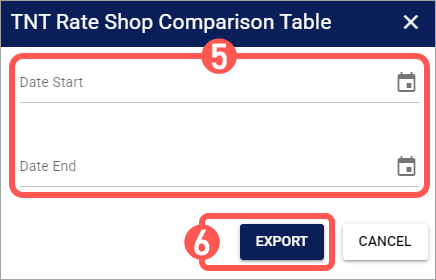
Set Date Start and Date End to define the period to be covered by the report.
Click Export and save the report file in the desired location.
The report will include data:
Based on the account's timezone.
Between the specified Date Start and Date End (inclusive).
Regardless of any filters applied to the Sales Orders.
All timestamps in the resulting CSV file will be in UTC.