How to Manage References for Sales and Purchase Orders: Create, Edit, Delete, and Filter [Step-by-Step Guide]
Last updated: September 29, 2026
You can use the References tab within a Sales Order or Purchase Order to manage key-value pairs associated with the order, its specific lines, or the assigned customer.
This guide explains how to view, filter, add, and edit references within an Order.

This article is divided into the following sections
- References Tab
- Accessing the References Tab
- Understanding the Reference Table
- Add a New Reference (Order & Order Line)
- Filter and Search References
- Edit or Delete a Reference
- Edit a Reference
- Delete a Reference
I. REFERENCES TAB
techOMS centralizes all reference data in a single view, allowing you to track codes and values associated with the order's lifecycle.
i. Accessing the References Tab


1. Open the desired Sales Order or Purchase Order.
2. Click the References tab.

ii. Understanding the Reference Table
The table displays the following information columns:
Type: Indicates the source level of the reference:
Order: Applies to the order as a whole.
Order Line: Applies to a specific line within the order.
Line #: Displays the specific line number (only populated for Order Line references).
Code and Value: The reference key-pair data (e.g., Code: InternalID, Value: 12345).
Context: Provides additional identifying information to help distinguish references:
For Order references, it shows the Order #.
For Order Line references, it shows the SKU.
II. ADD A NEW REFERENCE (ORDER & ORDER LINE)
You can manually add references to the Order or specific Order Lines directly from this tab.
References defined on a Customer profile are automatically copied to this list with the Order type when you assign that Customer to a Sales Order and save it. You do not need to add them manually. For more details on this process, see:
To add a reference:
1. Inside the References tab, click Add.

2. Enter the reference Code and Value.
3. Select the reference Type:
Order
Order Line: If you select Order Line, choose the specific Line item you want to associate the reference with.

4. Press Save.

III. FILTER AND SEARCH REFERENCES
When an order contains a large number of references, you can use the search and filter tools to locate specific data:
- Search bar: Quickly locate matches by Value.
- Quick Filter (Show only...): Instantly toggle the view between references Type.
- Advanced Filter: Narrow results more precisely as described in the procedure below:
1. Click the Filter icon next to the search bar.

2. Select the Type you wish to view.

3. Press Apply.

IV. EDIT OR DELETE A REFERENCE
You can modify or remove any reference displayed in the list, including those that were originally copied from a Customer entity.

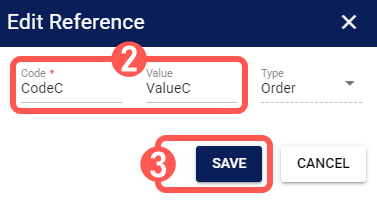
i. Edit a Reference
1. Press Edit next to the desired reference.

2. Update the Code or Value as needed.
3. Click Save.
ii. Delete a Reference
1. Press Delete next to the desired reference.

2. Click OK to confirm.
